UU Remote Plans Paid Membership While Basic Control Stays Free: An AI Terminal Workflow
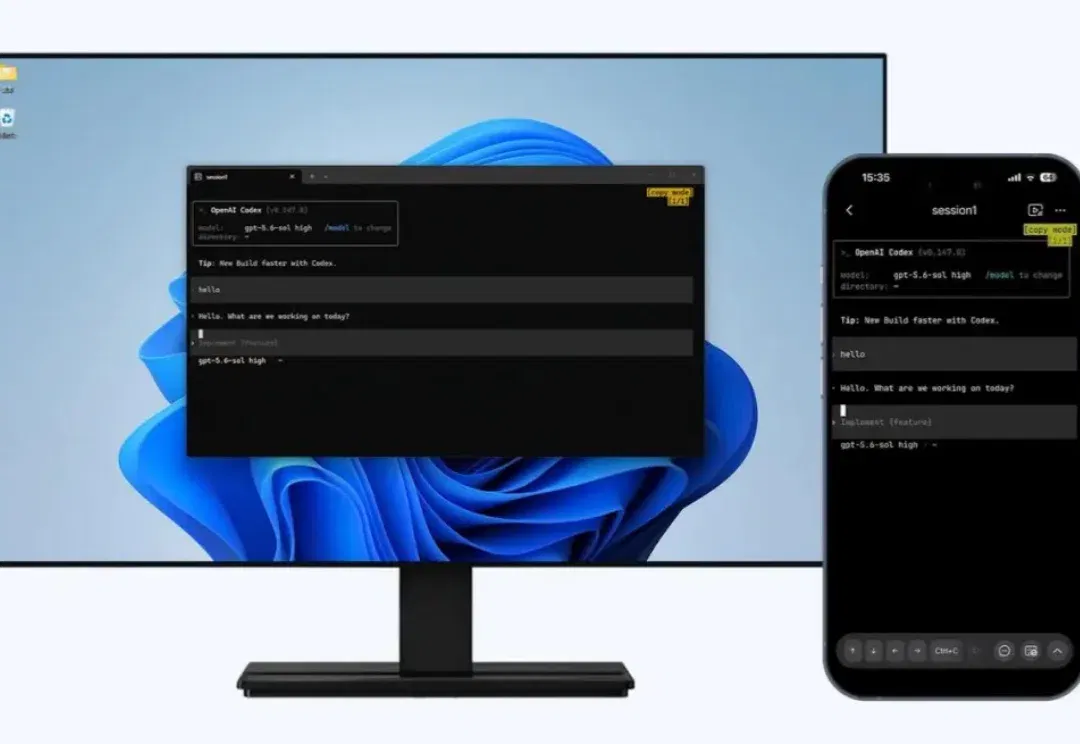
The author uses UU Remote to resume Claude Code and Codex tasks by phone, transfer files and map TCP ports between computers. Under the December 1 plan, basic control and terminals stay free; higher resolution and multiscreen features are paid, with platform, version and pricing conditions.
One of my favorite AI tools this year will start charging next month.
Strictly speaking, it is not an AI tool, but my AI workflow has become inseparable from it: NetEase's UU Remote, a remote-control application.
Over the past year, I have opened it more often than many AI apps.
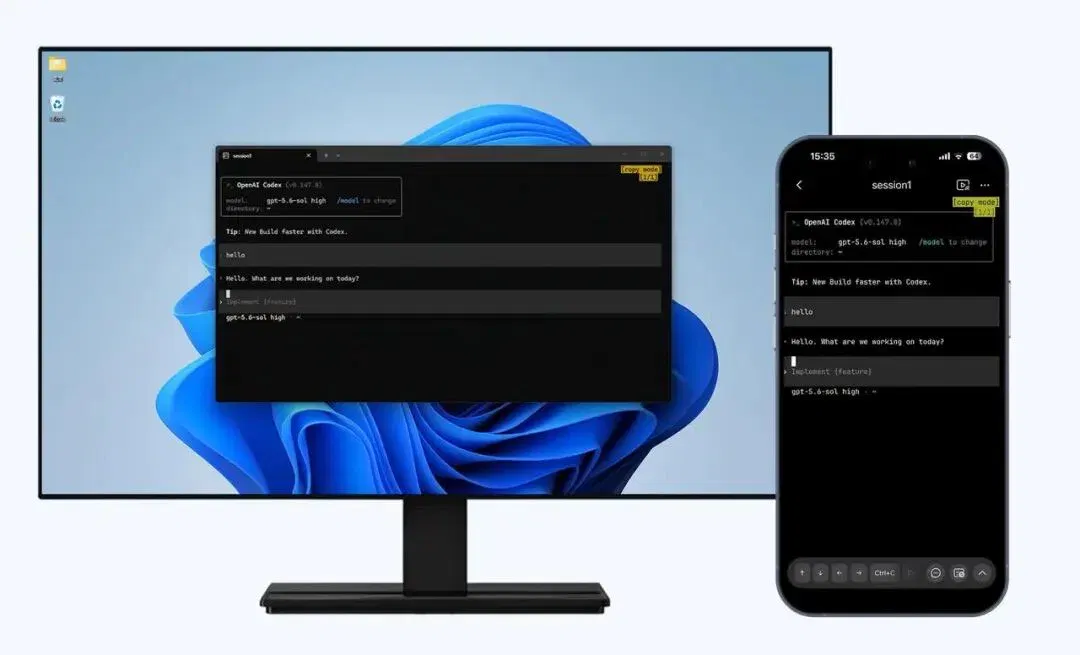
These days, when you give Claude Code or Codex a task, it often runs for half an hour, stopping every so often to ask whether you want it to continue.
The point is, you cannot stay in front of your computer all the time. My computer stays on in the lab year-round. When I am out, I connect back from my phone to take a look and send a reply. Friends around me who code with AI mostly do the same; ask what they use to connect, and the answer is usually UU.
That is because UU runs smoothly, has no ads, and keeps refining features for people who write code.
Below, I will go through how I have used it over the past year and share some tips. A few little settings are buried quite deep and are hard to discover unless you use it often. Enjoy!
Take Over Claude Code on Your Computer from Your Phone
First, install UU Remote on both your computer and phone, and log into the same account on both.
The official website offers Windows, macOS, iOS and Android versions, as well as a TV version. However, a TV can only act as the controlling device; it cannot be remotely controlled.
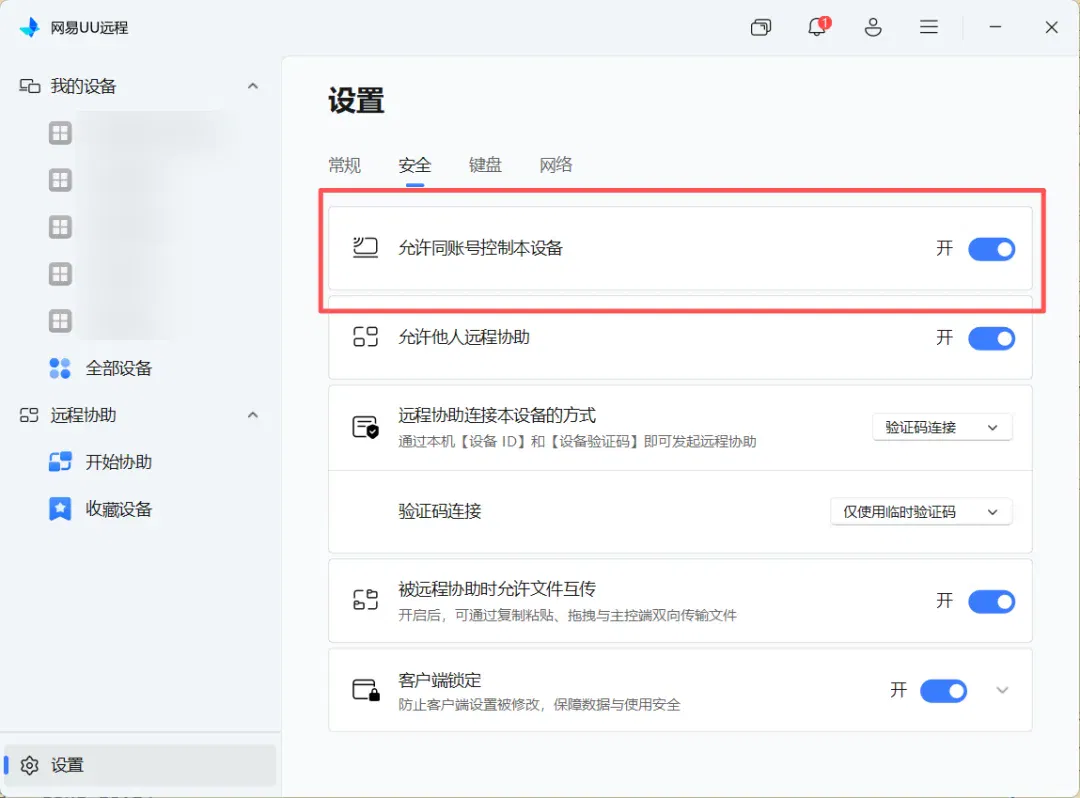
After installation, open Settings on the computer, switch to Security, and enable "Allow devices on the same account to control this device."
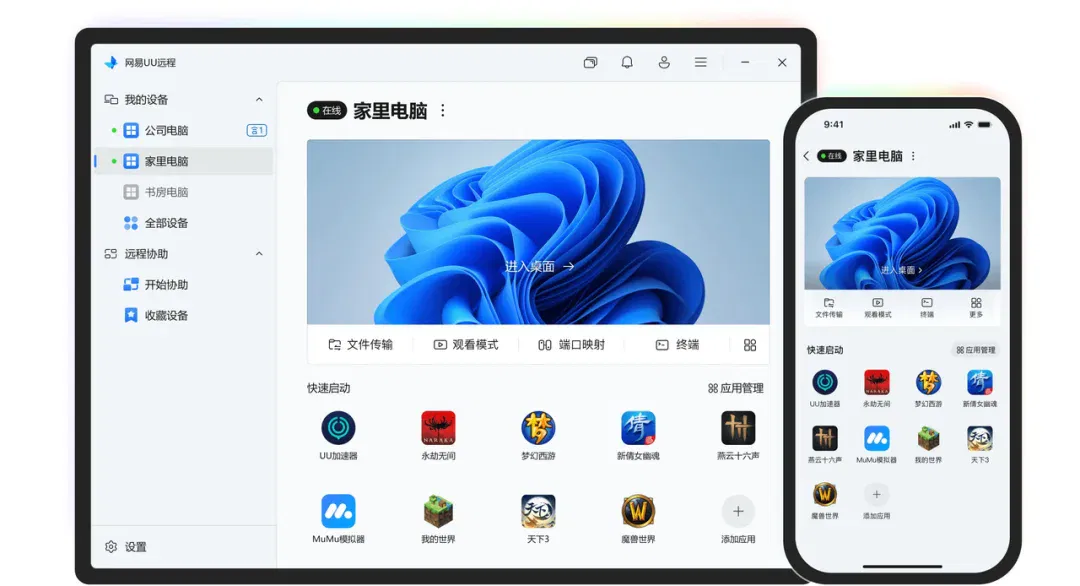
Once that is set up, the computer appears in the device list on your phone. If it shows "Online," you can connect. Tap it to reach a page like this.
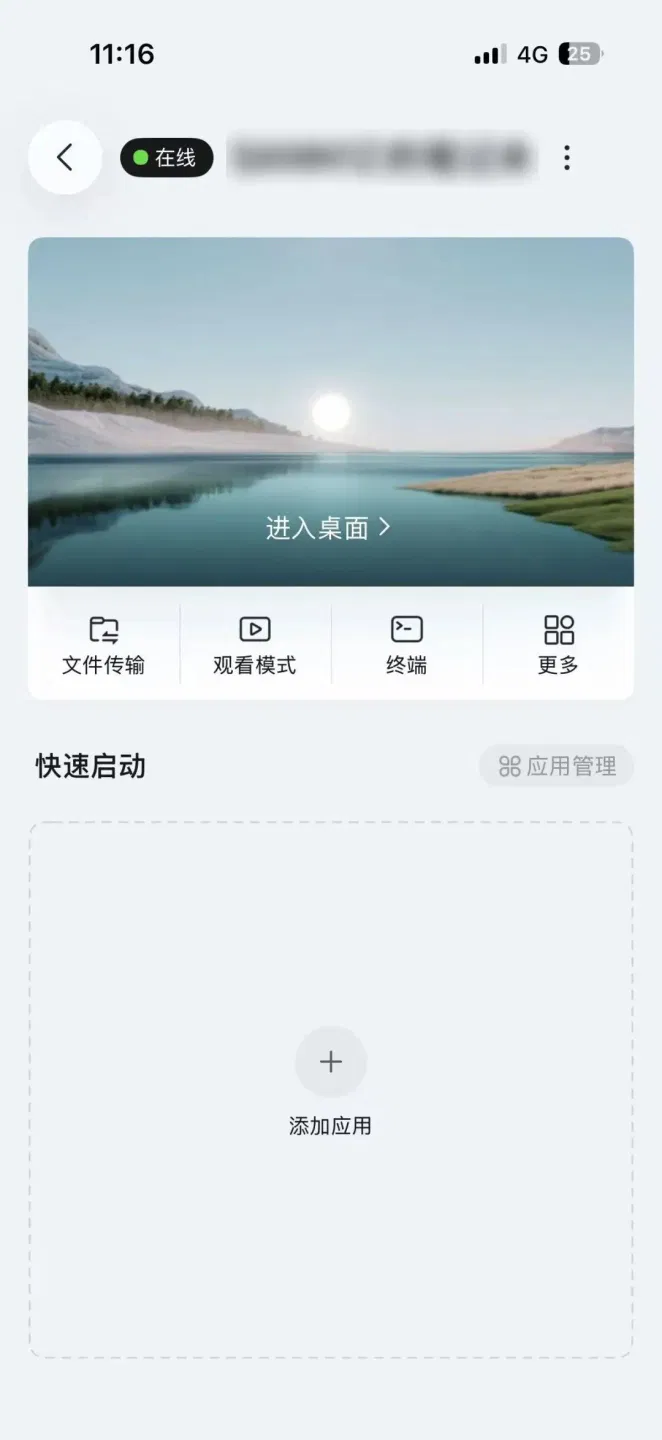
Then tap "Enter desktop" to bring the computer's screen onto your phone, with your finger instantly becoming the mouse. We will also use the adjacent File Transfer and Terminal options later.
You can put a few frequently used applications in Quick Launch below, then open them on the computer with a single tap.
If you use UU to manage AI work, I recommend tapping Terminal more often and Enter Desktop less often.
Remote desktop has to transmit the entire screen image. Terminal text becomes too small to read on a phone, so you keep having to zoom and drag.
The terminal's mobile adaptation is excellent: it transmits only text, giving you a clean command-line window on your phone that is smooth even over 4G.
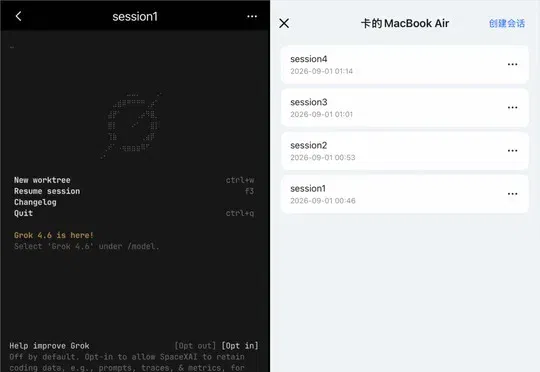
Open Terminal and tap Create Session in the upper-right corner to create one. The first session is called session1.
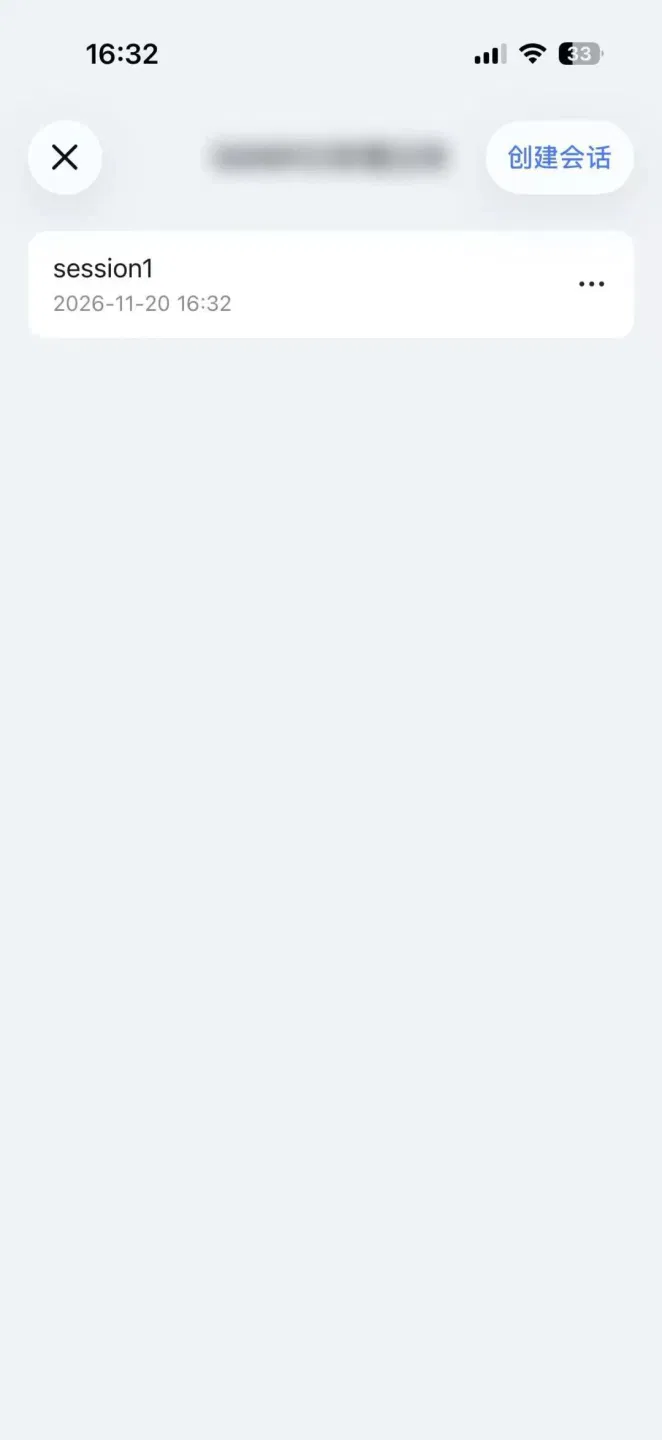
The interesting part is that creating a session on your phone also opens a window with the same name on the computer. Both are the same session: what you type on your phone appears on the computer's screen too.
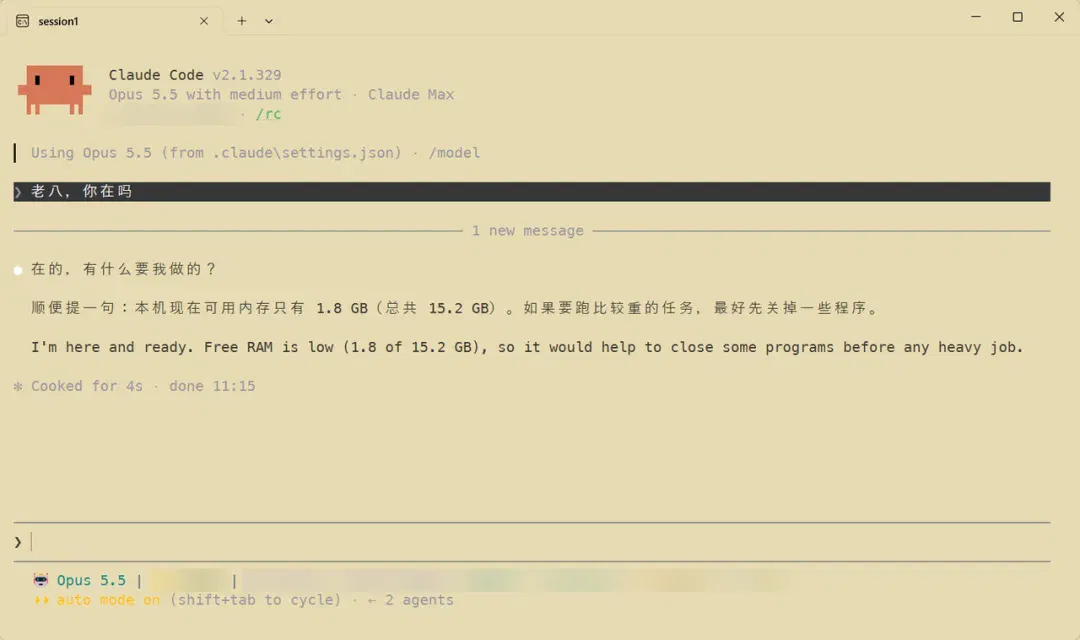
Inside the session, it is just like opening Terminal on the computer. Type codex or claude to summon the AI. I tried it once over Wi-Fi and once over 4G.
I opened Claude Code and asked, "Lao Ba, are you there?"
It replied, "I'm here. What would you like me to do?" It also casually reminded me that the computer had only 1.8 GB of available memory left and that I should close some programs before running heavy tasks.
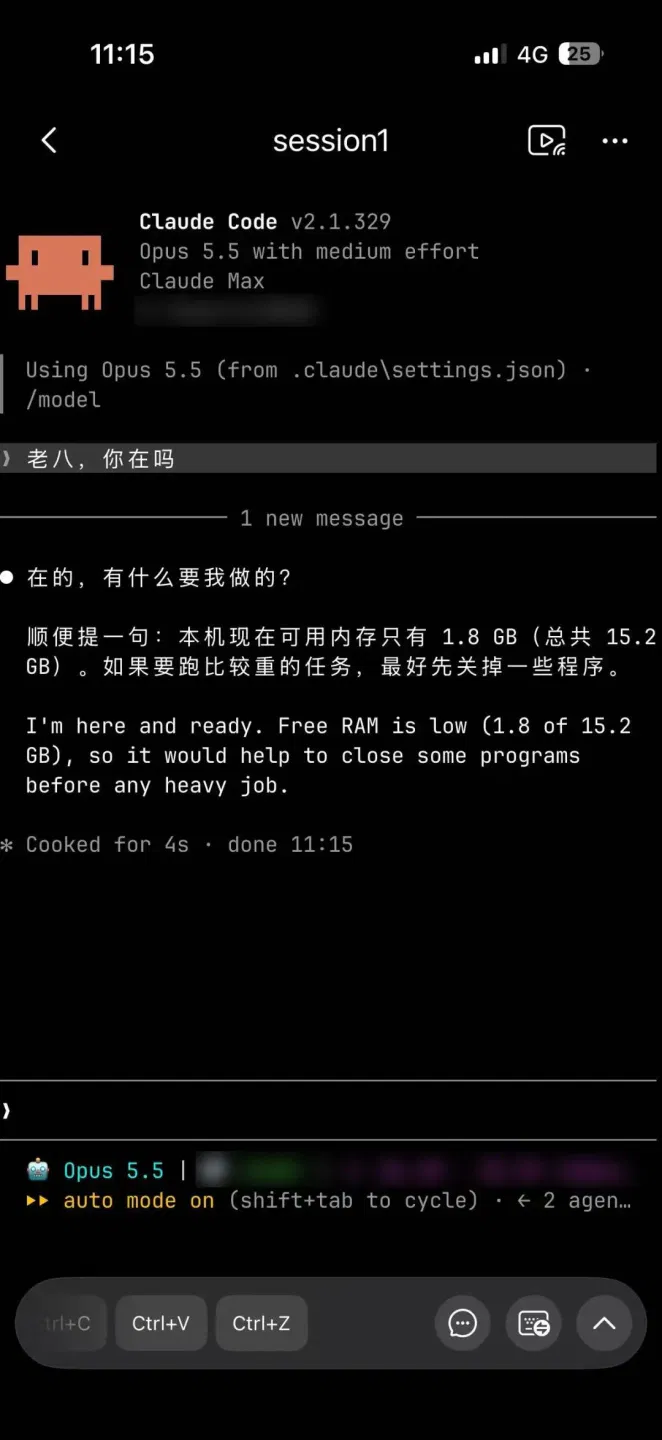
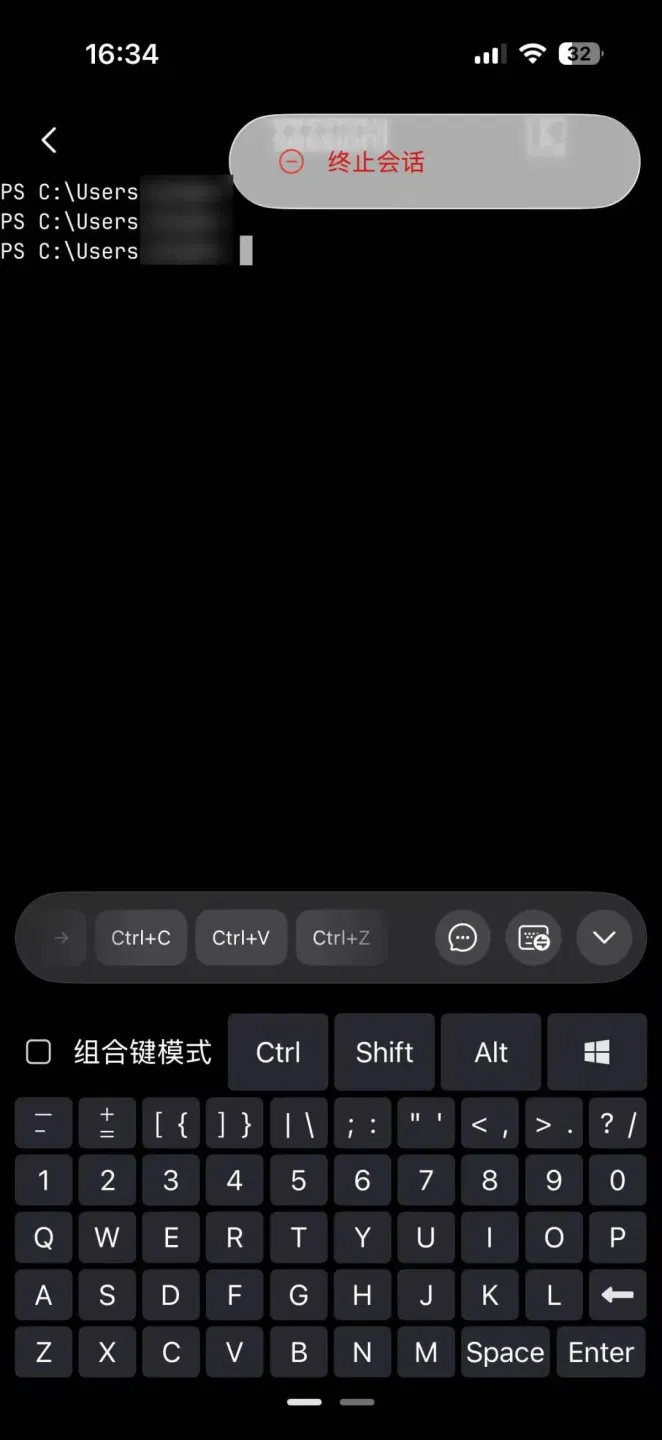
When typing on a command line from a phone, the biggest worry is missing function keys.
UU places a row of shortcuts above the keyboard, including arrow keys, Ctrl+C, Ctrl+V and Ctrl+Z. You can also bring up a full computer keyboard below, complete with Ctrl, Shift, Alt and Windows keys. Enable "Key combination mode" to use combinations!
These keys are almost indispensable when using AI. When it offers several options, use the arrow keys to move up and down. If it goes off track, quickly press Ctrl+C to stop it. To paste an error message as a prompt, press Ctrl+V. Long live copy and paste!
The shortcut row also has a speech-bubble button. Tap it to open a separate text box using your phone's own input method. This makes it much easier to type Chinese, enter long sentences or use voice input when giving AI a request. (I strongly recommend voice input here; when I am out, I often give Lao Ba work instructions aloud.)
Once you have entered your request, simply tap Back in the upper-left corner. This only leaves the session temporarily; it keeps running on the computer, and you can open it again later to continue.
Only when the task is really finished do you choose Terminate Session from the top menu to close it. I often give it a task, lock my phone and do something else, then open it again a while later to see how far it has got.
I first used Claude Code's own remote control, continuing a computer session through the Claude app on my phone. I still think that was the most comfortable experience.
Later, my Claude account was banned once, and afterward I became reluctant to connect this way through the mobile app. I mostly switched to UU plus a terminal. UU is not tied to one tool: both Claude Code and Codex can run through it.
The experience already feels very close to the official one, and it is stable too.
When you are at the computer, you can use UU's built-in command-line tool, uuyc-cli, to create a session and run Claude Code inside it. Once you are out, open Terminal on your phone and the session is in the list. Tap it to pick up where you left off.
To create a session, type uuyc-cli lterm new followed by a name. To reattach to a particular session later, use uuyc-cli lterm attach followed by its name. To see which sessions are open on the local machine, uuyc-cli lterm ls lists them.
I ran uuyc-cli lterm ls on the computer, and session1, which I had created on my phone that afternoon, appeared with a status of running, showing that it had been running on the computer the whole time. Add --help to see all commands in this group, including renaming, querying and closing sessions.
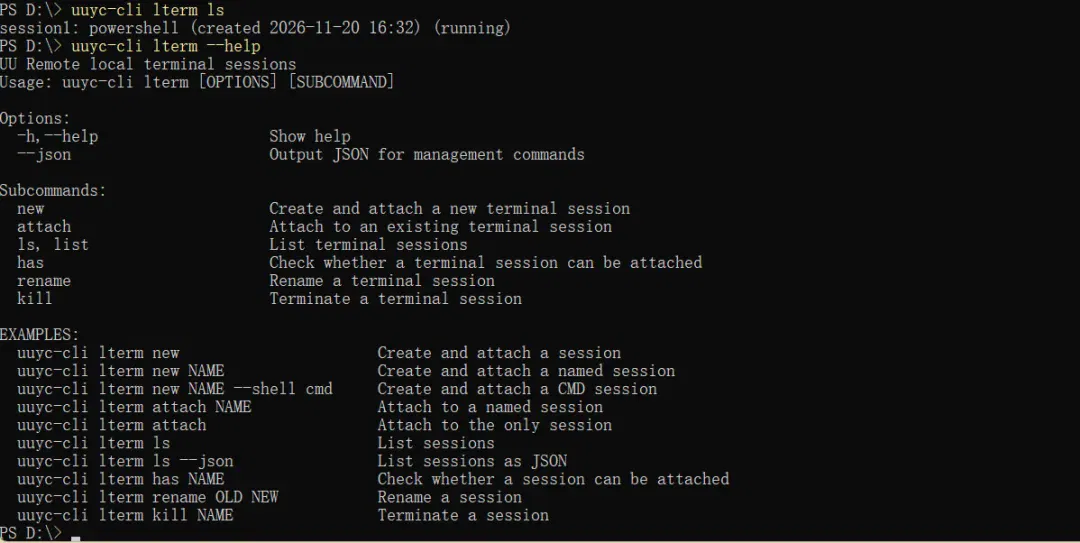
There is another interesting detail: NetEase's help documentation specifically says to use the list and has commands when scripts or agents query sessions. Clearly, the tool was intended for agents to invoke themselves.
A Few Features Hidden Deeper Down
My computer is in the lab, connected to a large monitor, with everyone's seats close together. I often leave WeChat open on it. When I am away and operating it remotely from my phone, the people beside it can see what is happening on the screen just by looking up.
So after connecting, I always check the security settings first. On the phone, find Security under Actions at the bottom; on the computer, it is in Control Center at the upper right.
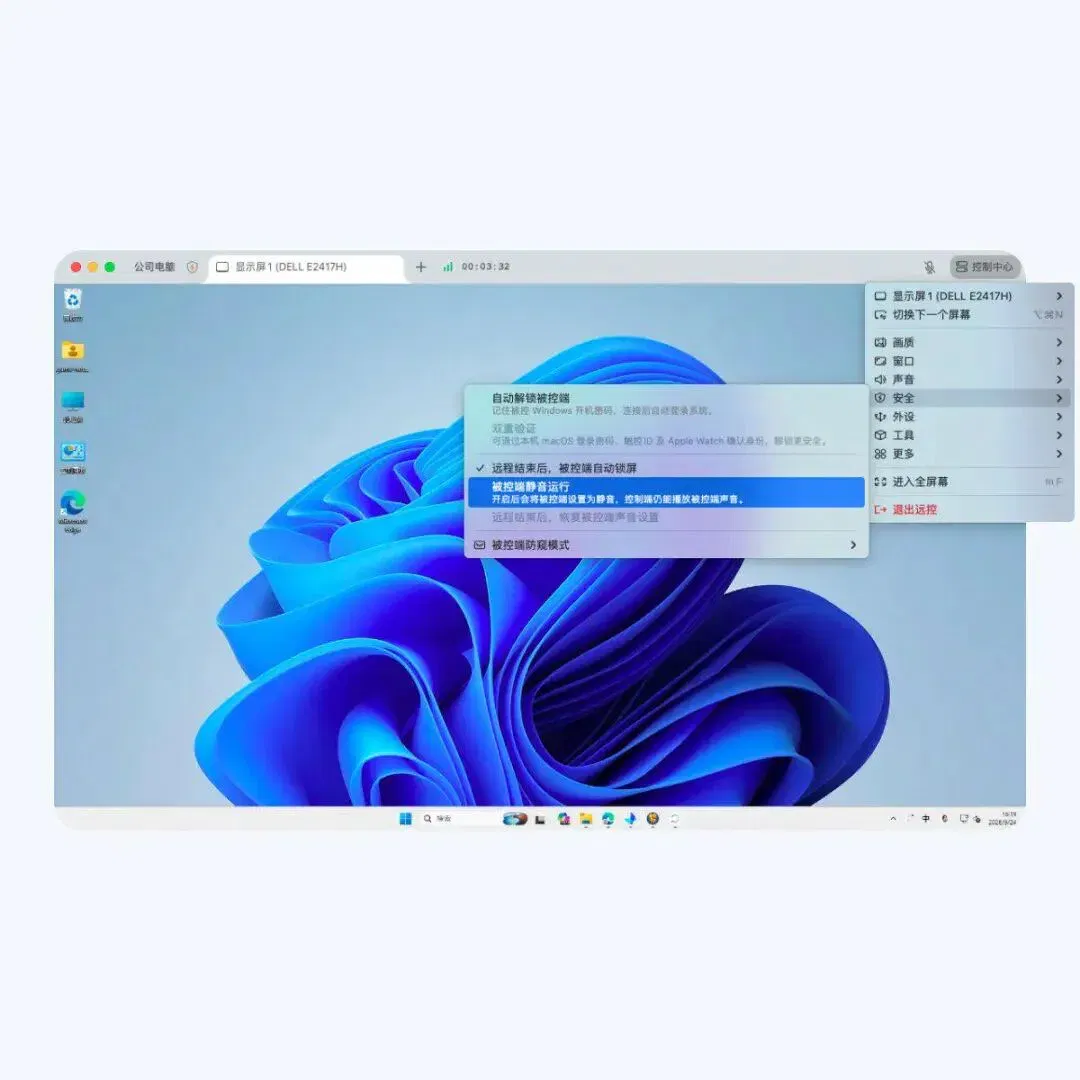
The first thing to enable is Privacy Mode on the controlled device. Once it is on, the lab monitor goes black. I can operate normally from my phone, while people in front of the monitor cannot see anything.
Privacy Mode covers active use. I also enable "Lock the controlled device when the remote session ends." As soon as I exit remote control, the computer locks automatically, so I do not have to worry that I forgot to lock it before leaving and someone else can sit down and use it.
But typing the login password every time I reconnect to a locked computer is inconvenient, so I enable "Automatically unlock the controlled device" too. Enter the Windows login password once, and when you later connect to the locked computer, you do not need to type it again on your phone.
UU says this password is stored only locally in encrypted form and is not uploaded. If you are concerned, you can add Face ID verification as another layer.
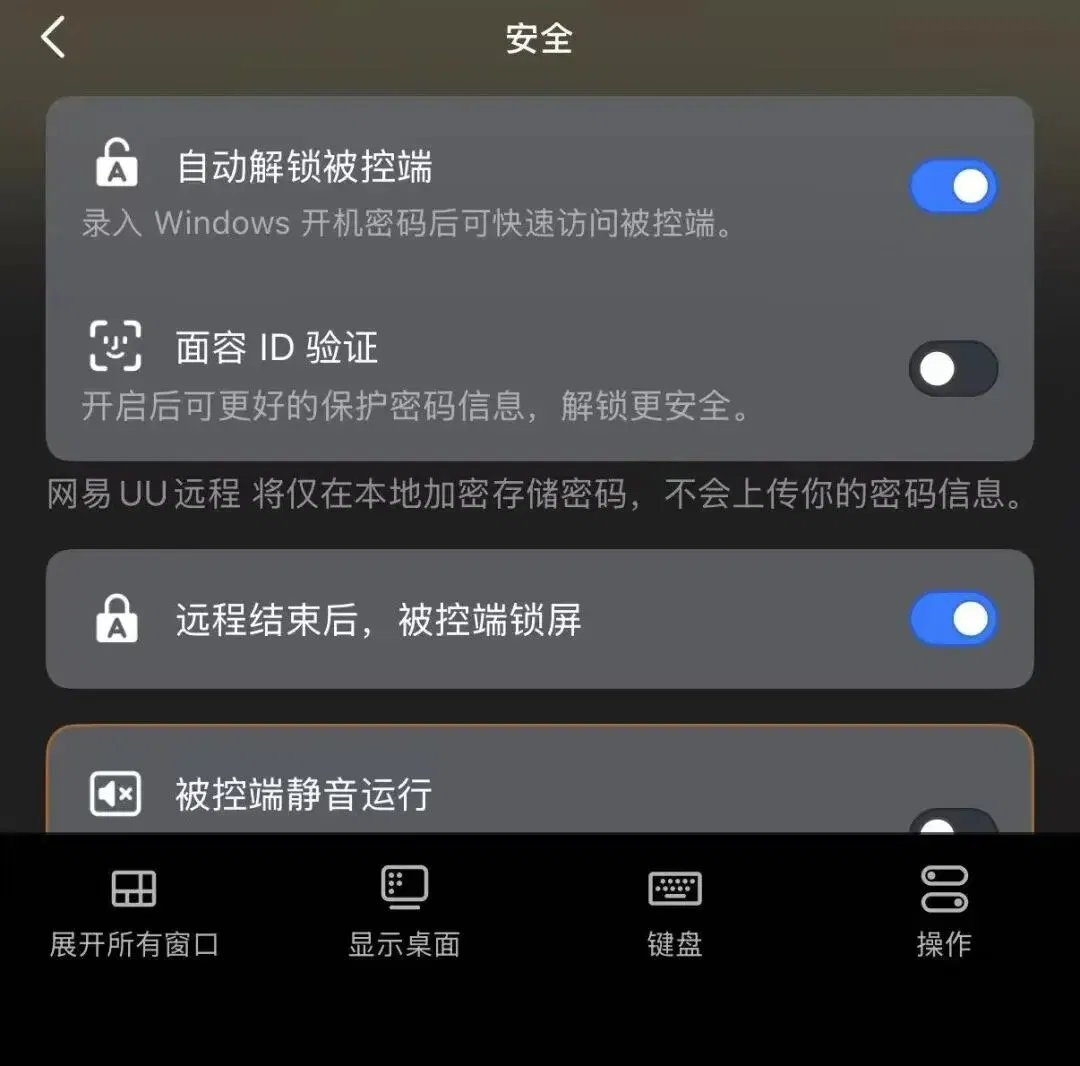
With automatic locking and unlocking together, it locks when I leave the app on my phone and unlocks when I connect. I hardly have to manage it myself.
The computer's settings also include Client Lock. Set a security password, and someone sitting at your computer cannot change UU's settings or quit the client, so you can still connect remotely.
Beyond privacy and screen locking, the clipboard can be synchronized too, which is extremely useful.
To copy an error message on your phone and paste it into the computer's terminal, find Security under Actions during remote control and enable Sync Clipboard. A prompt also asks you about this on the first connection. Synchronizing from a phone to a Windows computer supports plain text only, with a limit of 60,000 characters—more than enough for a prompt.
For files, use File Transfer on the device page. Screenshots from your phone's photo library and AI-generated files on the computer can move directly in both directions, without sending them to yourself on WeChat.
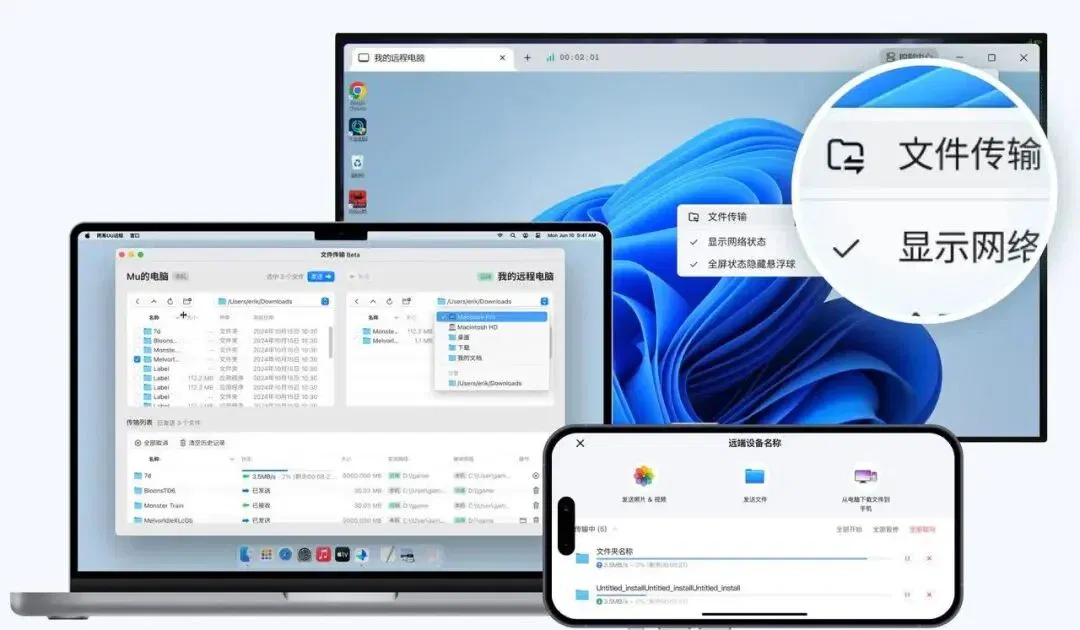
A more advanced feature is port mapping. A classmate of mine leaves a desktop computer in the lab and connects back from her own laptop, giving all the heavy work to the lab machine.
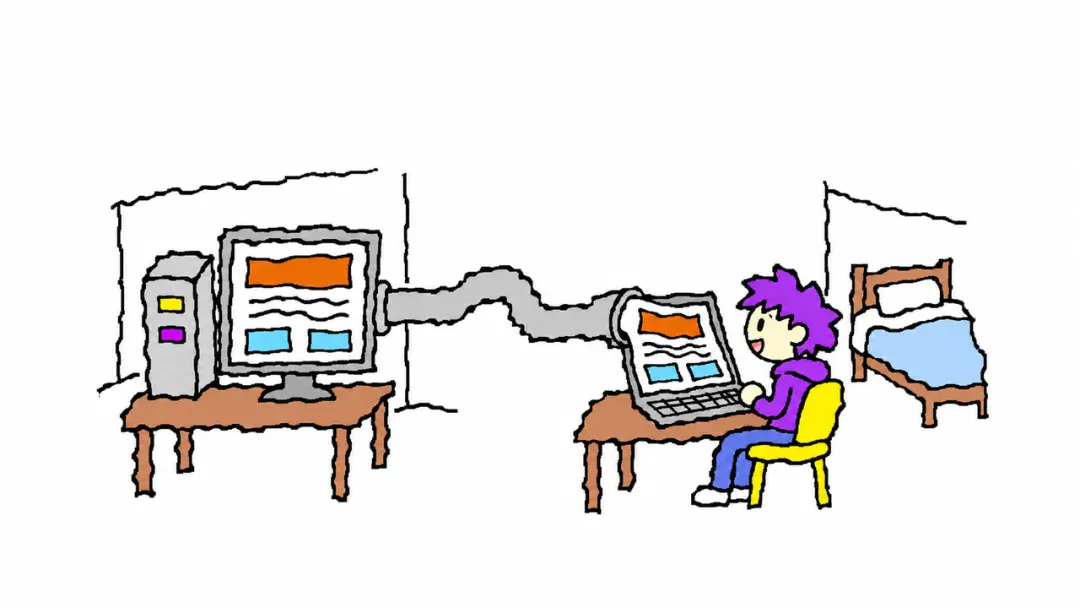
If that lab computer is running a web service or Jupyter, clicking around its browser through remote desktop feels awkward. UU has a port-mapping feature that brings a service on that computer to the one in front of you. Once configured, you can open it in your own browser using 127.0.0.1 plus the port number, without a public IP or changing the router.
It can do quite a lot. If AI writes a web page on the lab computer, you can preview it in your own laptop's browser as soon as the development server starts. The same goes for Jupyter, databases and so on. The mapping target can also be another device on the remote computer's local network, such as a NAS at home.
I have used it to get through a network barrier myself once.
I had left an unused laptop in Suzhou and wanted to connect it to my own network. It was on a private network and could not be reached directly from outside. During those days of debugging, I used UU's port mapping to map its service ports to the computer at hand, saving me from setting up my own network tunneling.
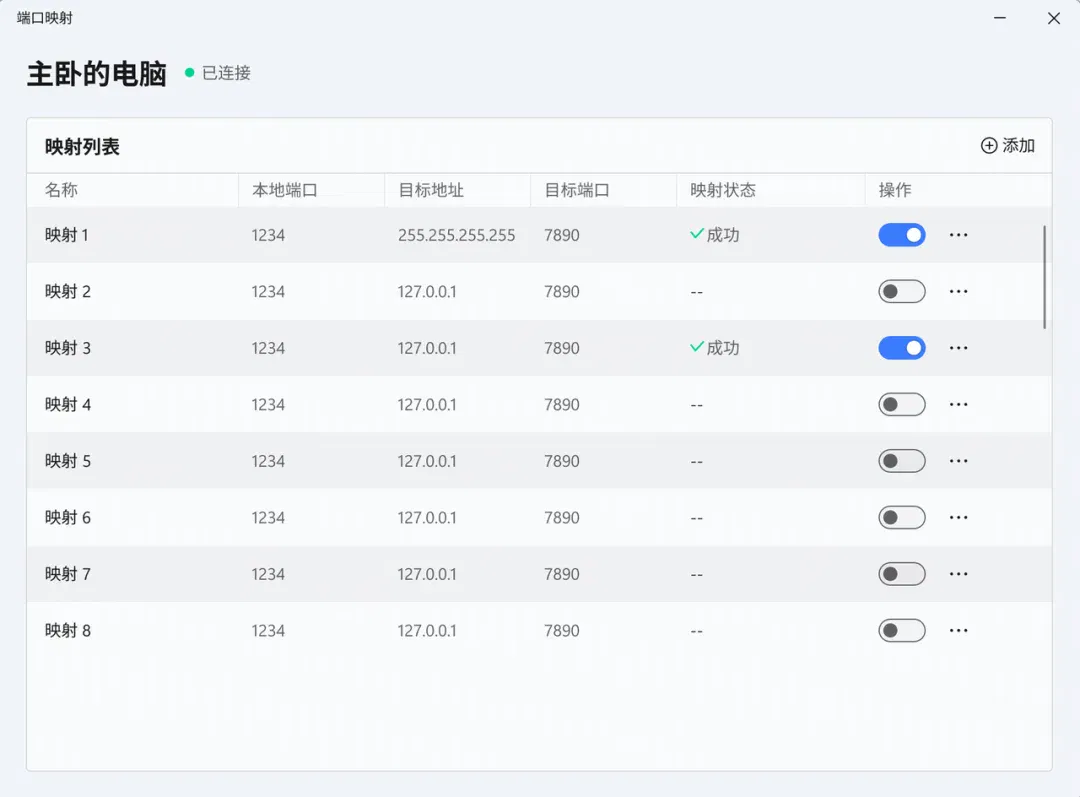
Configuration is on the computer. Open the target device: in newer versions, its device card has a Port Mapping button directly; in older versions, it is under More.
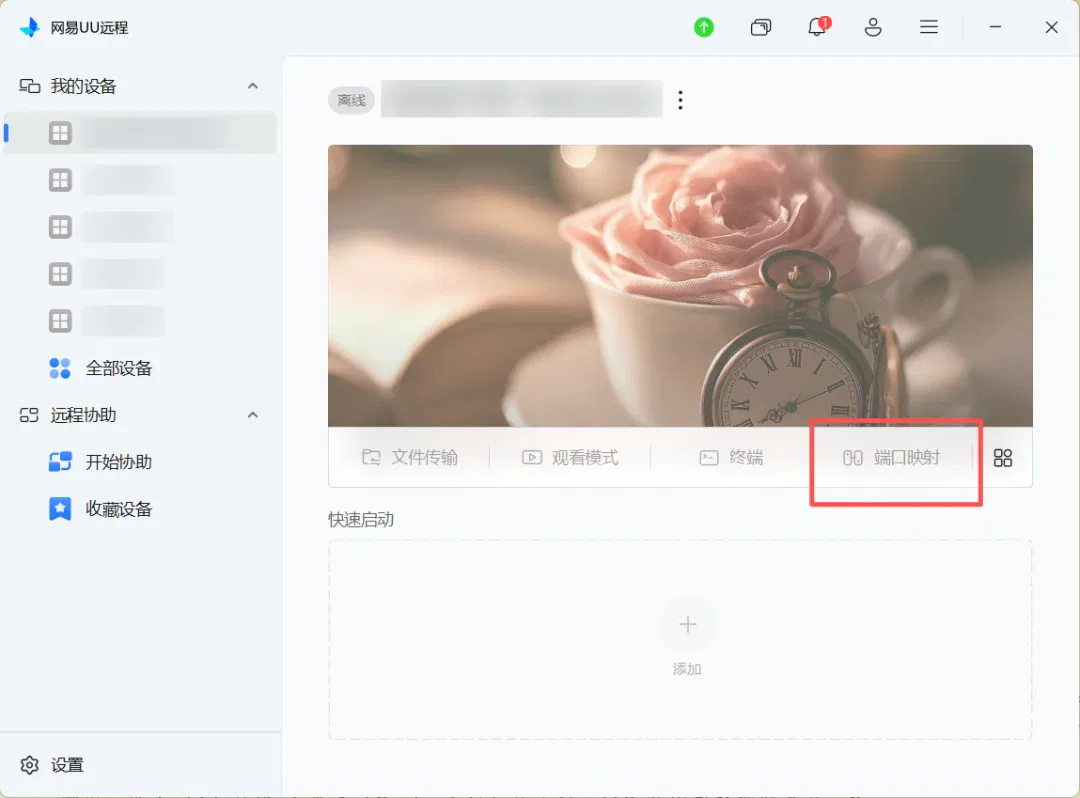
Create a rule, enter its name, local port, destination address and destination port, then click Save and Enable.
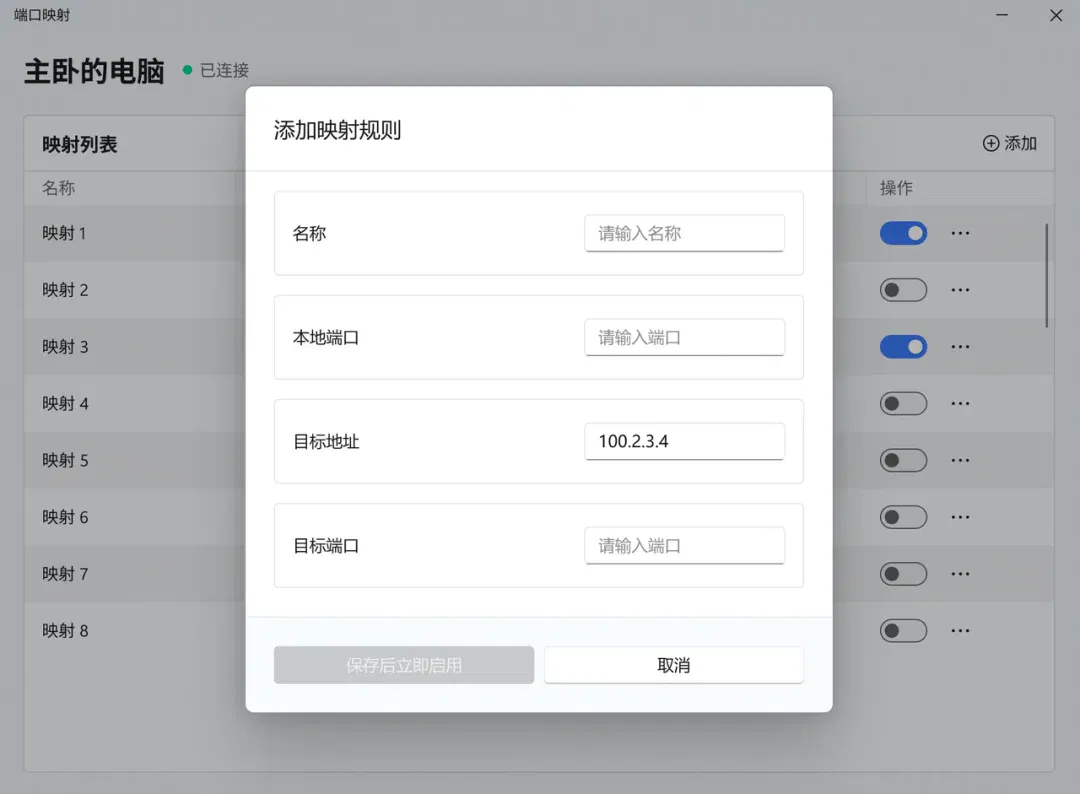
Once the list shows Success, it is ready to use. Port mapping works only between two computers, requires Windows version 4.21.0 or later or macOS version 4.32.0 or later, and supports TCP only. Closing the mapping window also stops the mapping.
While writing this article, I went through UU's help pages and release notes from start to finish and dug up several features I had never noticed. By the time I finished, I had learned a few new tricks myself.
For example, the device page has always had a Viewing Mode option that I had never tapped. Once enabled, you can only watch the computer's screen, without touching its mouse or keyboard. When checking AI's progress from a phone, the biggest worry is accidentally tapping something else; this mode makes watching much more reassuring.
If you do not want it to occupy the entire screen, you can switch to Small Window Mode. On a computer it is a floating window; on a phone it is picture-in-picture. You can switch over to chat with your girlfriend while still watching progress in the corner. In newer versions, UU automatically opens a small window when the mobile app goes into the background.
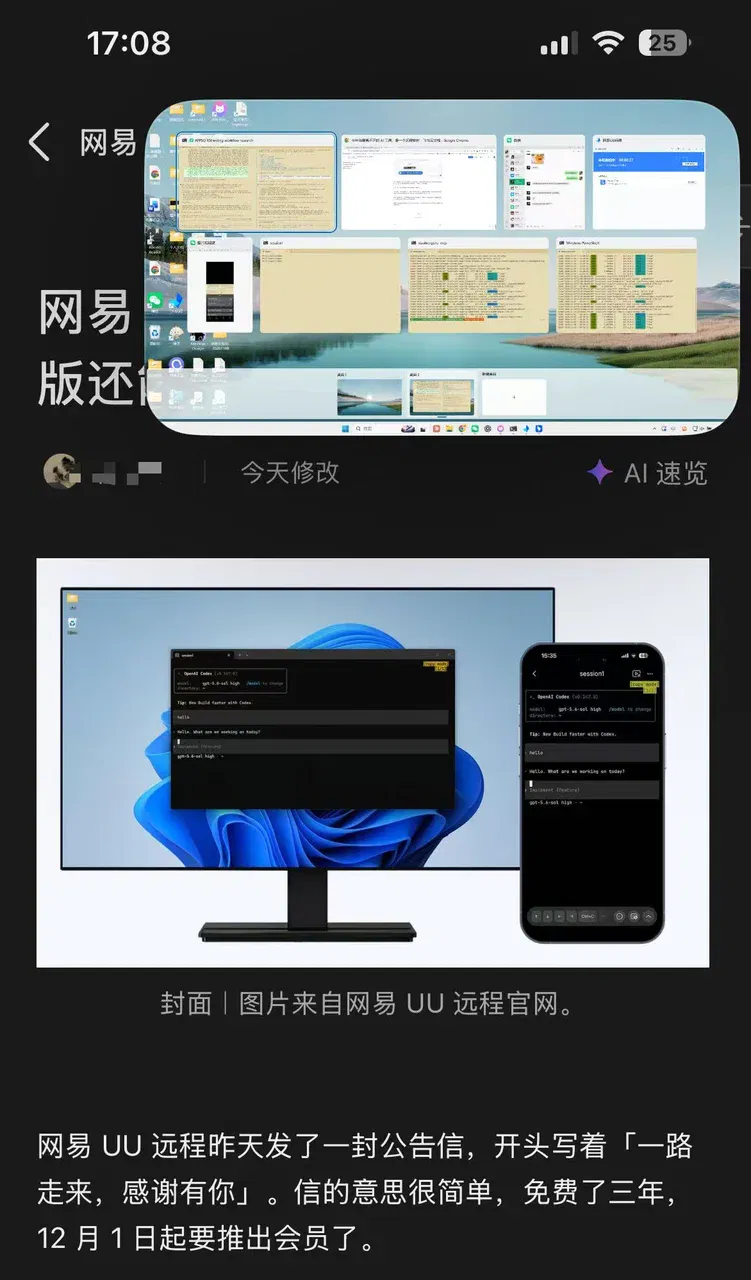
If you work remotely from a library or café, a Boss Key can also come in handy: one press hides UU's main window and all remote-control windows together. No shortcut is assigned by default; on Windows, you need to record one yourself under Keyboard in Settings.
The earlier privacy settings protect the computer being controlled; this one protects the computer in front of you.
Will It Still Be Worth Using Once It Charges?
Starting December 1, UU will introduce memberships, while basic remote control remains free, with unlimited sessions and duration, no queues and no ads. The free version supports up to 1080P at 30 frames per second and a maximum bitrate of 8Mbps. Features such as 4K, 144 frames per second, multiple monitors and virtual displays move into the paid tier.
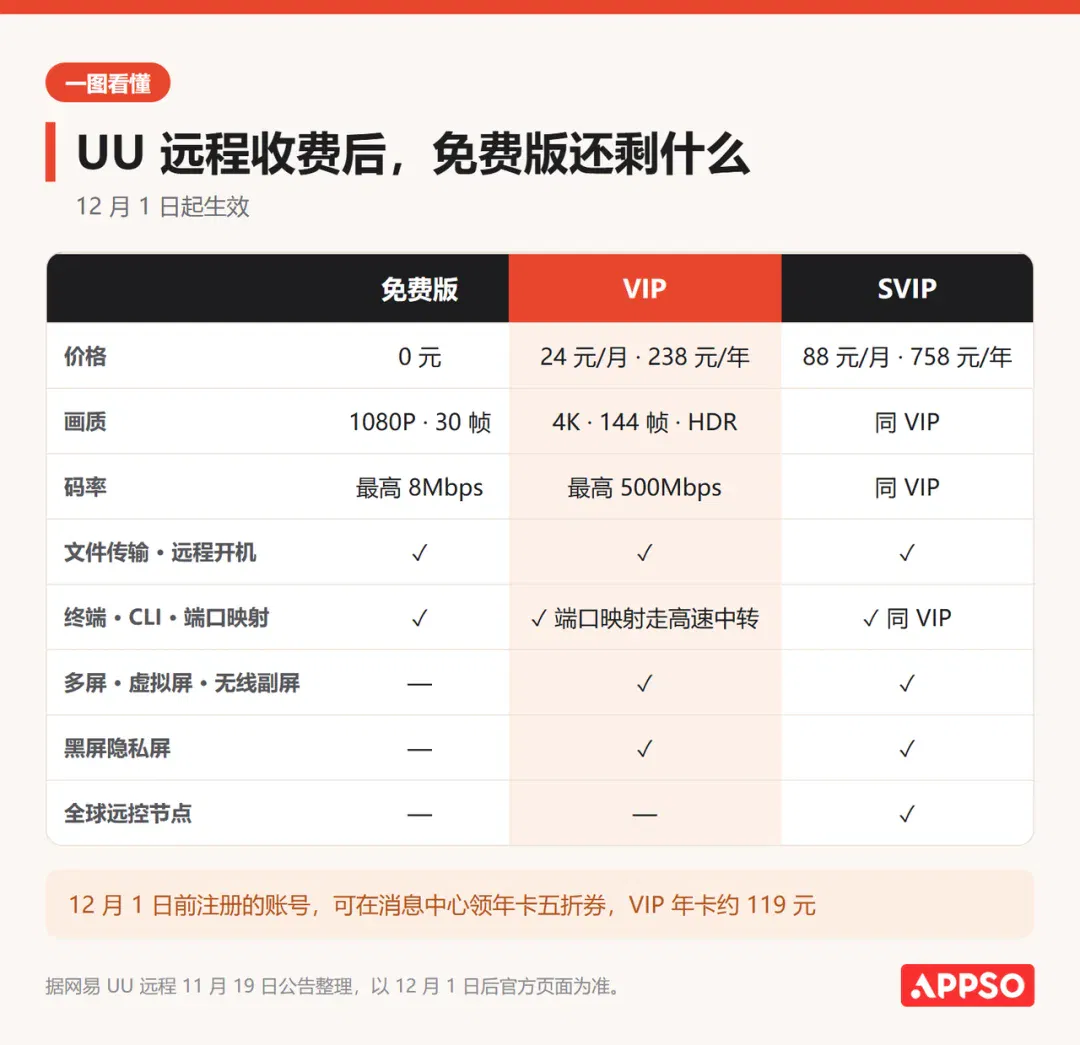
If, like me now, you mainly use the terminal, the free version is actually enough. The terminal, command-line tools and port mapping all remain free, as do the privacy screen and automatic locking after a remote session. The terminal transmits only text, so 30 frames per second is no obstacle. People using UU to stream games are affected more.
Still, even if it charges, I am willing to pay for it.
If remote desktop becomes my daily mainstay—for example, if I get a new computer and spend all day connected back to the lab machine—staring at 1080P at 30 frames per second for long periods would be tiring. The membership's 4K, multiple-monitor and virtual-display features would definitely be worth getting.
And for now, I really cannot find a replacement. I have used Sunlogin and ToDesk, but found them less comfortable. Claude Code's own remote control supports only Claude, and I am now reluctant to connect that way anyway.
After trying the alternatives, UU is still what I can keep using every day.
If you plan to buy, accounts registered before December 1 can find the "50% off for old friends" offer in the client's Message Center and claim a half-price annual-pass coupon. The VIP annual pass costs RMB 238, or RMB 119 after the discount—less than RMB 10 a month.
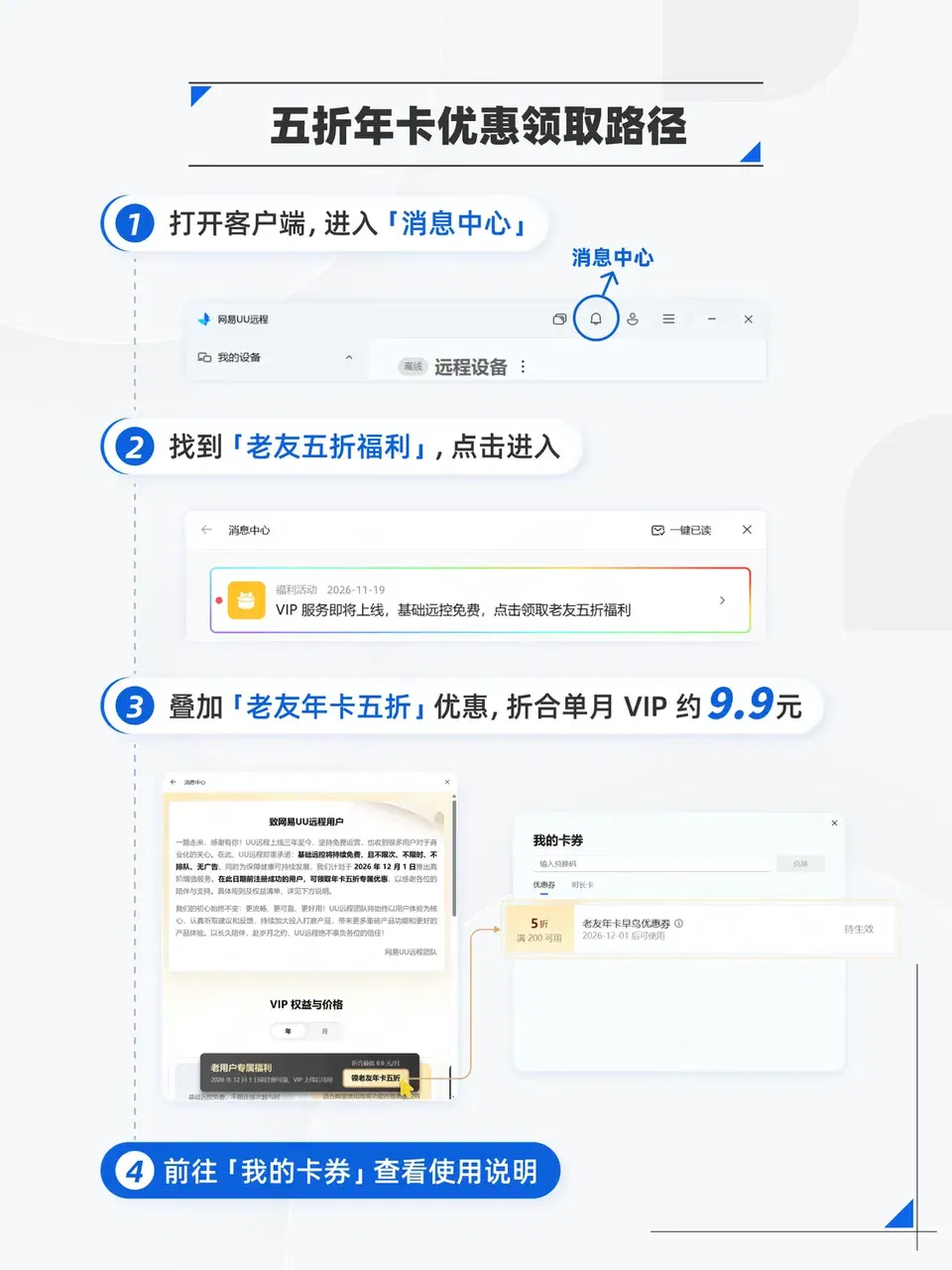
One more thing to watch: if the controlled device is overseas, or the system detects that you are using a VPN, you may be asked to buy a global membership, at RMB 758 a year. I normally use overseas nodes and UU currently works fine for me; I will see what happens after December.
After a year of use, my biggest feeling is that where the computer sits no longer matters very much.
In the past, coding meant sitting in front of a computer and typing line by line.
Now, most of the work goes to AI. My job is to explain the requirements and make a decision when it gets stuck. Claude Code runs on the lab computer, and wherever I go, I can pull out my phone to check on it and send a reply.
I have recently been saving for a Mac, but the thought of migrating the entire environment from this gaming laptop gives me a headache. My plan now is to leave all the environments on the gaming laptop and use UU from the Mac to control this bulky, heavy machine.
Remote-control software used to be something only operations staff and gamers installed. Now, for almost anyone who uses AI to work, it has become a "must-have app" on the phone.
This article comes from "APPSO," written by "APPSO."
Related topics
After reading
Join the AINRK community
Read how to join the community and connect with people working in AI.
Related articles
Continue reading related topics and articles in this category.
UU远程史诗级升级,这就是如今远程Vibe Coding的第一神器。 (opens in a new tab)
UU远程发布史诗级版本更新,全面升级终端功能,新增TUI完整渲染、多终端并行会话管理与跨端接管,并支持免密登录Mac,化身远程Vibe Coding的第一神器。

Yoroll Launches Interactive Short-Drama Adaptation Tool; Guaranteed Deals Depend on Project Terms (opens in a new tab)
Yoroll adapts finished short dramas with branches, generated shots and compositing, illustrated by the 30-episode Clutch Time. Platform guarantees depend on tiers, exclusivity and other terms; one-click adaptation does not ensure a guarantee, reliable output or distribution income.

Alpöge says “250,000 pages” was a joke, addresses Riemann-proof code criticism (opens in a new tab)
Levent Alpöge says the “250,000-page” proof was a joke and acknowledges redundant, low-quality Lean code in his work with Claude. He argues that its ideas should lead to a more natural, concise mathematical framework; code quality and formal correctness remain distinct.

Diedieshe explores screen-aware AI comment overlays and customizable companions (opens in a new tab)
Diedieshe uses floating AI comments for screen-based tips and character companionship in reading, gaming and daily use. Value depends on accuracy and disruption; this review could not verify the reported 10 million users or four-second response claims.
Ant Ling launches the LingSante health-model family and releases two core models’ weights (opens in a new tab)
Ant introduces LingSante, releasing weights for 560B flash and 124B air-VL alongside Afu video interaction and doctor tools. The article’s examples and developer benchmarks do not establish clinical validity; deployment needs suitable hardware and professional review.