Google AI Credits and the $300 Trial: A Taiwan VM Tutorial and Its Billing Boundaries

An author explains Google AI developer credits, Google Cloud trial credits and a Taiwan VM setup. Eligibility, eligible products and expiry differ. AI Studio setup may directly create a Paid account; budget alerts, Free Tier machines and credit balances alone do not guarantee zero costs.
Editor's fact check (2026-11-26): This article records the original author's setup on November 21, 2026. Credits and prices are subject to current official rules and the actual billing account. In particular, a genuine, unupgraded Free Trial account differs from a Paid account that can be created directly within products such as AI Studio. The latter may charge for usage not covered by credits even if it includes a $300 welcome credit. The $300 credit and subscription credits do not form a cash pool with a shared expiry, identical eligible products or a guarantee that the full amount can be spent. Alert-only budgets do not automatically limit virtual-machine costs. The cost examples also depend on region, disks, public IP addresses, network tier and traffic. Official network SKUs use units such as GiB; the article's GB estimates are not fixed quotes. Commands and agent-based administration are examples from the original article only. Authorization, review of operations and resource cleanup remain under the user's control. A server address also does not replace each AI service's requirements concerning the user's region, entity and account. Google Developer Program benefits FAQ; (opens in a new tab)Google Cloud Free Trial and Free Tier rules; (opens in a new tab)In-product Cloud Billing setup: direct activation of a Paid account; (opens in a new tab)Google Cloud network and public-IP pricing; (opens in a new tab)Google Cloud budget spend caps and limitations; (opens in a new tab)Google Cloud Standard Tier networking and its 200 GB free allowance; (opens in a new tab)Google Cloud promotional-credit discount exclusions; (opens in a new tab)Gemini web-app regional availability; (opens in a new tab)OpenAI service regional availability; (opens in a new tab)Anthropic's Supported Regions Policy; (opens in a new tab)Revoking SSH keys in Google Cloud; (opens in a new tab)Google Cloud budget alerts and reporting delays (opens in a new tab)
Quite a few friends have recently subscribed to Google AI Pro or Ultra, only to use Gemini and Antigravity every day.
In fact, you have overlooked one of the most valuable hidden benefits in your account.
Eligible primary subscribers must claim and activate their developer benefits to receive monthly Google Cloud credits; eligible new Google Cloud customers may also receive $300 in free trial credit.
For an eligible Ultra 5x account to which both credits have actually been applied, the nominal first-month total is $340, but the two credits differ in eligible products, expiry dates and trial-shutdown conditions. This is not an unconditional cash budget that can be fully spent.
Better still, even if you cancel the subscription next month, the credit already applied to your account will not be clawed back; it remains valid for a full year.
Last night, I used this $340 to set up a server hosted in Taiwan from scratch, getting it done with mouse clicks throughout.
Once it was ready, I handed the permissions directly to Claude Code for automated administration, without having to memorize a single Linux command.
I know many people have been reluctant to touch Google Cloud for one reason: what if linking a card leads to overspending, and they wake up several hundred dollars worse off?
First, a reassurance—with an important condition: the rule of no cloud-usage charges during the trial applies only when the billing type is explicitly a non-billable, unupgraded Free Trial account. Accounts created within products such as AI Studio may be Paid accounts from the outset; simply having "not clicked Upgrade" does not establish that no charges will occur.
A word of caution first: Google's credit rules and prices change quickly.
This article is based on my hands-on setup on November 21, 2026. When carrying it out, follow the official pages and what your console displays.
1. First work out how much credit you are eligible for and where to claim it
The available credits come in two allocations, which can be applied to the same billing account and used together.
The first allocation is the monthly credit included with a Google AI subscription, issued monthly through the Google Developer Program:
- Google AI Pro: per month, $10;
- Google AI Ultra 5x: per month, $40;
- Google AI Ultra 20x: per month, $100.
The second allocation is Google Cloud's free trial credit for new customers, a one-time amount of $300 valid for 90 days.
For the two allocations described in the author's account, Ultra 5x's nominal first-month total is $340, with the amount actually usable still subject to each credit's conditions and the billing account's status.
Method one: check AI Studio's credit-claim prompt and verify the billing type
This entry point was introduced on November 13, 2026. There is no need to hunt through multiple pages; it takes three steps:
- Sign in with the Google account paying for the subscription at https://aistudio.google.com (opens in a new tab)
- . Open the unclaimed-credit prompt that appears in the left navigation, then click Claim Google Cloud Credits followed by Redeem and Continue
- . If you do not already have a Developer Program profile or Cloud Billing account, the flow may guide you through creating them. Before confirming, check whether the new account will directly be a Paid account. Google's official documentation says in-product billing setup in services such as AI Studio can directly activate a paid account; an included $300 welcome credit does not make it equivalent to a non-billable Free Trial.
- After claiming, open https://aistudio.google.com/billing (opens in a new tab) to check the balance whenever you want.
Method two: claim through the Developer Program benefits page
If the entry point does not appear in AI Studio, you can also use the official benefits page:
- Open https://me.developers.google.com/benefits (opens in a new tab)
- . Select a Google Cloud billing account to receive the credit, and check Always use this billing account; future monthly credits will then be applied automatically to this account.
- If the page displays a redemption code, copy it and go to https://console.cloud.google.com/billing/redeem (opens in a new tab) to paste and redeem it.
After handling both allocations, open the Cloud console and go to the Billing section's Credits page, where each credit's start and end dates are clearly listed.
For example, the account I tested on November 21 contained both allocations in the same billing account:
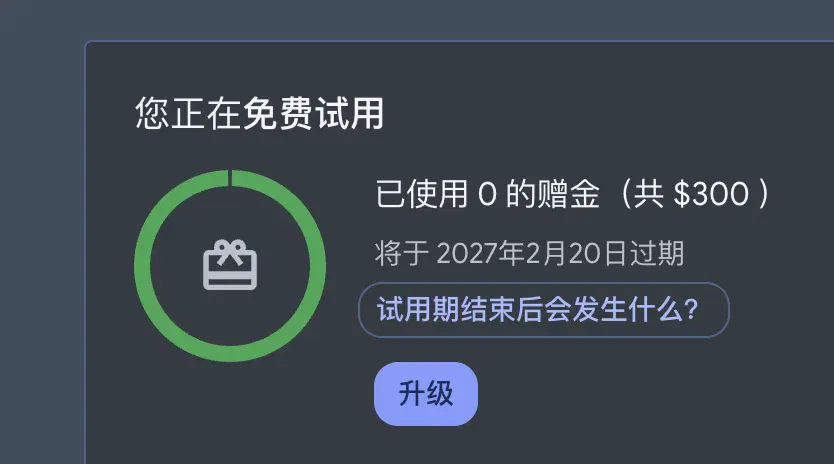
- $300 trial credit: 2026-11-21 to 2027-02-20 (valid for 90 days);
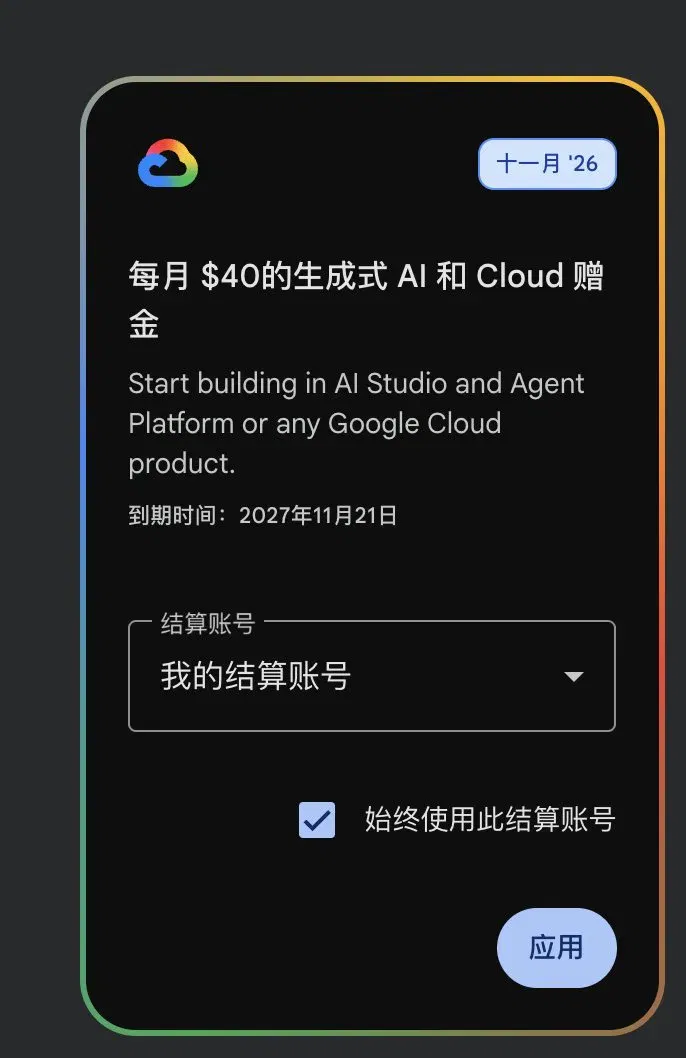
- $40 Ultra credit: 2026-11-21 to 2027-11-21 (valid for 12 months).
Where you might get stuck: watch out for two things:
- Subscription credits can only be claimed by the primary subscriber; family-group members are not eligible.
- Once a credit is applied to a billing account, it cannot be transferred out. If you are signed into several Google accounts in your browser, check the avatar in the upper-right corner carefully before clicking.
2. Rules and boundaries to read before starting—the key to avoiding unexpected costs
Although the two credits are in one pool, their eligible uses and expiration rules are completely different. Take a minute to understand the account before starting.
Four key differences between the two credits
- Validity and issuance schedule: the $300 trial credit is issued once and expires after 90 days. Subscription credits arrive on the monthly anniversary of the first claim—for example, a first claim on November 21 means the next allocation arrives on December 21. Each allocation has its own 12-month validity period, allowing unspent amounts to accumulate.
- Covering Gemini API usage in AI Studio: the $300 trial credit cannot cover it, while subscription credits can.
- Covering Vertex AI: for registrations or upgrades on or after November 16, 2026, the trial credit can no longer cover it, while subscription credits still can.
- Running virtual-machine servers: both allocations can directly cover eligible costs.
Essential rules to remember
- First verify whether the account is Free Trial or Paid: usage on a Paid account that is not covered by credits or free allowances is charged under the billing rules. Some in-product account-creation flows directly establish a paid account, without requiring a separate upgrade afterward.
- Canceling the subscription does not reclaim credits already issued: canceling Ultra stops new allocations from the following month; amounts already applied still expire one year after issuance.
- The order in which credits are applied is unclear: this article has not verified the complete priority order for multiple credits. Check each allocation's eligibility, expiry date and actual deductions in the console; do not treat the nominal total as a balance with a single expiry.
- Items credits do not cover: Spot or preemptible instances, committed use discounts (CUDs), Marketplace images, third-party commercial licenses, and certain specialized machine types and GPUs.
- Hard limits of trial accounts: no attached GPUs, Marketplace use, quota-increase requests or Windows Server instances, and cryptocurrency mining is strictly prohibited.
3. Making the most of $340: Taiwan or Hong Kong?
A Google Cloud server's actual monthly cost consists of four parts: machine configuration + disk + public IPv4 + outbound traffic.
1. Reference monthly machine prices by region
The data come from the pricing site gcloud-compute.com (opens in a new tab) (the Taiwan e2-medium price was also checked against the console). On-demand monthly prices are as follows:
- United States, us-central1: e2-small (2G), about $12.2; e2-medium (4G), $24.46; e2-standard-2 (8G), about $48.9.
- Taiwan, asia-east1: e2-small (2G), about $14.2; e2-medium (4G), $28.32; e2-standard-2 (8G), about $56.6.
- Tokyo, asia-northeast1: e2-small (2G), about $15.7; e2-medium (4G), $31.38; e2-standard-2 (8G), about $62.8.
- Hong Kong, asia-east2: e2-small (2G), about $17.1; e2-medium (4G), $34.22; e2-standard-2 (8G), about $68.4.
Beyond the machine's monthly price, do not overlook two recurring base costs:
- Public IPv4 address: $0.005 per hour, or approximately $3.65 per month;
- 20 GB balanced persistent disk: about $2 per month.
2. Network tier: the key setting determining traffic costs
Google Cloud has two network tiers. This directly affects how long your credits last:
- Premium Tier (the system default): it uses Google's global backbone, but actual connection quality must still be tested on the local network. The Taiwan and Hong Kong configurations in this article do not qualify for the free outbound allowance for North American VMs. For the destinations and traffic bands described here, the estimated rate to some Asian destinations, including Hong Kong, is around $0.12/GiB, with the first band to mainland China around $0.23/GiB. Actual rates depend on the region, traffic band and current SKU prices.
- Standard Tier (must be selected manually): it uses regular carrier networks, whose actual connection quality should be tested. Current official documentation lists Standard Tier IPv6 support in Preview, so it should no longer be described as entirely unsupported. Its free traffic is calculated under the official region and SKU conditions: usage is combined across projects under the same billing account, with 200 GB of free Standard Tier usage per month in each region used—not 200 GB for every individual VM (overage starts at $0.085/GB in US regions and costs more in Asian regions). If you run one Standard Tier machine in each of two different regions, each month you receive a combined 400 GB of free traffic.
3. Why I strongly recommend Taiwan rather than automatically choosing Hong Kong
Many users in China habitually choose Hong Kong when buying servers. In Google Cloud, however, Taiwan has lower monthly prices for the matching configurations listed here:
- For the same configuration, Taiwan is about 20% cheaper than Hong Kong.
- Taiwan appears on some relevant service-support lists, but it is incorrect to say that Hong Kong is unsupported by all Gemini services: Google's current Gemini web-app support list includes Hong Kong. AI Studio, APIs and other products must be checked individually; OpenAI and Anthropic also have their own regional and account conditions. Hosting a server in Taiwan does not automatically change service restrictions concerning the user's location, entity eligibility or payment method.
Latency depends on your local broadband provider. If it matters to you, you can first create one instance in each location, test the speeds and delete the less suitable one.
4. Two cost-estimate examples (a nominal $340 total does not guarantee a Free Trial can spend it all over 90 days)
Plan A: one Premium Tier machine for better routing—the low-hassle recommendation
For the Taiwan and Hong Kong Premium Tier configurations in this article, another instance adds another fixed cost. If multiple machines are unnecessary, consider running just one small machine and leaving most of the budget for traffic.
Assuming all outbound traffic from the Taiwan or Hong Kong configurations in this article goes to mainland China, estimated at the first-band rate of $0.23/GiB:
- Taiwan e2-medium (4G, the main recommendation): machine, IP and disk cost about $34 per month, or about $102 in fixed costs over three months. The remaining $238 translates to roughly this much mainland-bound traffic per month: 345 GB
- ; Taiwan e2-small (2G, saving more for traffic): fixed monthly costs of about $20, or $59 over three months, leave $281, equivalent to roughly this much mainland-bound traffic per month: 400 GB
- ; Hong Kong e2-medium (4G, for comparison): fixed monthly costs rise to about $40, reducing the monthly mainland-bound traffic available to about 320 GB
- ; Taiwan e2-standard-2 (8G, for heavier workloads): fixed monthly costs of about $62 leave roughly this much mainland-bound traffic per month: 220 GB
Plan B: two machines in different regions on Standard Tier for more traffic
Run an e2-standard-2 in Taiwan (about $62/month) and add an e2-small in Hong Kong (about $23/month).
Their combined fixed cost is about $85/month, or roughly $255 over three months, while receiving the combined allowance from the two regions of 400 GB of free traffic per month.
4. Step one: set budget alerts and confirm they cannot automatically limit VM costs
Before starting the instance, set up billing alerts. All of this is done at https://console.cloud.google.com (opens in a new tab).
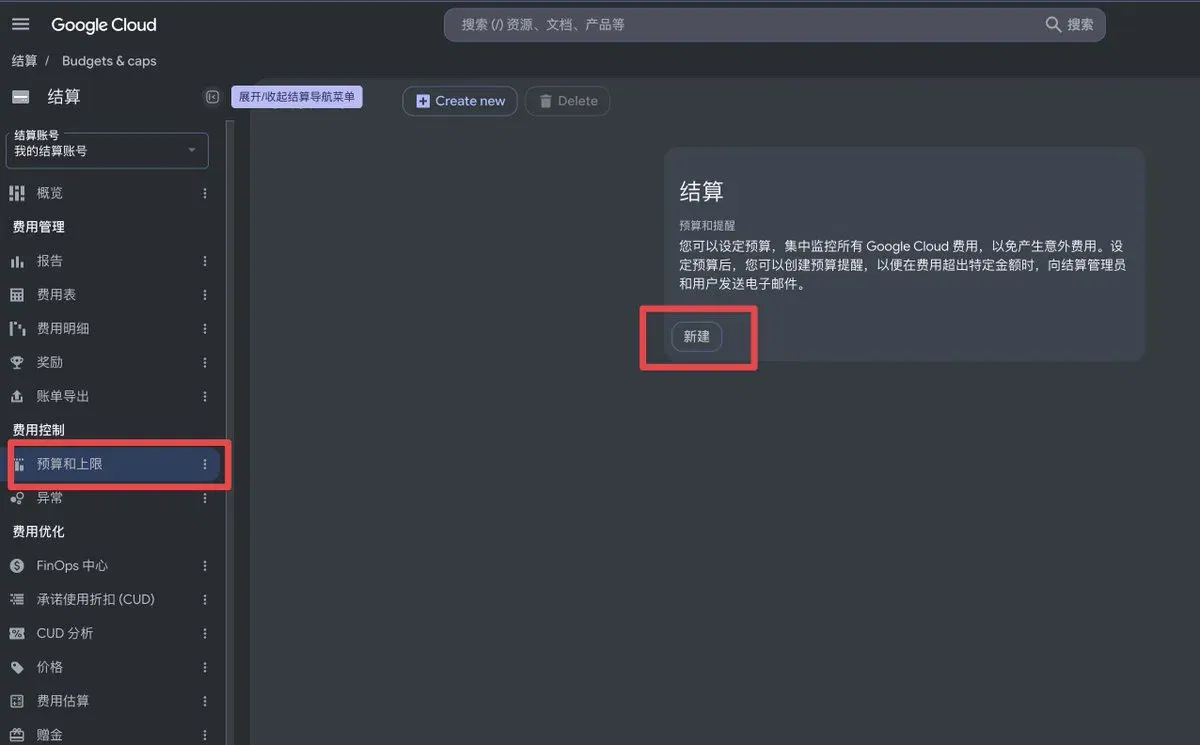
On the left side of the console, open Billing, click Budgets & alerts in the red box below, then select Create.
1. Definition: use budget alerts for VMs; eligible API services can have separate spend caps
For the first step, leave Alert only (all services) selected, enter any budget name and click Next.
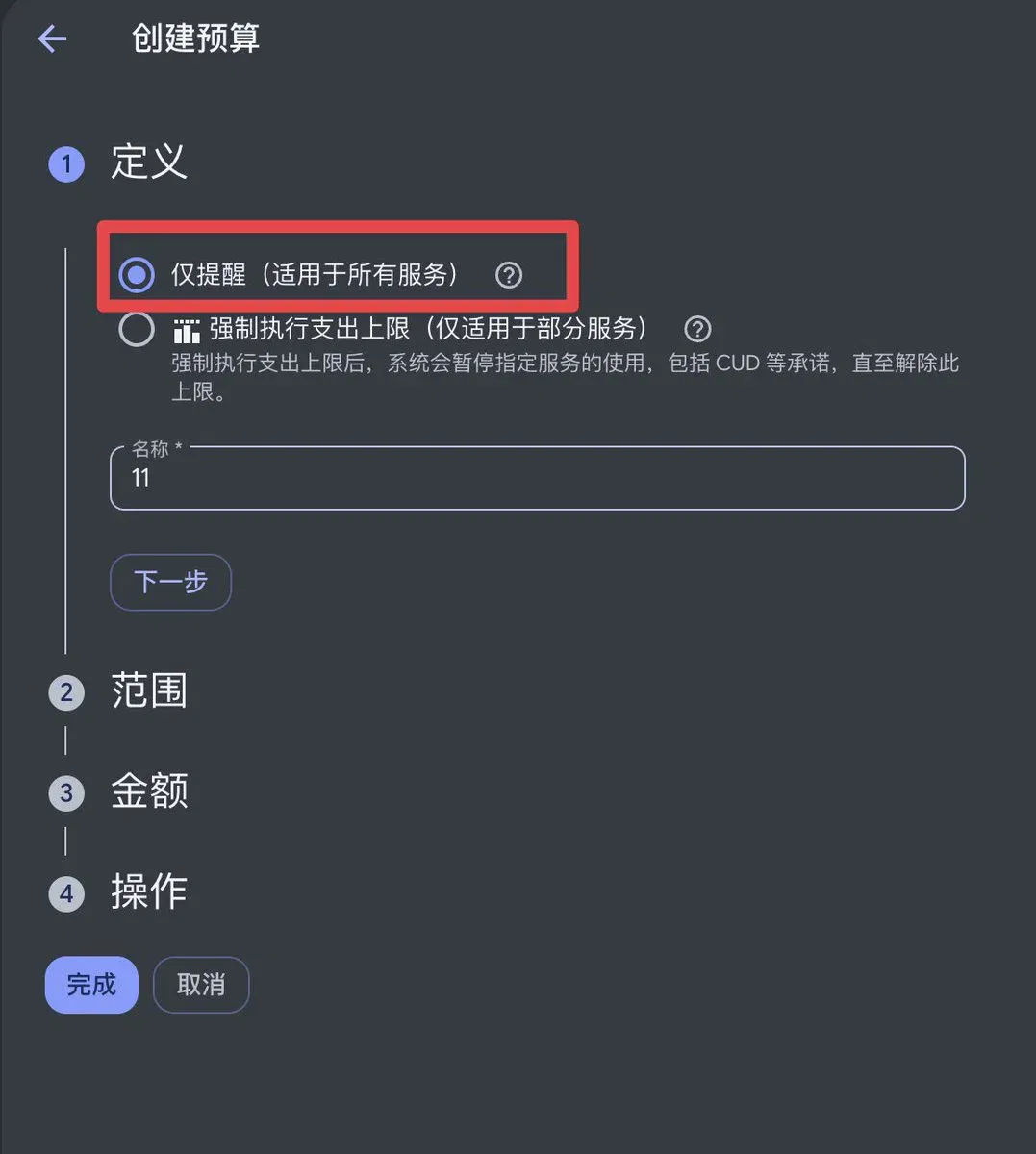
An enforced spend cap does not replace monitoring the VM and network costs described in this article.
That feature only supports Cloud Run, Cloud Run Functions, Gemini API and Vertex AI.
Each such budget is also limited to a single service in a single project, and does not cover VM or traffic costs.
Alert-only budgets can cover the selected projects and services, but they do not automatically stop VMs or prevent overspending. Charges still depend on the actual billing-account type and usage, and alerts may be delayed.
2. Scope: deselect all savings items—the crucial part
At the Scope step, choose Custom range as the time period, retain the default start date at the beginning of the year, and select No end date, keeping all projects and services selected.
In the Savings section at the bottom, clear both Savings plans and Other savings.
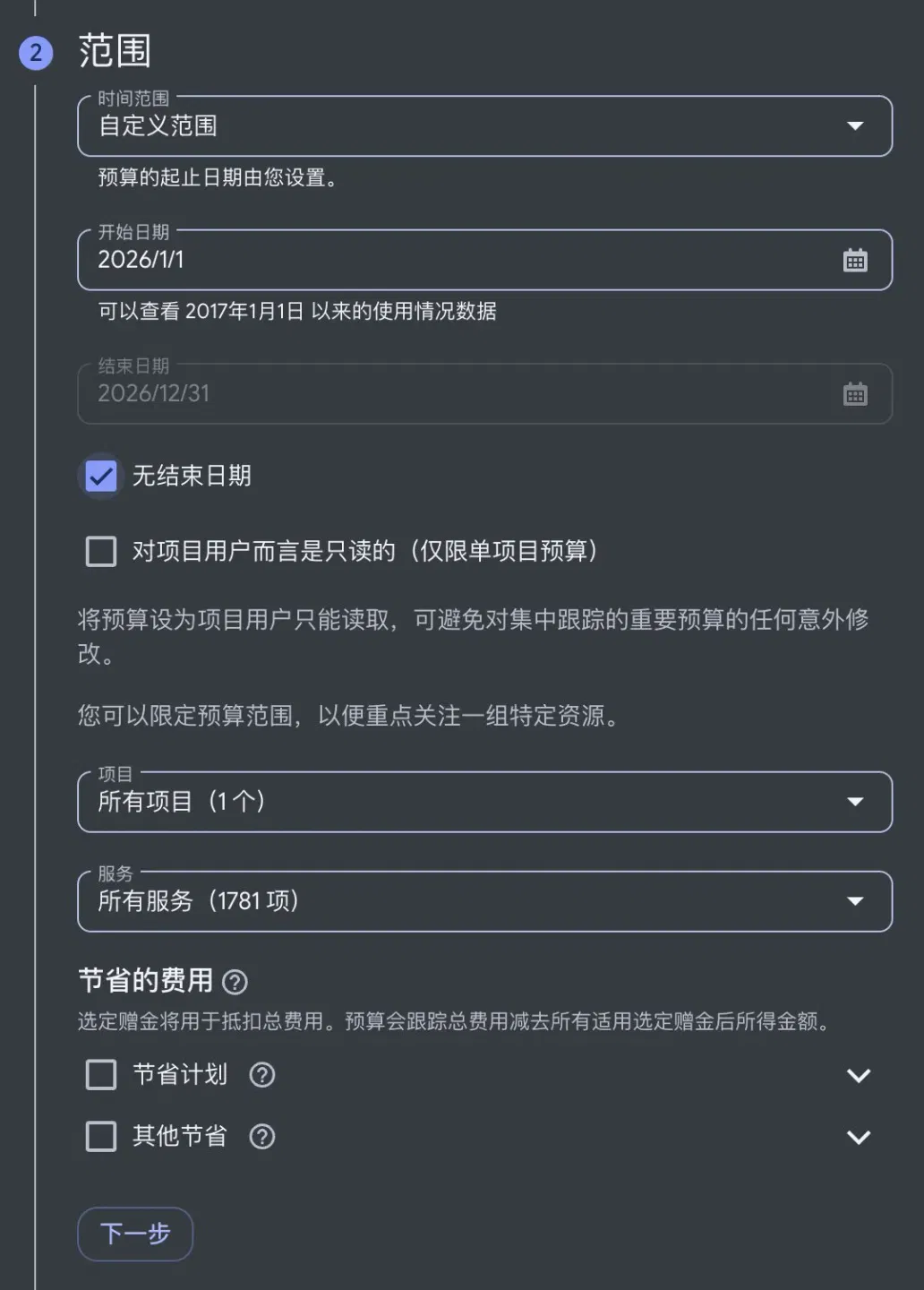
Where you might get stuck: there are two particularly hidden pitfalls here. Either can render budget alerts ineffective.
- Do not select Other savings. If the budget subtracts credits and other savings, net out-of-pocket costs may stay at zero while credits cover usage, preventing net-cost alerts from reflecting credit consumption promptly. To track usage before credits, check how the budget treats credits and savings. Alerts are not real-time hard spending caps.
- Do not manually change the start date to your registration date. A new account has no spending earlier in the year anyway. Budgets also use US Pacific time to divide days, so entering the current Beijing date could omit costs from the first few hours after account creation.
3. Amount and actions: enter the total and enable email alerts
For the budget type, select Specified amount. Set the target according to your actual budget and billing type; the author's example uses 340 dollars. This does not mean the shutdown threshold for the $300 Free Trial becomes $340.
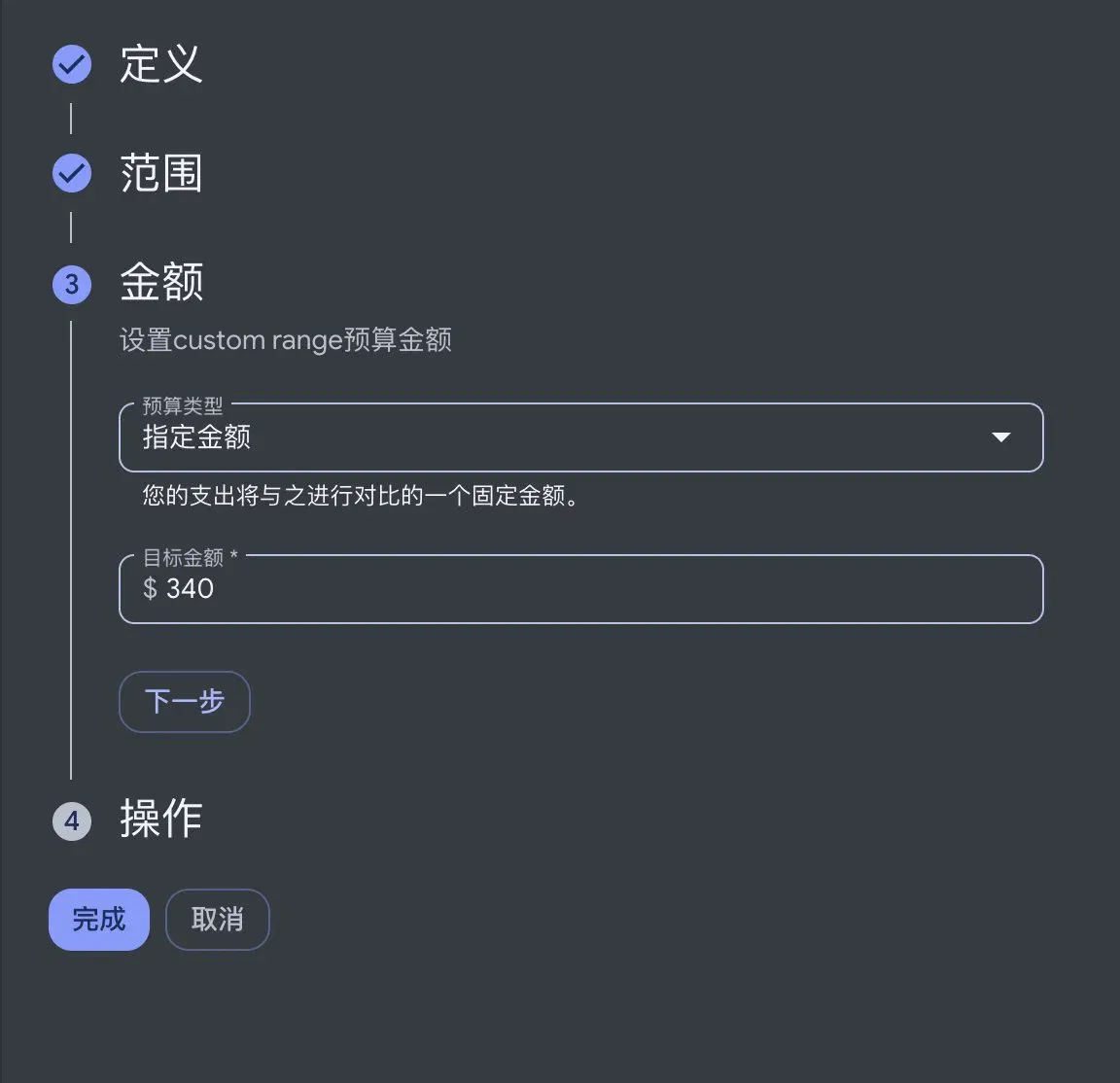
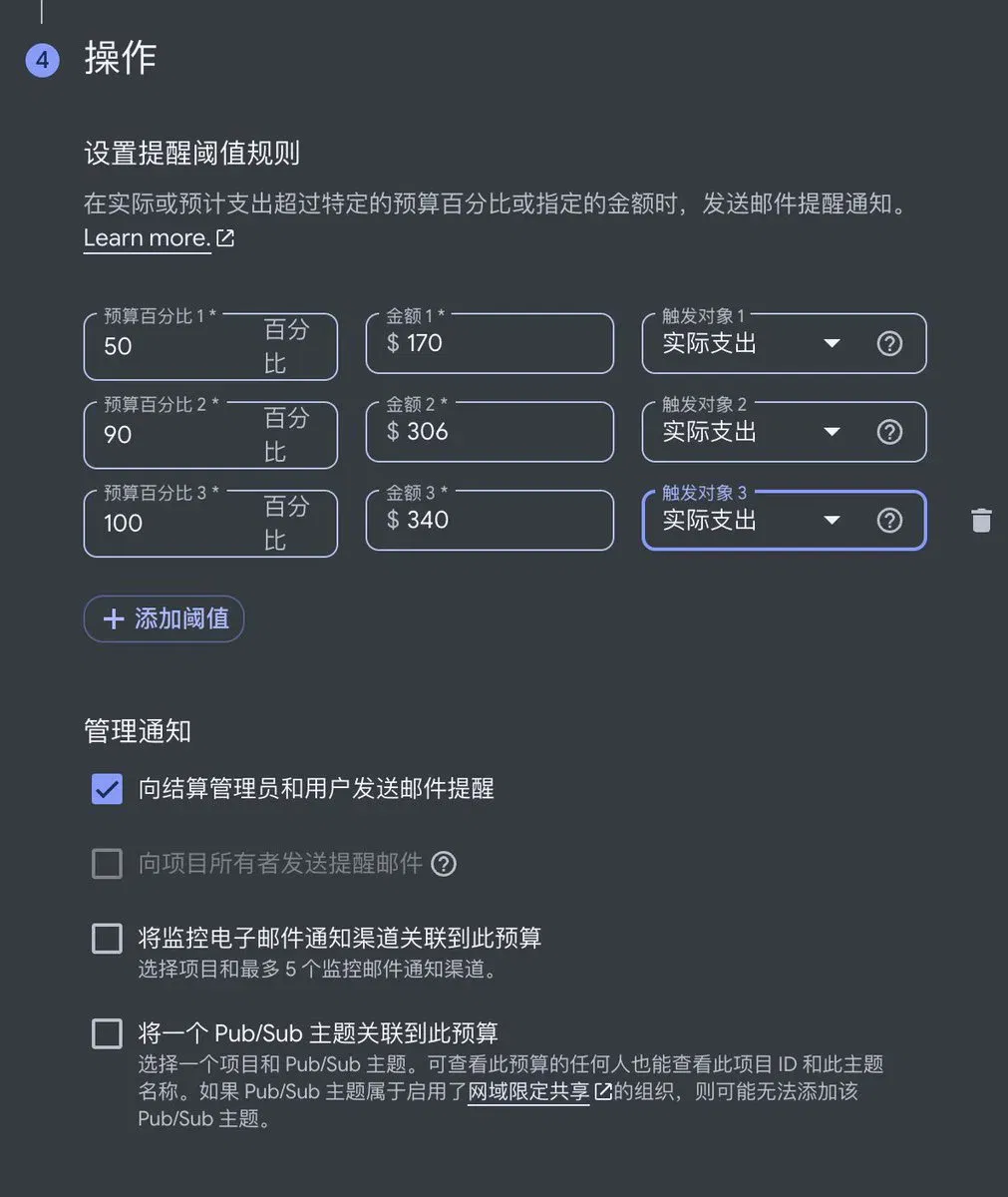
In the final step, set alert thresholds at 50%, 90%, 100% (for closer monitoring, click Add threshold to include an additional 25%). Set the trigger basis for all thresholds to Actual spend.
Select Email alerts to billing admins and users below, then click Finish at the bottom to complete the setup.
5. Step two: create a Taiwan server with mouse clicks throughout
Return to the console homepage and first check the top-left bar to confirm that the selected project is My First Project.
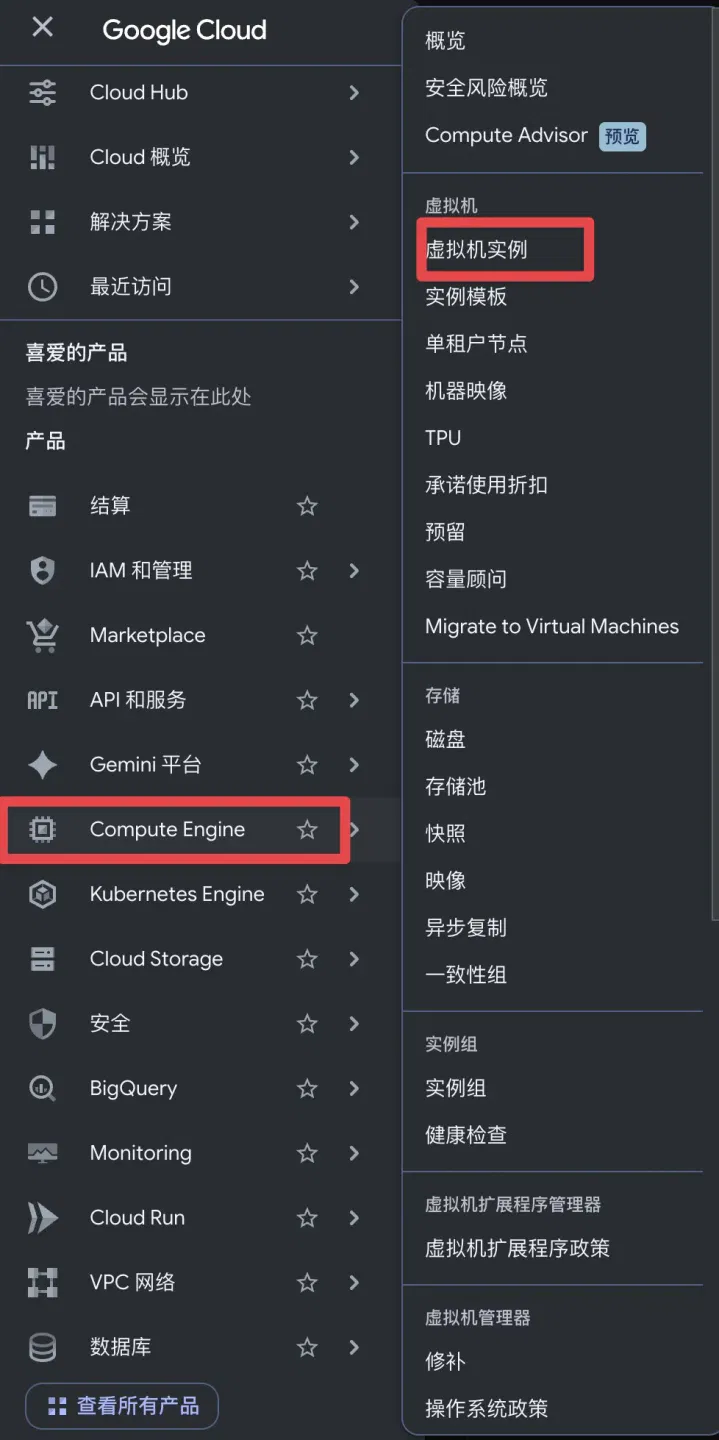
Open the three-line navigation menu in the upper-left corner, find Compute Engine, and open its submenu item VM instances.
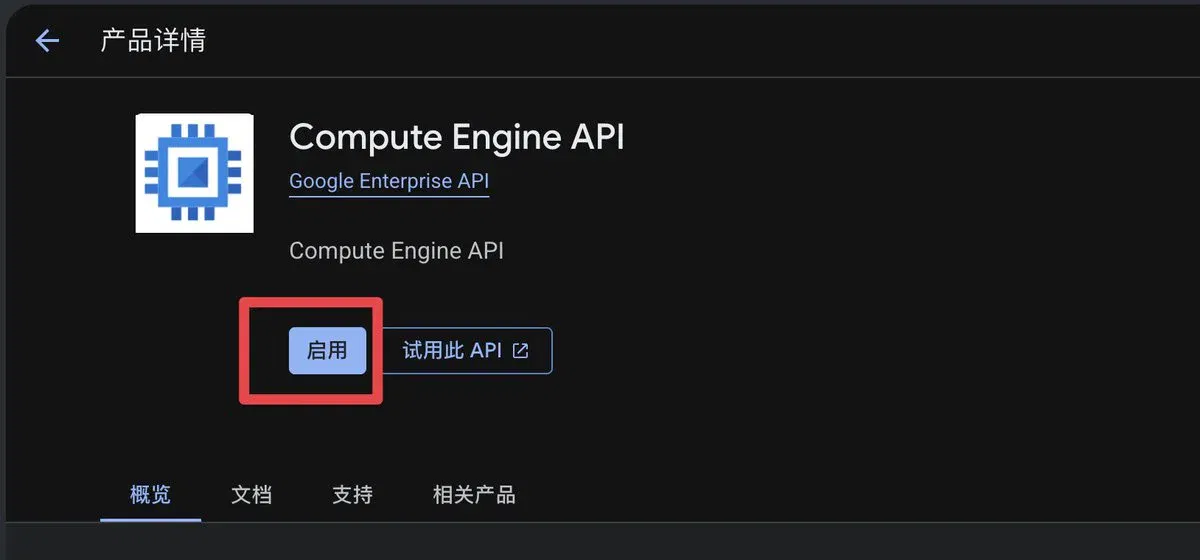
The first time a new account opens this page, the API must be enabled. Click Enable to turn on the Compute Engine API, then wait one to two minutes for initialization.
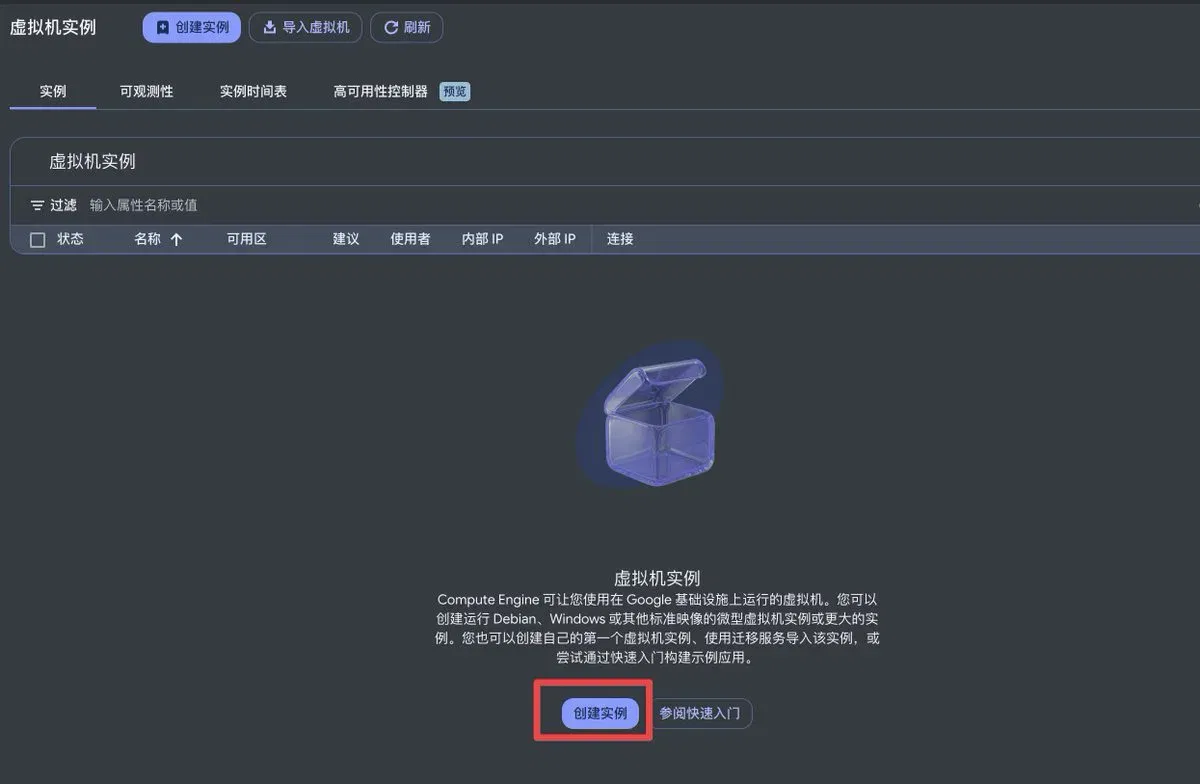
After reaching the VM instance list, click Create instance.
The creation form is long, but we only need to change four areas; leave everything else at its defaults.
1. Machine configuration: select Taiwan and the E2 series
Use the automatically generated name or change it to tw-1.
Region must be set in the dropdown to asia-east1 (Taiwan); leave the zone on the right unrestricted or choose asia-east1-b.
Scroll down to the machine type, stay in the General purpose tab, select the E2 series and choose the preset e2-medium (2 vCPUs, 4 GB memory).
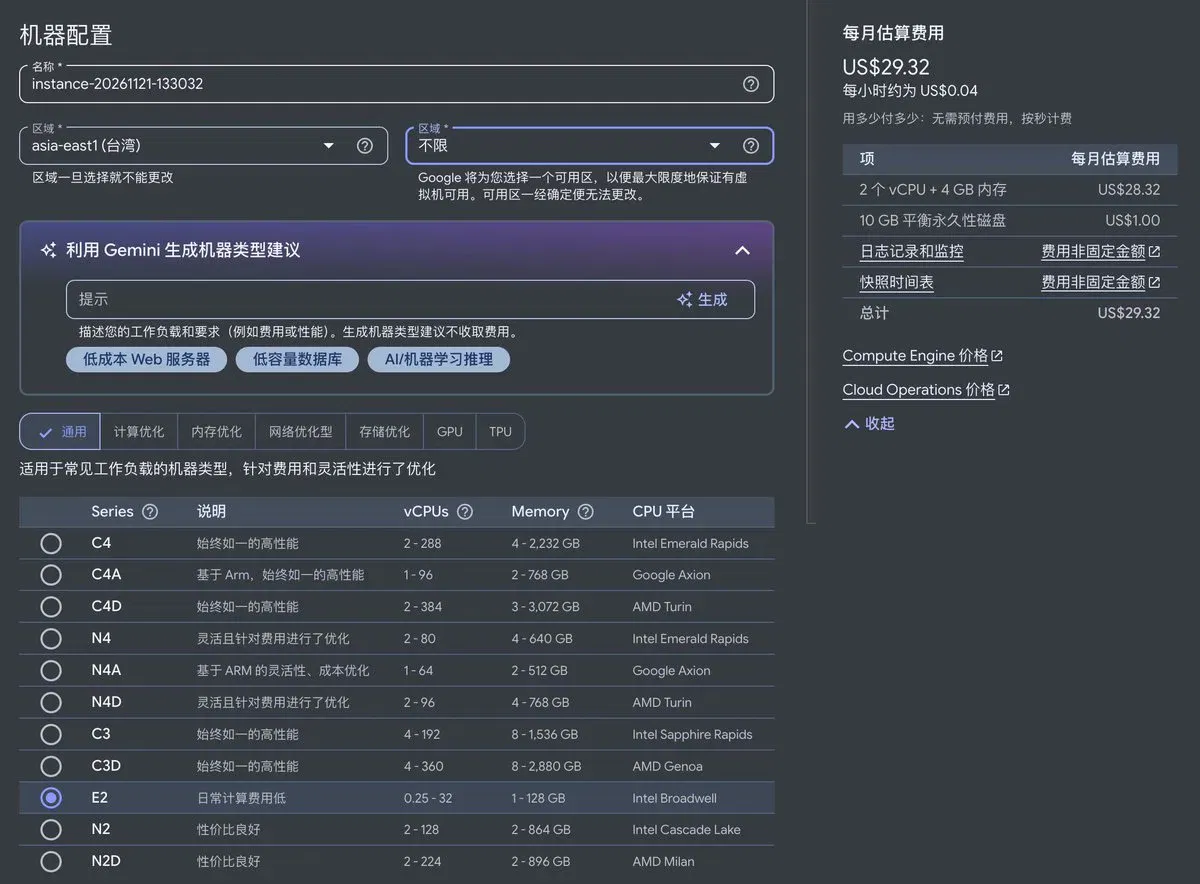
Where you might get stuck: the estimate on the right shows $29.32 with the default 10 GB disk; changing it to 20 GB in the next step raises this to $30.32.
Note that this estimate does not include public IPv4 (about $3.65/month) or traffic charges. Do not assume the total monthly cost is only $30.
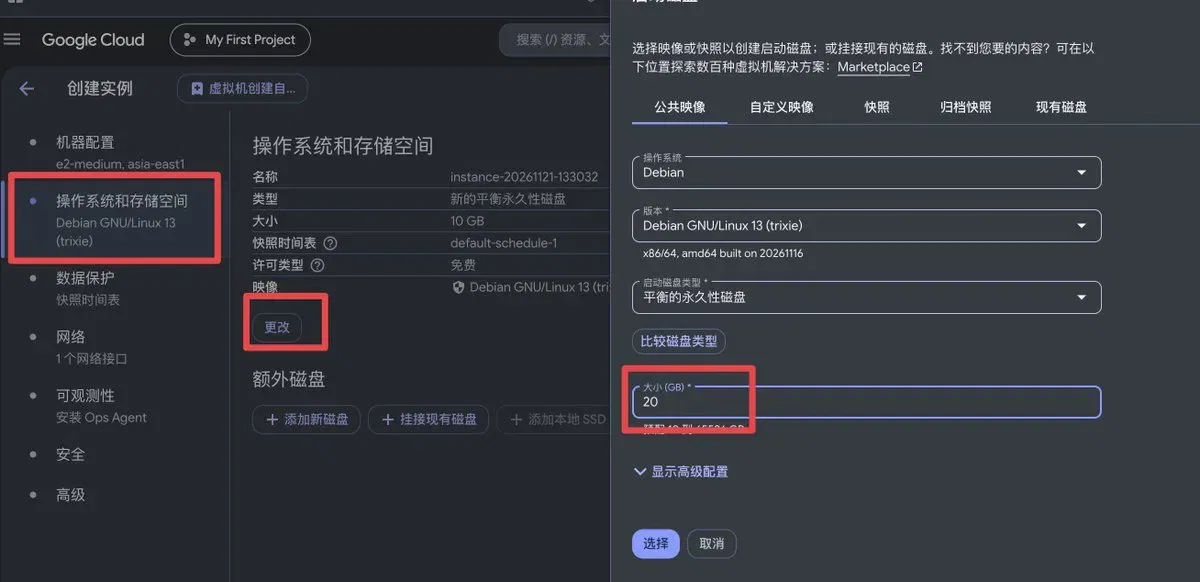
2. Operating system and storage: Debian 13 with a 20 GB disk
In the left menu, click OS and storage, then select Change.
For the operating system, select Debian, and confirm that the version is Debian GNU/Linux 13 (trixie).
Keep the boot-disk type as Balanced persistent disk, change the size to 20 GB, then click Select at the bottom to confirm.
3. Data protection: turn off backups to save snapshot costs
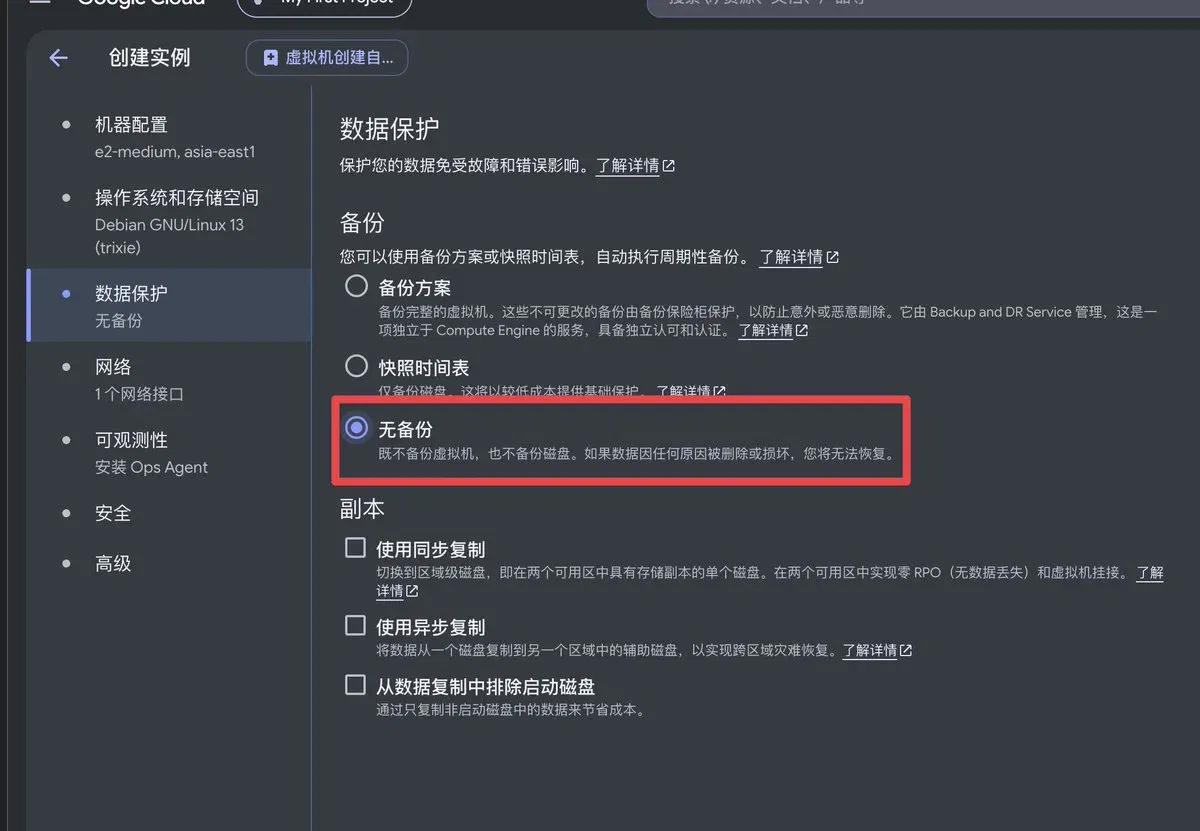
Open Data protection on the left and change the backup setting to No backups to avoid automatic background snapshots quietly consuming your credits.
4. Network: verify the ephemeral IP and network service tier
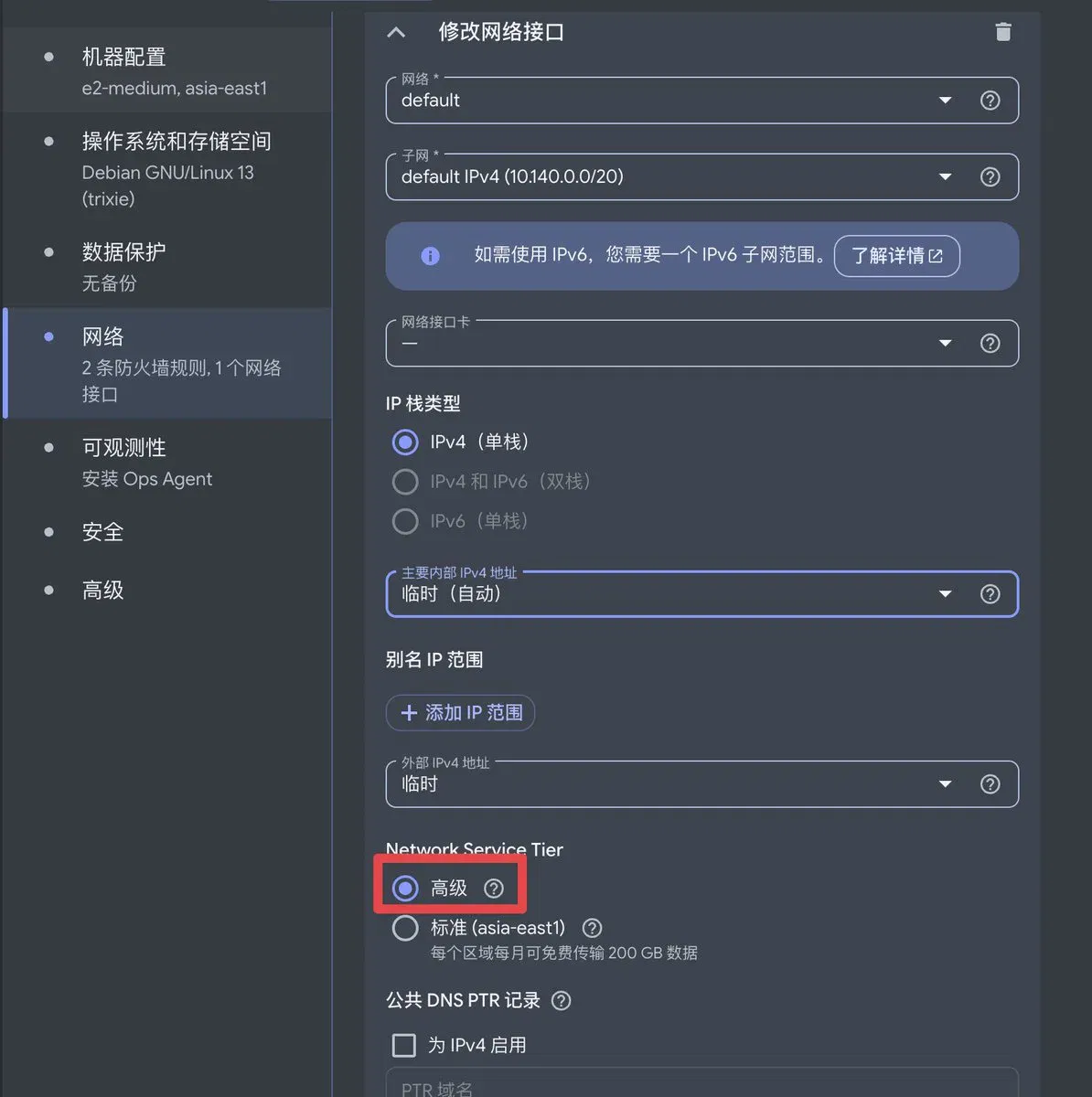
Open Networking on the left. If you plan to host a website on this machine, select the HTTP and HTTPS firewall options; if you are only running your own tools rather than a website, leave them unselected.
Open the default network interface below and confirm that the external IPv4 address is set to Ephemeral.
At the bottom, set Network Service Tier according to the plan you selected earlier.
For Plan A's better-routing option, retain the default Premium tier. For Plan B's 200 GB monthly free traffic allowance, switch to Standard.
After checking everything, click Create.
After about half a minute, a green check appears in the instance list along with an external IP, and your Taiwan server is up.
For good measure, click the instance name, open its details and scroll to Network interfaces to check once more that you selected the intended tier.
6. Step three: log into the server (including fully automated takeover by Claude Code)
Once the instance is running, you do not need to install a collection of complicated terminal tools. Choose whichever of the following methods suits you.
Method one: one-click browser login—the quickest way to get started
In the VM instance list or details page, click the SSH button on that row.
The browser automatically opens a web terminal connected to the server, without requiring you to enter a password or configure keys. Once inside, enter this command to update the system packages:
sudo apt update && sudo apt upgrade -y
Method two: let Claude Code automatically manage the machine—no command-line expertise required
If the black command-line window gives you a headache, you can hand SSH access to Claude Code on your computer and use plain-language instructions to set up environments afterward.
Step 1: ask Claude to generate a key.
Open your local Claude Code and say: Help me generate an SSH key for connecting to a server.
It will run a command like the following on your computer and give you the complete line containing the generated public key:
ssh-keygen -t ed25519 -f ~/.ssh/gcp_tw1 -N "" -C gcpuser
Step 2: open the editing page in the console.
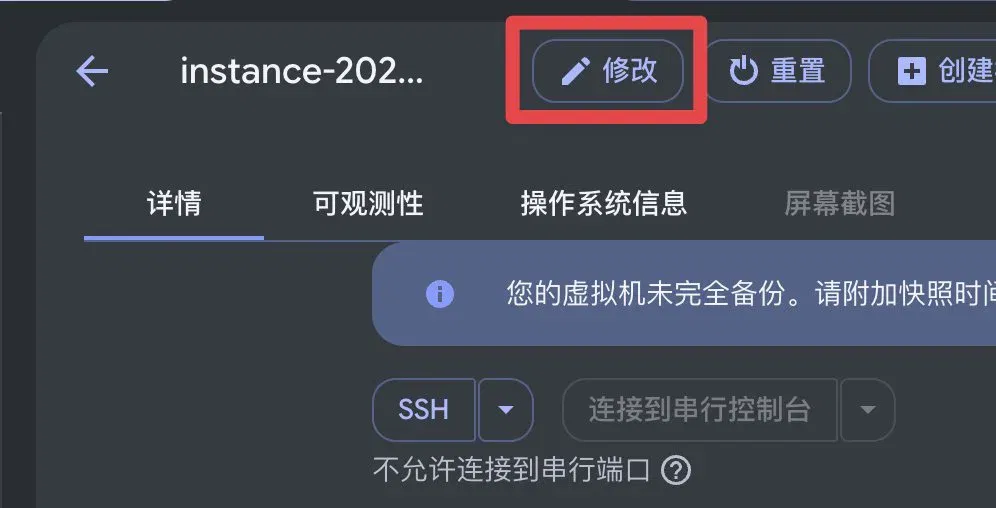
Return to the Cloud console, open this VM's details and click the Edit button at the top.
Step 3: add the public key to the server.
Scroll down to Security and access and find SSH keys. Click + Add item, paste the entire public-key line, then scroll to the bottom and click Save.
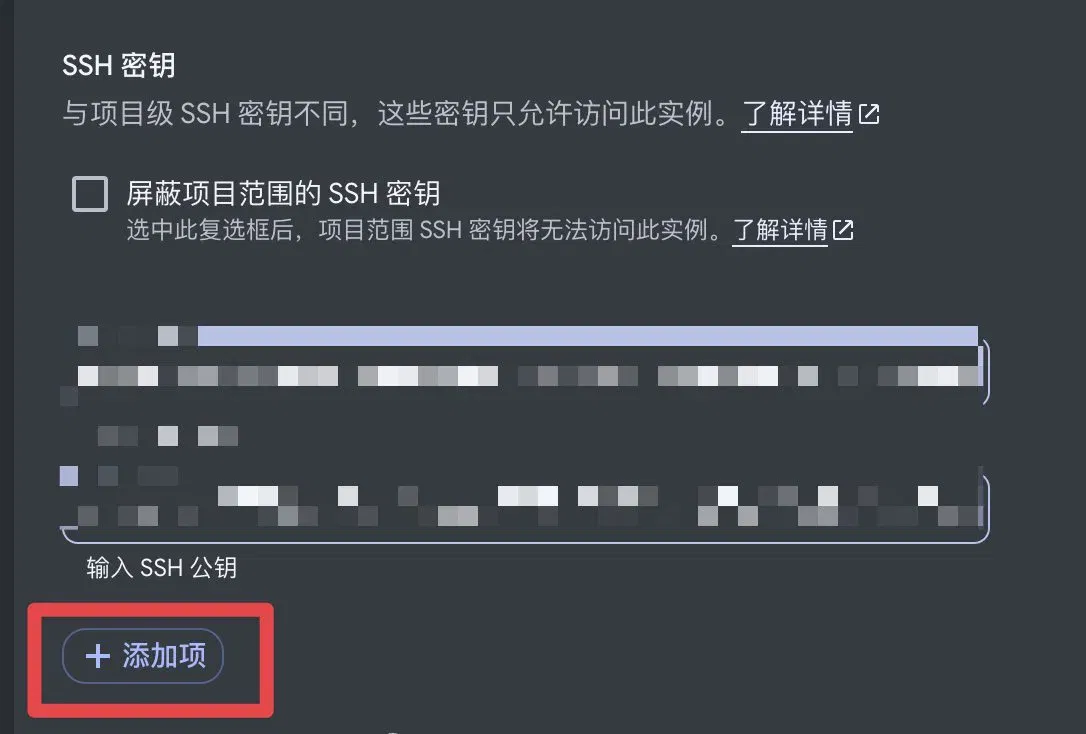
Step 4: give Claude the external IP to connect.
Send the server's external IP shown in the console to Claude Code. It will automatically use the username at the end of the public key, such as gcpuser, to connect and work:
ssh -i ~/.ssh/gcp_tw1 gcpuser@你的外部IP
Where you might get stuck: watch these two details:
- When copying the public key, copy everything from ssh-ed25519 at the start through the username at the end; if even one character is missing, you will not be able to connect.
- The private key stays on your local computer throughout. To revoke access, remove the relevant instance or project public key and check other authorizations. Deleting a public key prevents subsequent authentication; it should not be treated as a guarantee that existing SSH sessions terminate immediately.
7. Five pitfalls to watch during everyday use
Once the machine is running, continue checking the following costs and permissions. These reminders do not guarantee that costs will be zero:
- Stopping and starting may change an ephemeral public IP: an ephemeral IP is released when the instance stops, and a subsequent start may receive a different address. This differs from an ordinary reboot within the operating system. If you need a fixed IP, go to VPC network → IP addresses and promote it to static, keeping the network tier consistent. A static IP still attached to a stopped VM is charged as an address in use. A reserved but unattached static address is idle and has a higher rate of $0.01 per hour.
- Clicking Stop does not end all charges: compute charges stop when the VM stops, but the attached 20 GB disk continues incurring monthly charges. After deleting an instance, separately check and clean up retained disks, snapshots and unused static addresses. Do not assume all related charges end with instance deletion.
- Allow unreachable ports through the firewall: connectivity depends on the actual VPC firewall, target tags and operating-system rules; it is not true that every account only opens port 22 by default. If changes are needed, go to VPC network → Firewall and add rules for the specific ports you use.
- Check traffic charges weekly: open Billing → Reports and search SKUs for Network Internet Egress to find your actual outbound traffic costs.
- Do not resell or abuse accounts and credits in violation of the terms: accounts, credits and trial resources must comply with the applicable terms; violations may result in service or account restrictions. It is incorrect to characterize every legitimate workload run for someone else as a violation or to assert that the entire primary Google account will necessarily be suspended.
8. The end of the 90-day trial and subsequent charges: distinguish billing-account types first
Finally, check the conditions for exiting or continuing. Any assessment of zero cost must consider the actual account, credits and resource usage:
- The no-trial-charge rule applies to genuine non-billable Free Trial accounts: this applies only when the billing type is truly an unupgraded Free Trial account, not to Paid accounts already created within products such as AI Studio.
- Automatic shutdown threshold: the $300 trial credit is exhausted or 90 days have passed, whichever comes first. A 30-day grace period follows, during which upgrading to a paid account may restore resources and data, but does not guarantee free access to log in and copy them. Resources may already be inaccessible or lost, so do not wait until shutdown to back up.
- The hidden boundary when using both credits: the official shutdown condition explicitly concerns exhaustion of the $300 trial credit. If the $300 runs out first or 90 days pass, an unspent $40 subscription credit in the same billing account may become unusable when the account stops. Back up before credits are exhausted or expire. Budget alerts may be delayed; waiting for the 90% email must not be your only exit measure.
- Continuing with credits after expiry still carries a Paid account's overage risk: if Ultra credits will continue to arrive, first verify eligibility, applicable uses and actual consumption before deciding whether to upgrade to a paid account. The article's estimate of about $21/month for a Taiwan e2-small on Standard Tier is based on the listed base items; additional traffic and retained resources still require individual checks. Budget alerts do not guarantee that overage bills will not occur.
- A Free Tier machine does not make the entire server free forever: after upgrading to a paid account, choose one of the US regions us-west1, us-central1, us-east1 and create an e2-micro. Its compute can qualify for the free tier within the specified regions and total monthly hour limit, with an additional 30 GB-months of standard disk and 1 GB per month of eligible outbound traffic from North America, excluding destinations in China and Australia. Public IPv4 and overage usage can still incur charges; current Free Tier and network-pricing rules apply.
A final word
Finally, here is an opinion that may offend quite a few small VPS vendors and veteran administrators:
By 2026, ordinary AI enthusiasts still paying a few hundred yuan a year out of pocket for an entry-level overseas VPS are essentially paying a tax on an information gap.
On one side, big companies competing for AI subscribers hand out so many cloud credits that most people let them expire without claiming them.
On the other, tools such as Claude Code can assist with Linux administration, but users remain responsible for permission management, reviewing operations, resource cleanup and checking costs.
Tools can help manage card-linked billing and command-line operations, but they do not guarantee zero risk, no learning curve or freedom from bills forever.
Have you claimed the Google credit in your account? What project would you run on a server with it, or would you save it for API usage in AI Studio?
This article is from X, by "AI Chanpin Puer."
Related topics
After reading
Join the AINRK community
Read how to join the community and connect with people working in AI.
Related articles
Continue reading related topics and articles in this category.
AIHOT 上线免费 Token 活动汇总,介绍来源核验流程 (opens in a new tab)
作者介绍如何从厂商公告和社区线索收集活动、核对官方页面并巡查变化。页面按活动频率整理额度,条件和有效期由各厂商决定。

Claude突然白送500刀! (opens in a new tab)
Anthropic宣布打通Claude订阅套餐与开发者API,Max 5x、20x每月分别赠送100、200美元额度,Team按席位共享且最高500美元,Free、Pro和Enterprise不适用。

目前可以免费“薅”的Token,截至2026年9月,全网最全信息 (opens in a new tab)
截至2026年9月,实测整理出16个仍可免费获取Token的渠道,按限时活动、长期免费层、国内平台额度三档分类,涵盖阶跃星辰Step 5、Qoder、Cline、Gemini API、GitHub Copilot、Kilo Code、OpenCode、Groq、Cerebras、火山引擎、阿里云百炼、腾讯云混元、百度千帆、智谱及硅基流动等平台。

GPT-6 Astra,限时免费!我已爽玩 (opens in a new tab)
AI大模型评测平台Arena宣布用户可在直接模式中限时免费使用GPT-6 Astra(仅限medium级别),大量开发者涌入体验开发游戏,目前该模型在Agent Arena榜单中整体排名第二、前端网页开发排名第一。

Clients question lawyers with AI advice: trust and communication pressure in legal consultations (opens in a new tab)
New Weekly interviews lawyers about clients questioning mediation and repeatedly rewriting documents with AI, alongside its help with research and drafting. Accounts of lawyer Huang Qin's death come from her firm's obituary and colleagues; they do not establish medical causation involving AI.