DeepSeek Harness plugins in use: Chat import, context costs, remote access and memory
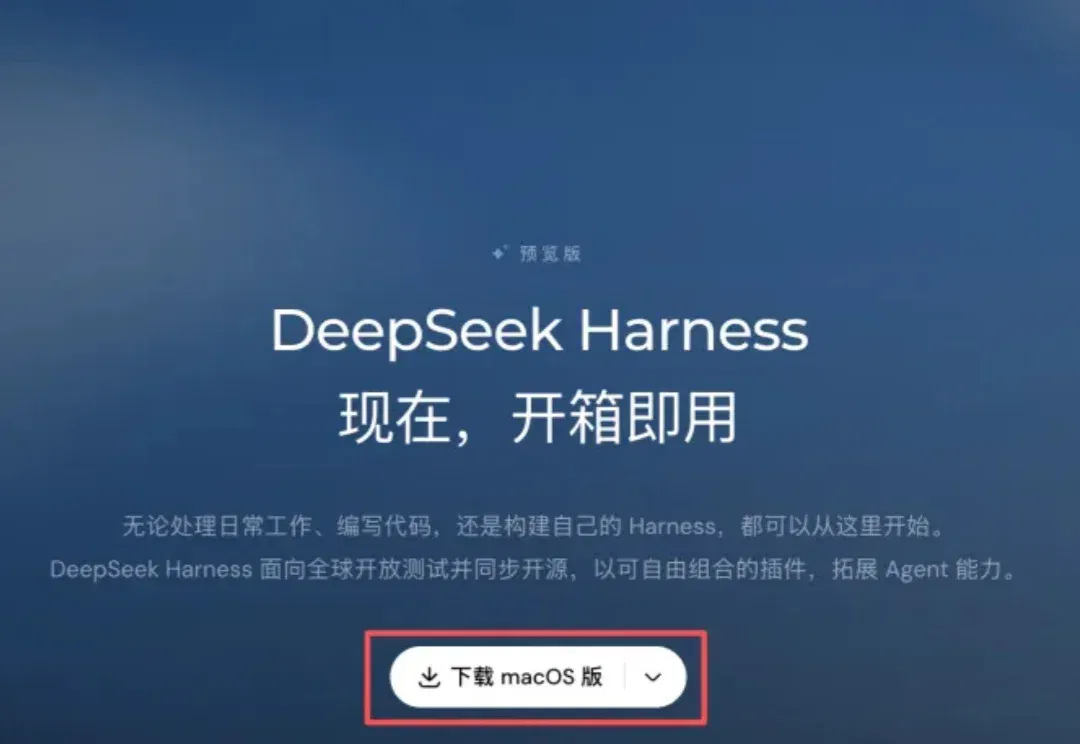
The author presents 13 plugins and customizations for DeepSeek Harness, covering chat imports, costs, context compression, appearance, phone access and memory, with cautions about third-party plugins, public access, updates and extra tokens. Harness remains a preview.
A lot of people have asked me to share useful ways to use DeepSeek Harness and some good plugins. As it happens, a few days ago DeepSeek's usage limits became a trending topic.

DeepSeek sharply cut the quotas for its app and web version, leaving many people feeling as though they had been broken up with.

You can connect an API on a mobile webpage and keep chatting, but many friends do not know how or find it too much trouble.

So a lot of people have started paying attention to DSH again.
The official team also promptly released a plugin to help people import their DeepSeek conversations into DSH and continue using them.
And in a very nice coincidence, today happens to be the 100th day since DeepSeek Harness was released.
As I write this, its GitHub star count has reached 284,000.
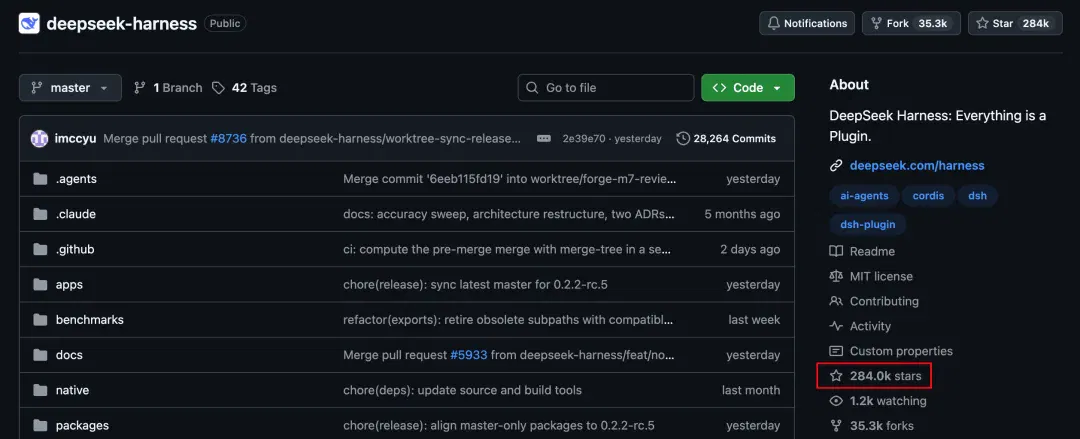
According to the official count, there were already around 35,000 third-party plugins on November 4.
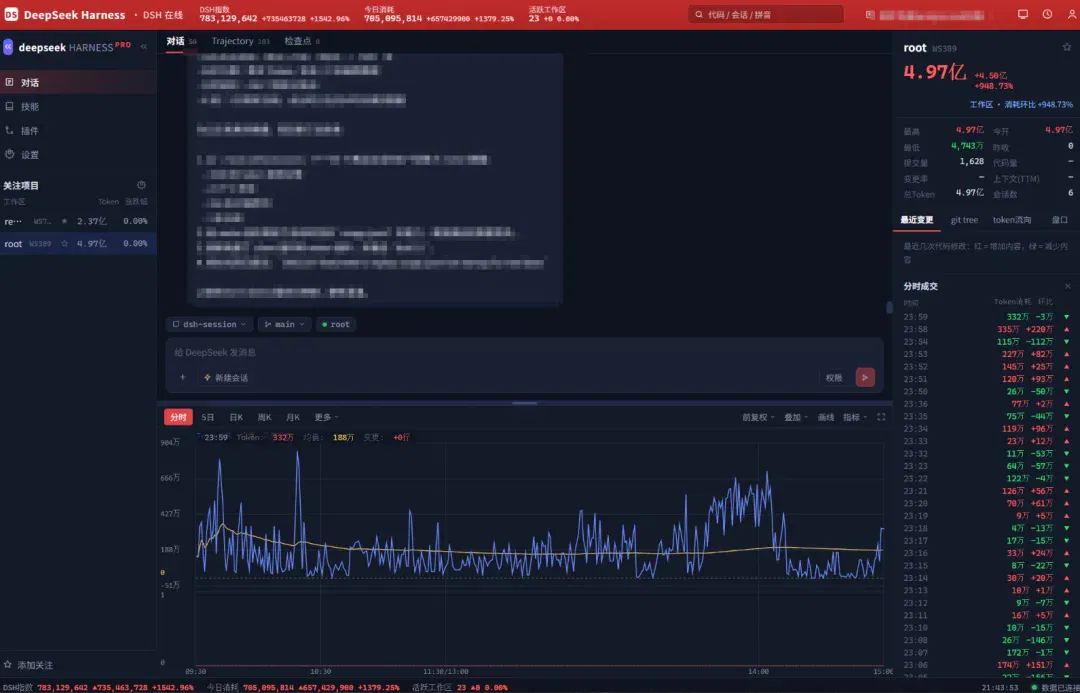
People have really been getting creative with plugins.
For instance, someone completely transformed the interface to look like Tonghuashun.
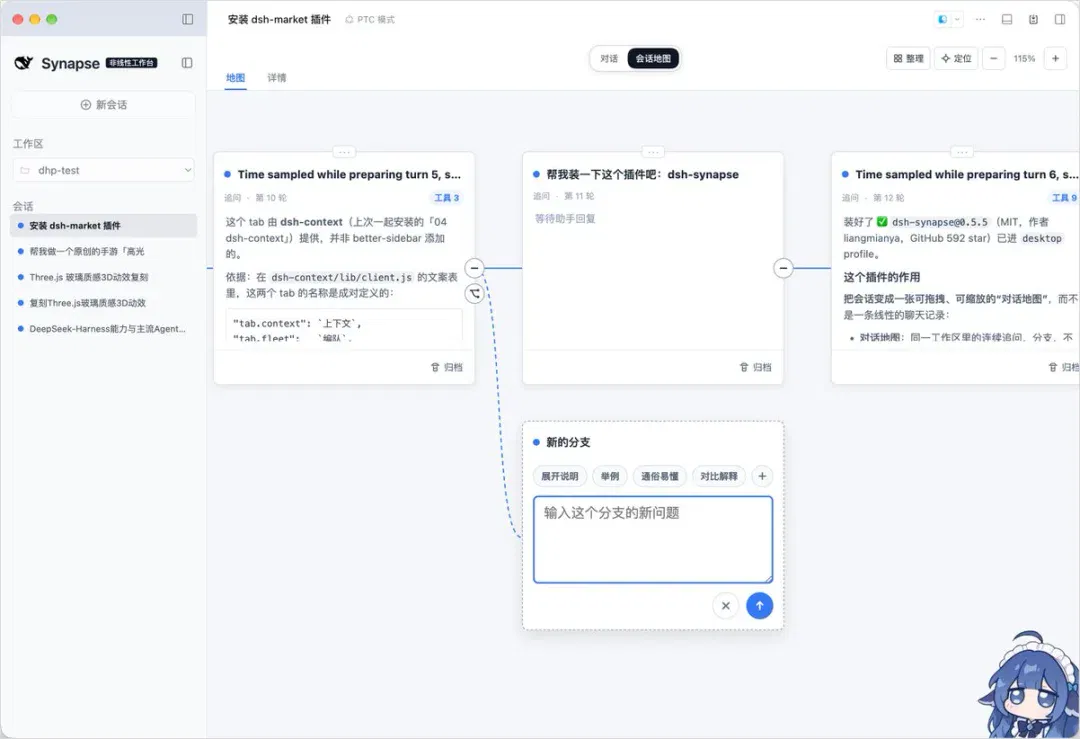
The conversations inside it were turned into a draggable branching map.
As I said before, DSH is a “diode”: people who like it love it to bits, while those who do not feel it has no user experience whatsoever.
But now I think the user experience does not necessarily have to be built by the official DSH team.
Over these 100 days, a whole crowd of people, from university students to geeks, have voluntarily been making plugins for DSH.
So I have picked 13 useful, fun and relatively general-purpose plugins to share with you.
I hope they help make DSH comfortable to use.
Let's get started.
1. Installing DSH
For anyone who has not installed DSH yet, let's quickly walk through the process.
You can ask another agent on your computer to install it for you, or manually visit the link below.
https://www.deepseek.com/harness/

Double-click the installer. Once installation is complete, you will see this big black whale.

The first time you open it, you will need to do some setup.
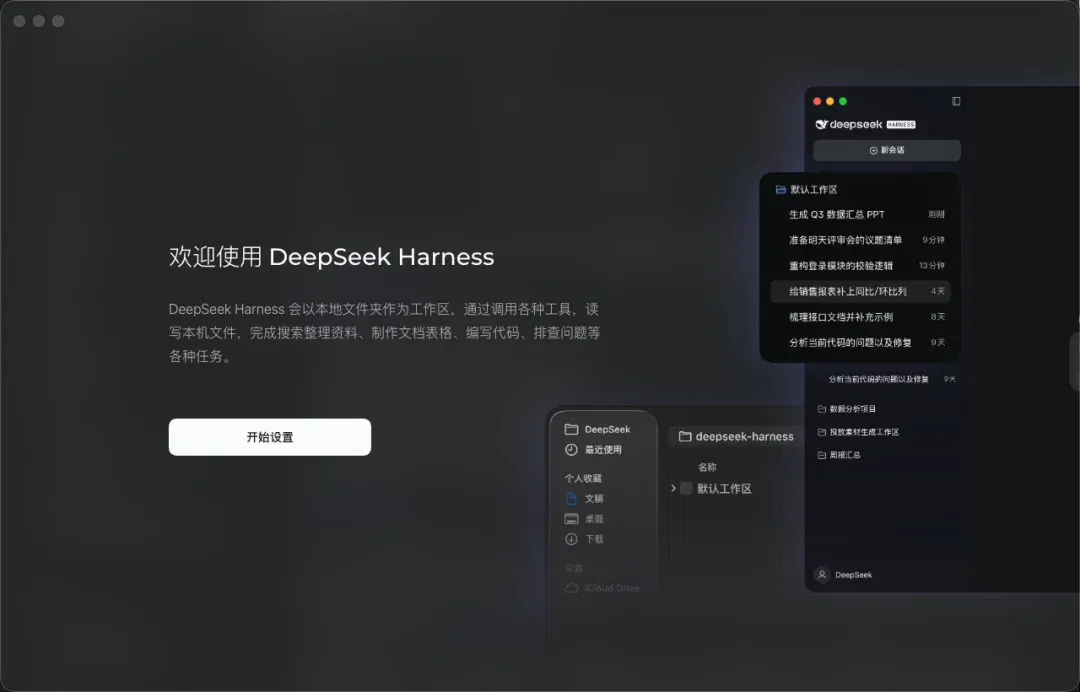
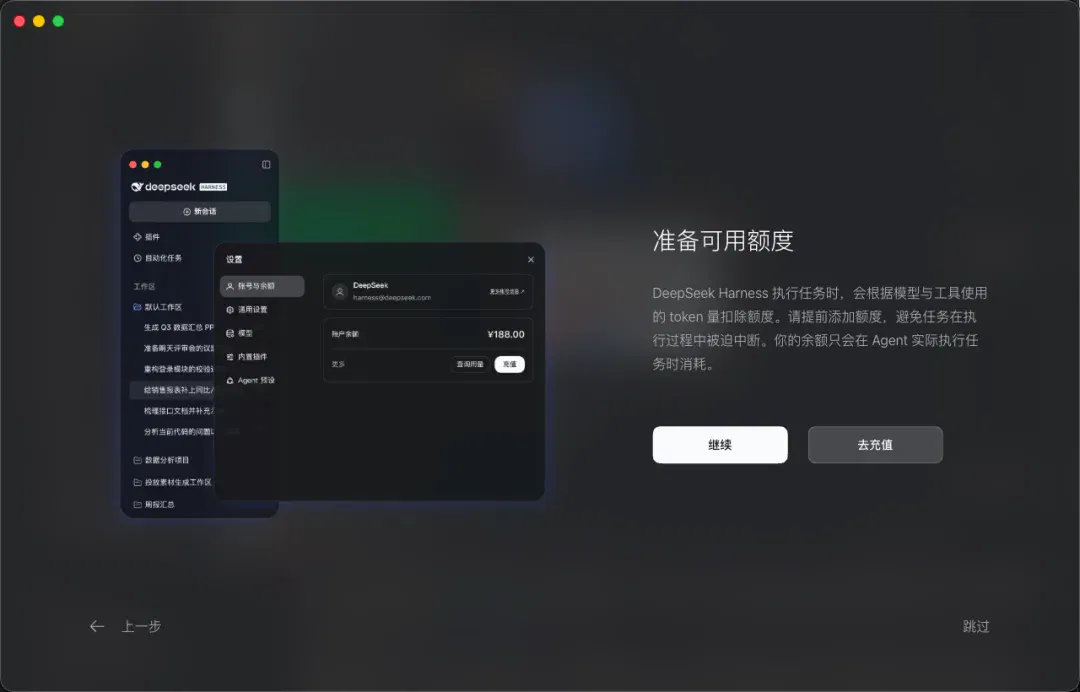
Click “Start setup.” Using DSH costs money, but new users will very likely receive some trial credit when they first sign in. So for now, click “Continue” here and top up later if you run out.
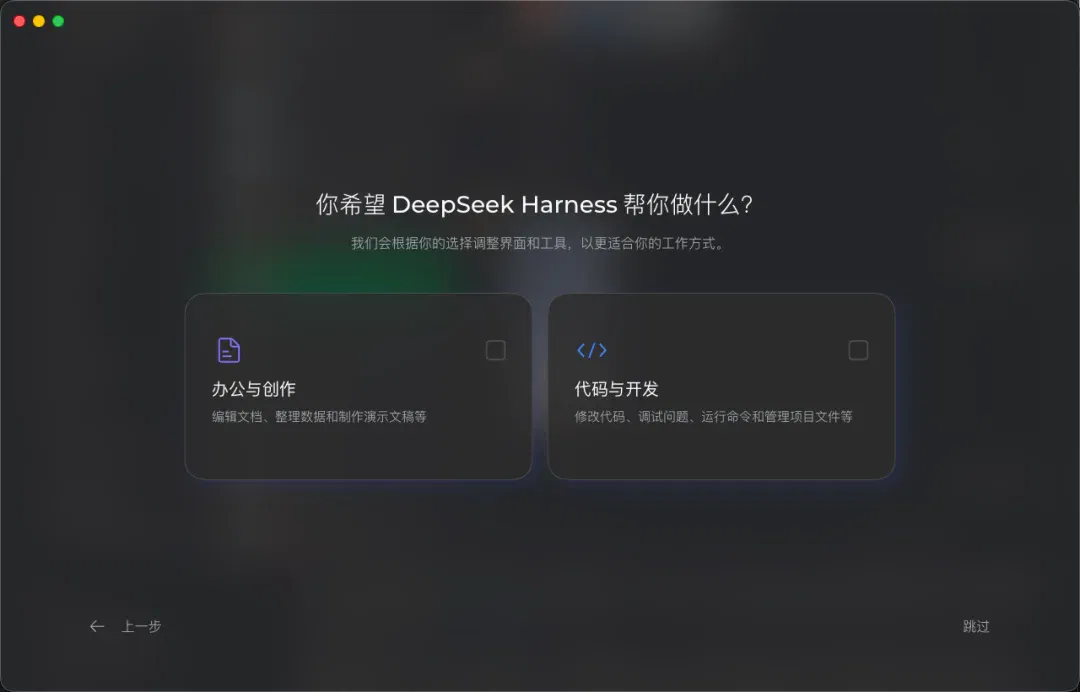
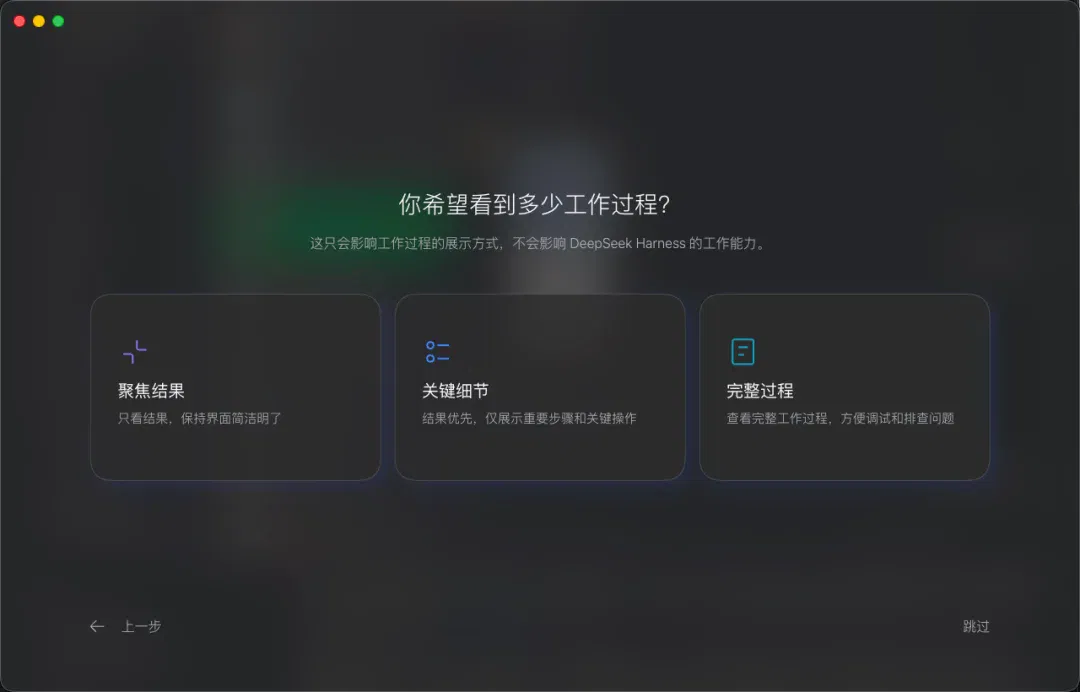
Next come the usage-preference settings. Just choose according to your own preferences.
Then you can start chatting with it.
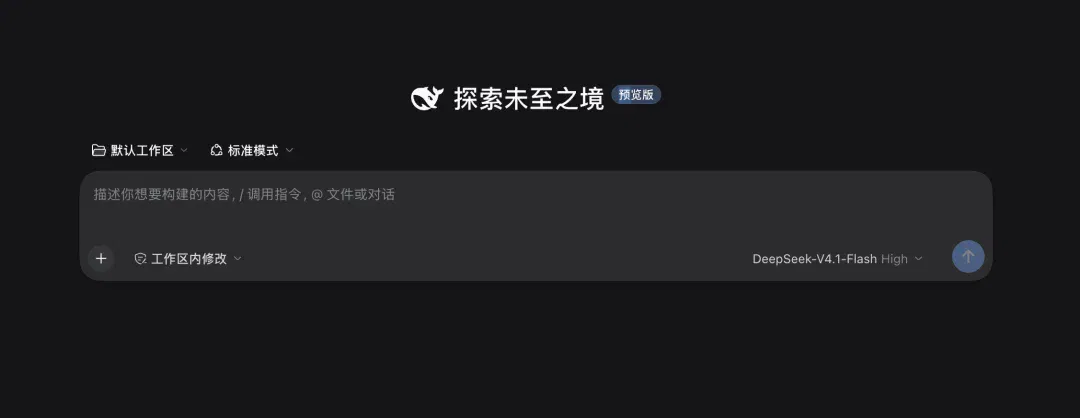
2. Plugin marketplace: dshmarket
Now that you have DSH, let's look at how to install plugins.
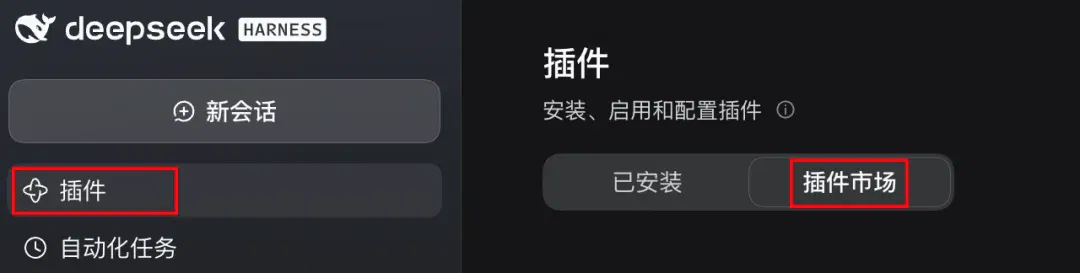
The official DSH team provides some plugins itself. Click “Plugins” in the sidebar to see them.
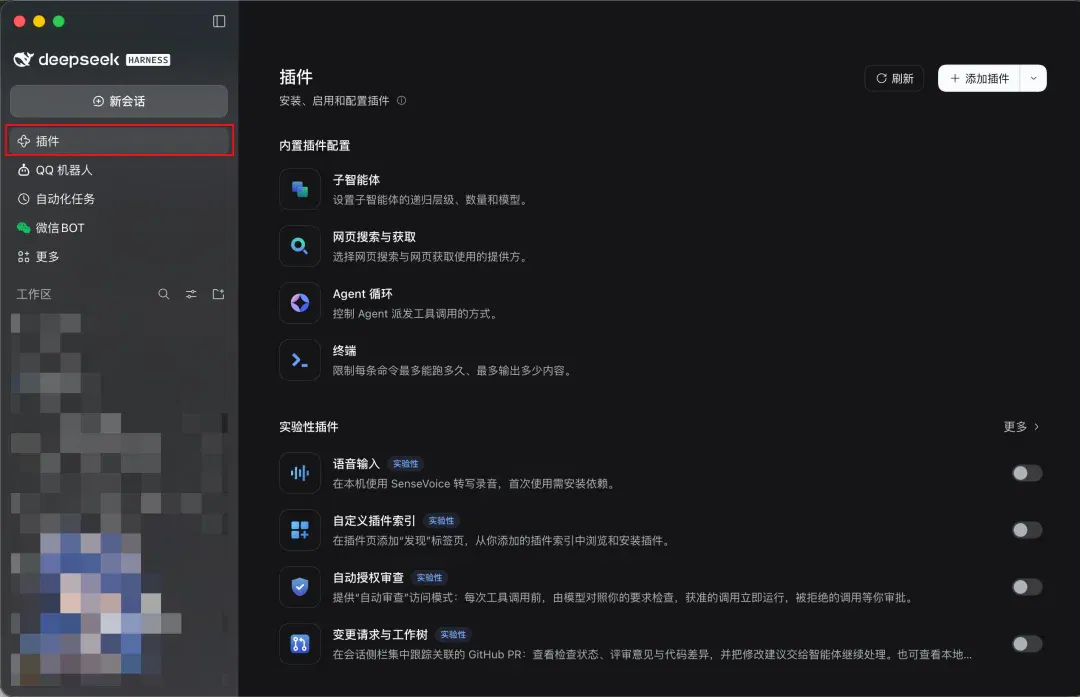
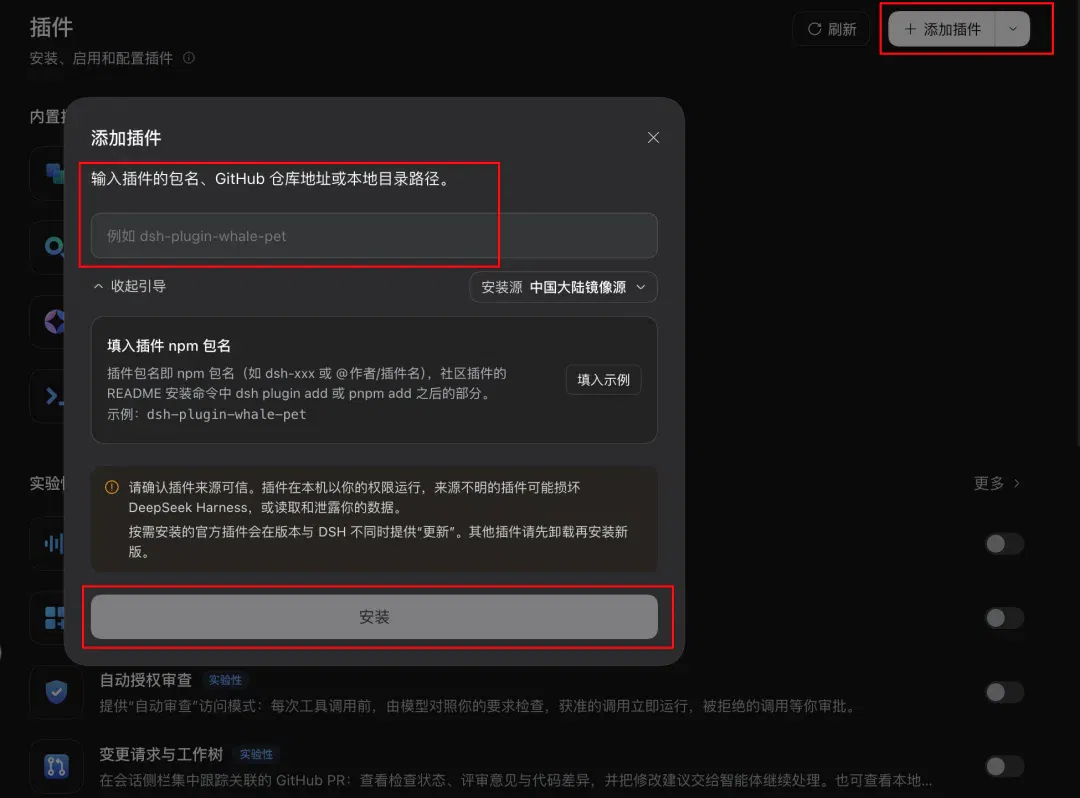
Click “Add plugin” in the upper-right corner.
Enter the package name of the plugin you want to install, its GitHub link, or its path on your local computer, then click “Install.”
There is also an utterly straightforward installation method, with no detours and everything taken care of for you: just tell DSH which plugin you want and let it install it itself.
This method does consume tokens, though.
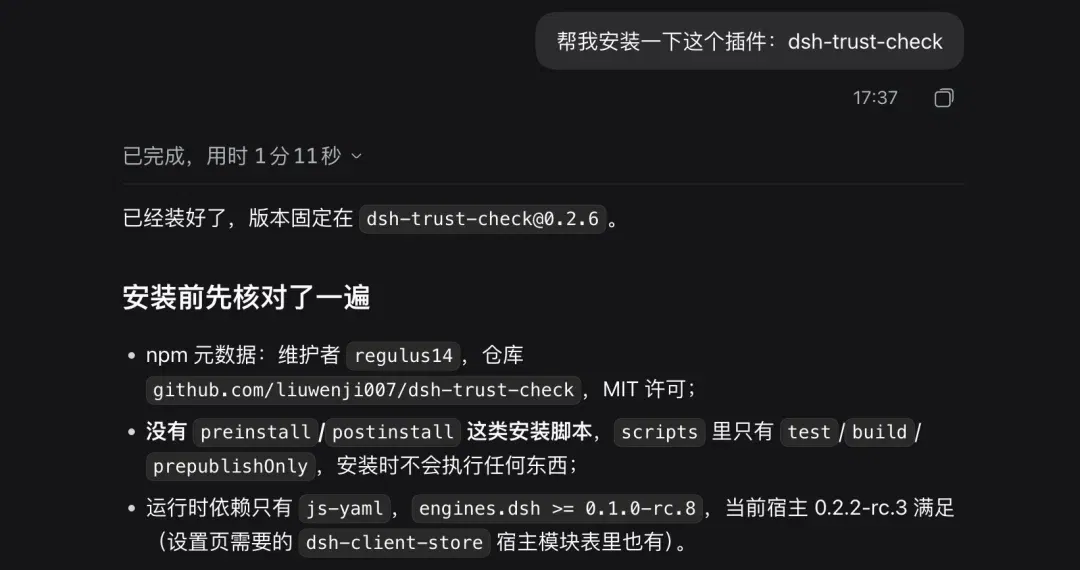
For example, installing the plugin shown above cost me a very precious RMB 0.02.
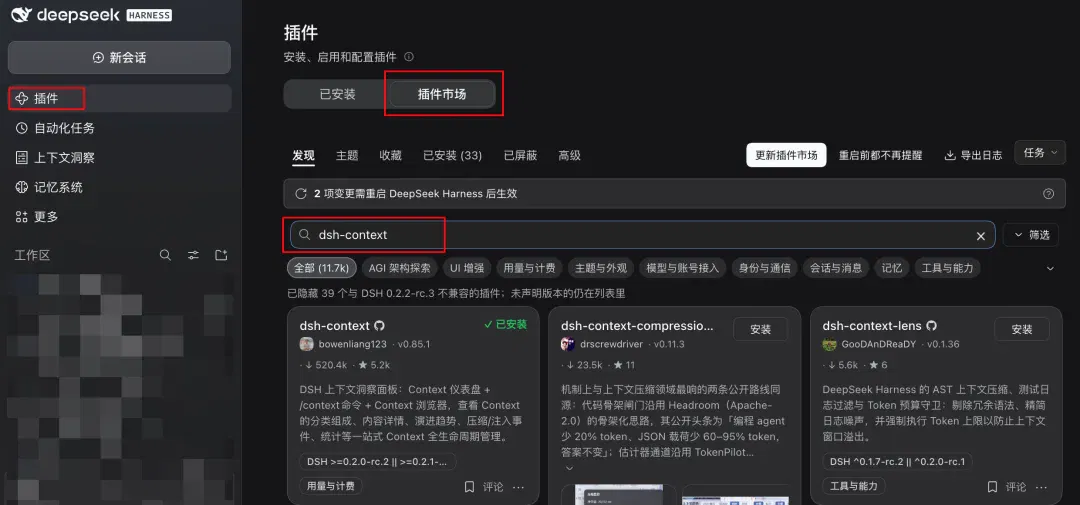
Besides these two methods, there is another I particularly recommend: first install a plugin marketplace, dsh-market.
This marketplace is itself a plugin. Use the first method above: in “Add plugin,” enter dshmarket as the package name, then click “Install” and “Enable.”
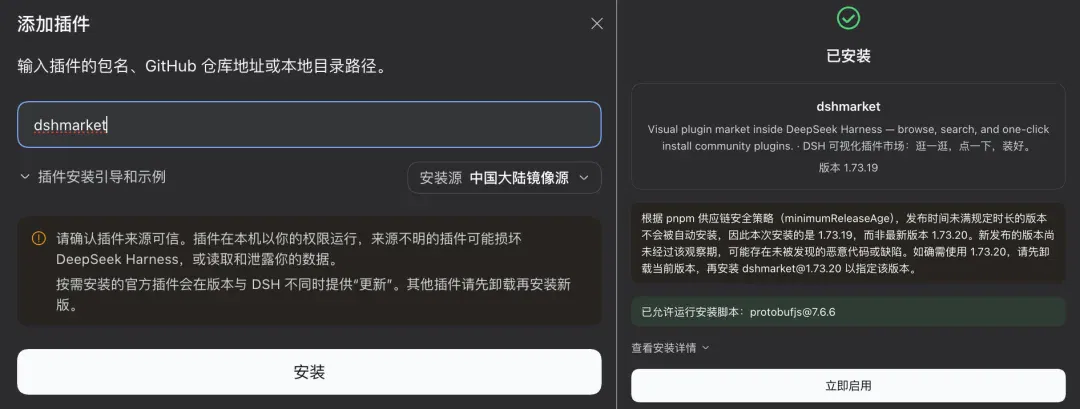
Once it is enabled, this third-party plugin marketplace appears on the plugins page.
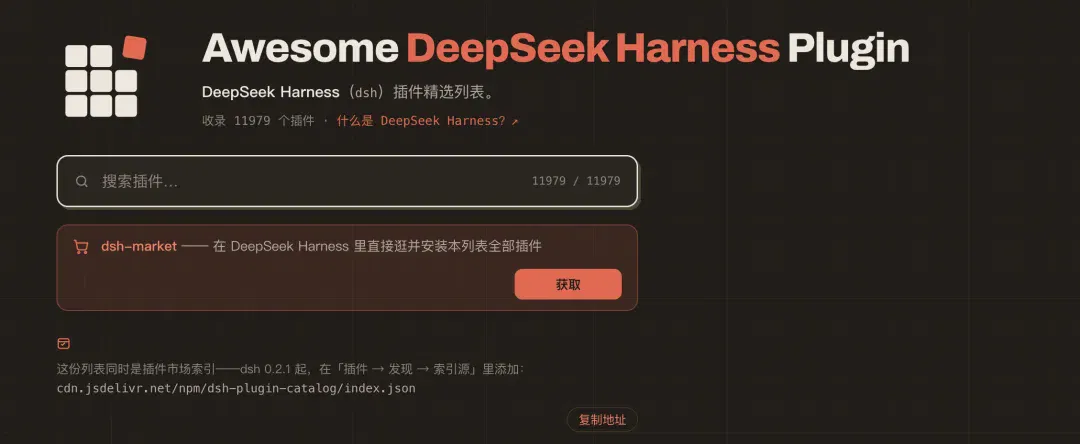
It lists the plugins in the awesome-dsh-plugin community list, which now has almost 12,000 entries.
You can conveniently filter by category and search, as well as see detailed descriptions, download counts and bookmark counts for each plugin.
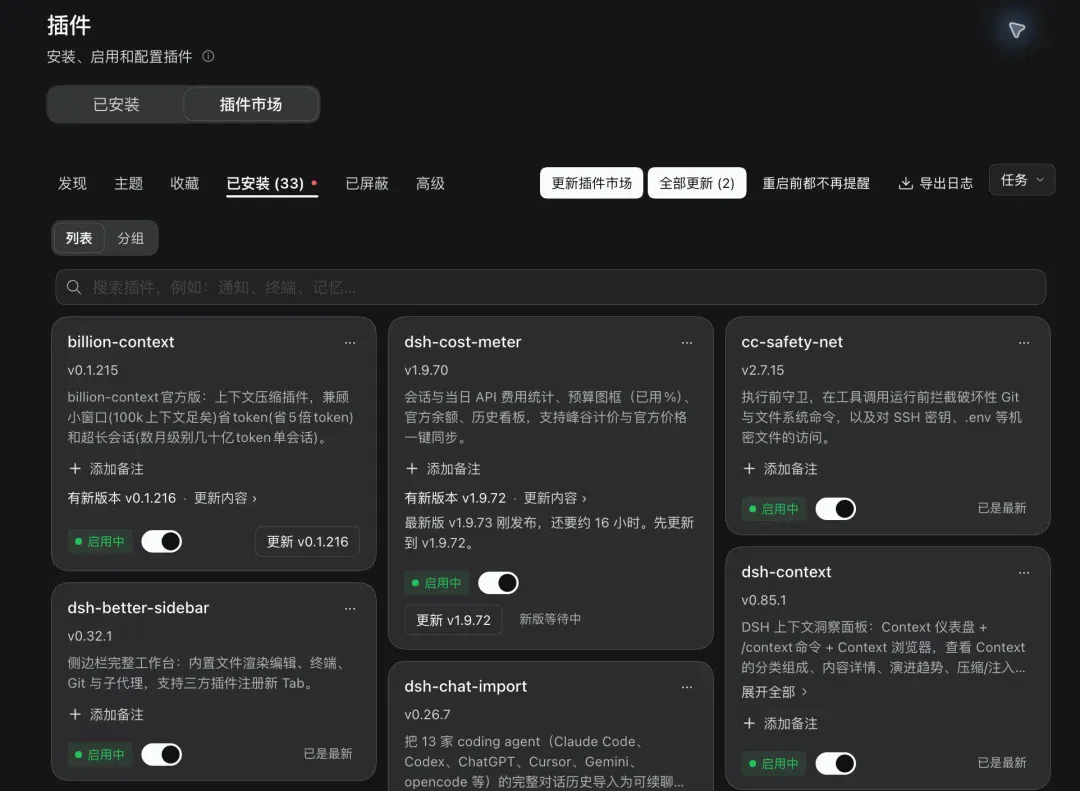
You can also see which plugins you have installed, their versions and which ones need updating.
Another reason I recommend this marketplace is that there are now some malicious plugins online.
For example, someone reportedly downloaded a fake DSH plugin and had their computer remotely taken over.
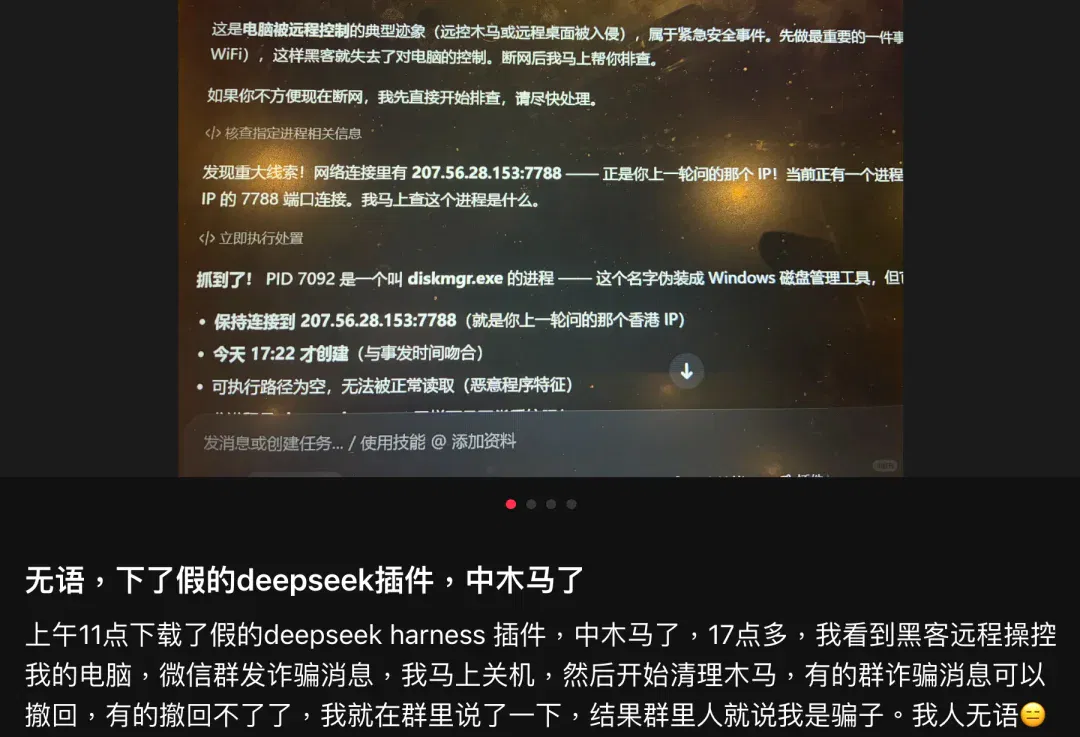
A plugin is, after all, code written by someone else that runs on your computer once installed. Many plugins can also execute commands directly on your computer.
In this marketplace, each plugin's details page shows the results of a scan performed that day by a plugin called dsh-trust-check.
The dsh-trust-check plugin scans what a plugin will actually do.
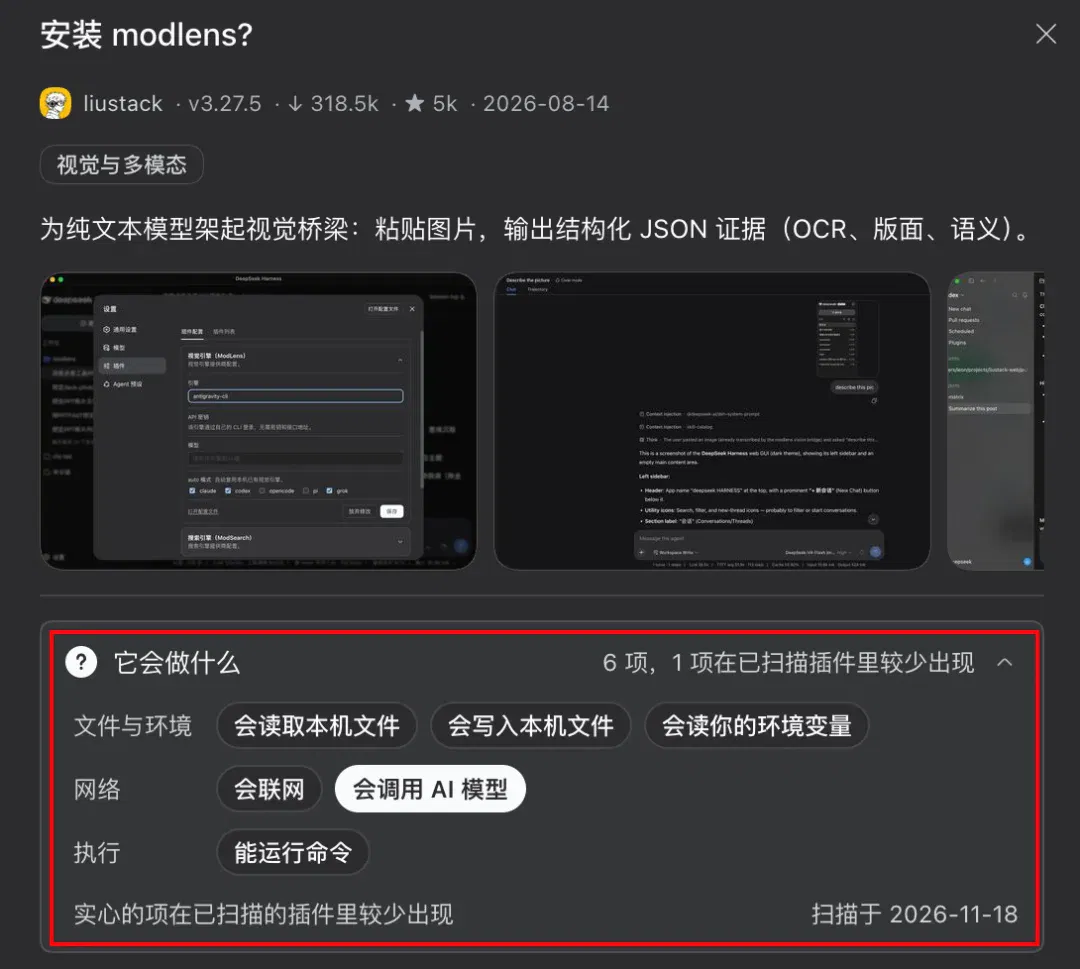
Capabilities that are relatively uncommon in plugins, such as accessing your keys or invoking models, are specifically highlighted to alert you.
All the plugins recommended below can be found by searching their names in this marketplace. Just click “Install,” so I will not repeat the installation process.
3. Importing DeepSeek conversations
Next, let's look at how to import DeepSeek conversations into DSH.
This is also a plugin the official team released just a couple of days ago: DeepSeek conversation import.
You do not need to install this plugin. It is built in; just turn it on.
Open the plugins page from the sidebar, find the experimental plugins, and click “More.”
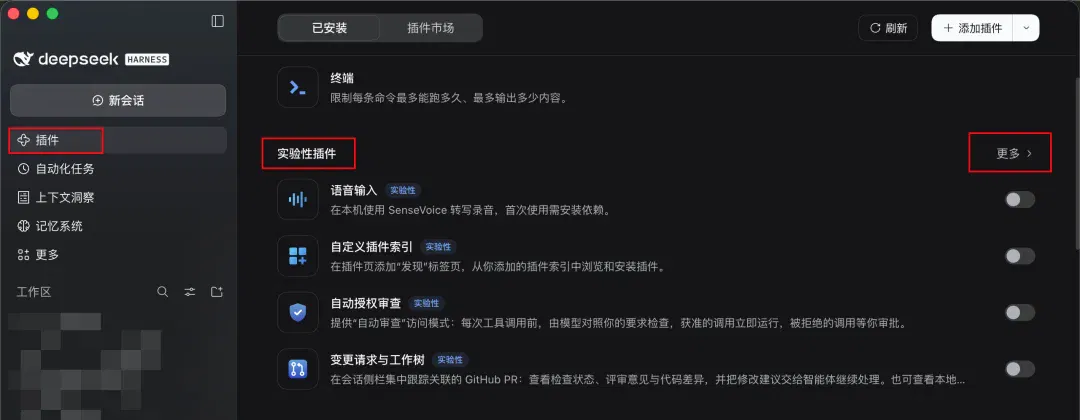
You will see the DeepSeek conversation import plugin. Turn it on.
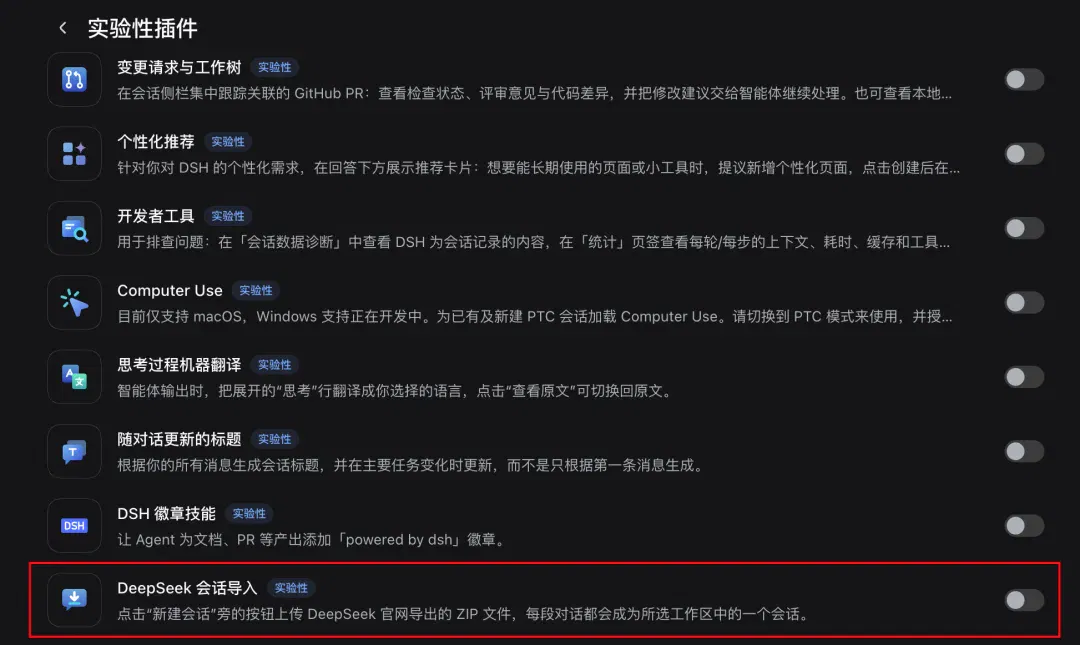
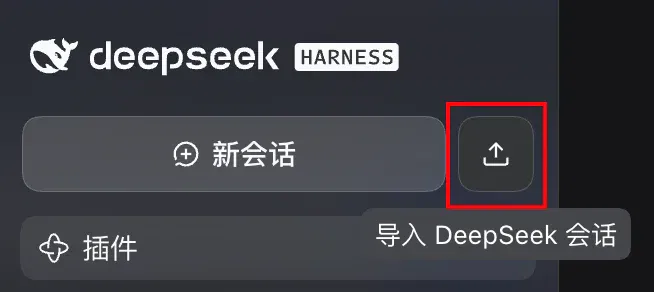
Once it is enabled, an “Import DeepSeek conversations” button appears in the sidebar.
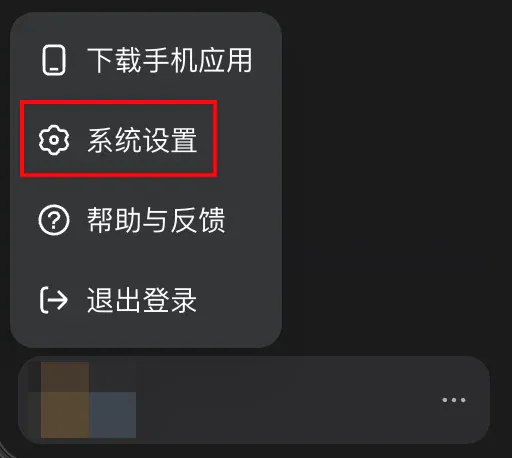
Now you need to visit DeepSeek's web version and export your conversation history.
Click your avatar in the bottom-left corner to open the system settings.
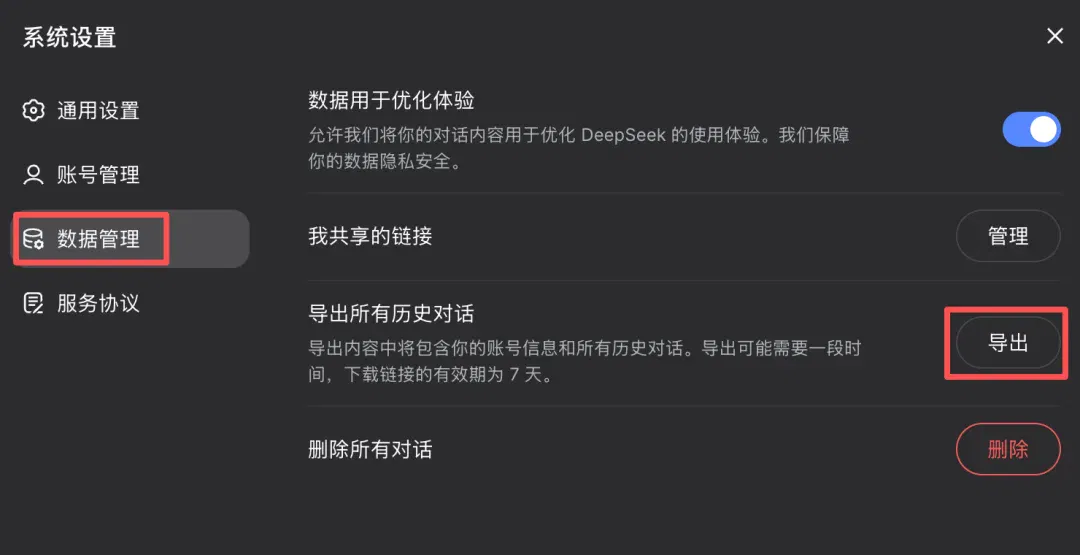
Click “Data management,” then export all historical conversations. The export gives you a compressed archive.
Return to DSH. Here I suggest first creating an empty folder specifically for storing your conversations with DeepSeek.

Click “Import DeepSeek conversations.”
Select the archive you just exported and the workspace you want to import into, then click “Import.”
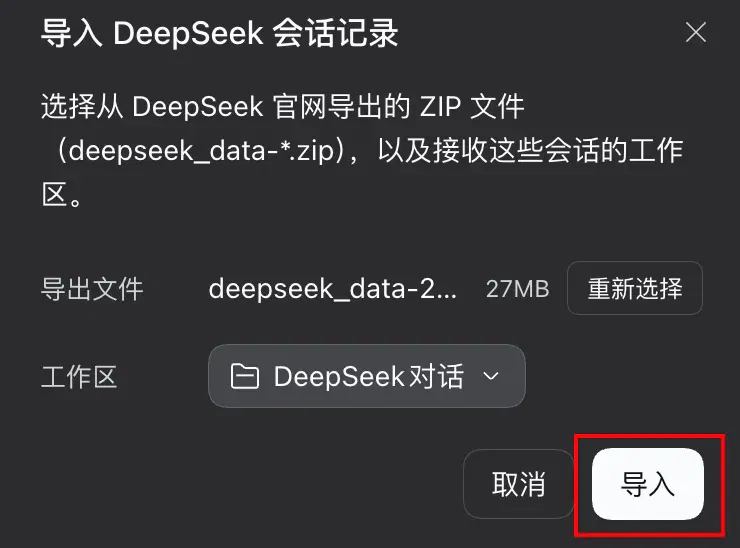
Once the import is complete, your previous DeepSeek conversations appear in the sidebar, and you can continue chatting.

4. Context and cost breakdowns
Here are two more plugins I find very useful that can work together. Both also have very high installation counts.
dsh-context and dsh-cost-meter.
Let me give you an example.
Hou Hui You Qi has been very popular lately, with “You're trapping yourself in a prison of your own making, Li Na” all over the internet.
Following the principle that if I am going to follow the gossip, I should understand it properly, I asked DSH to search as comprehensively as possible for the full backstory.

Once it finishes, click “Context” at the top of the page.
You can then see extremely detailed context and token statistics for this conversation, as well as what each stage was doing over the twenty-odd minutes it ran and how long each took.
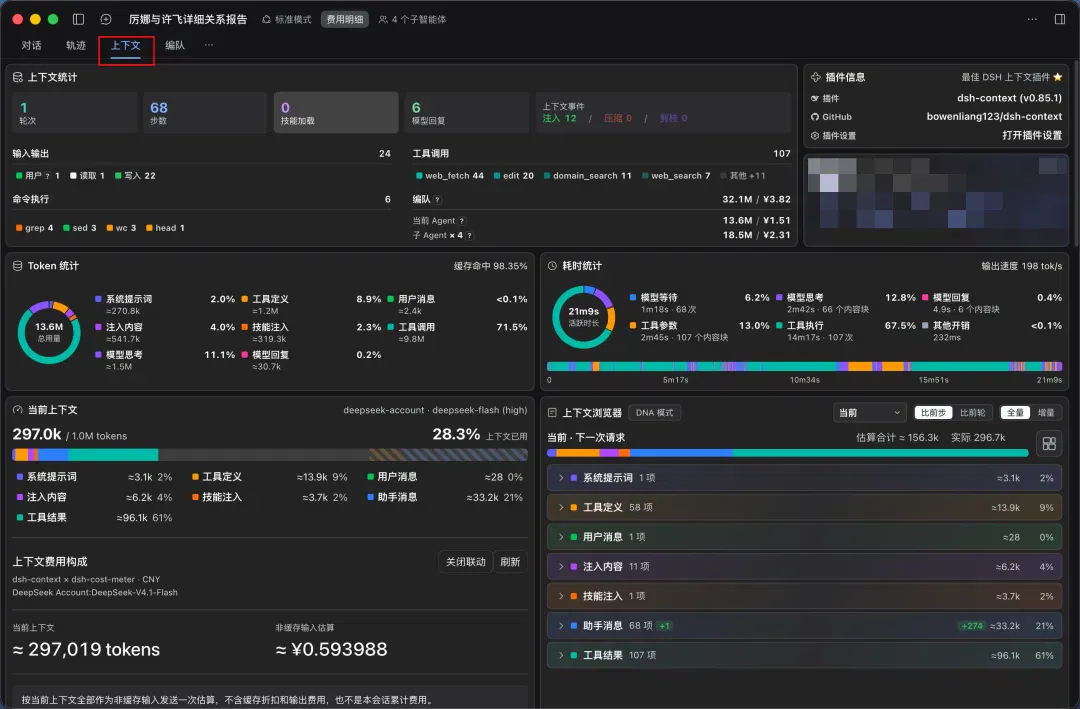
This is dsh-context's main function: showing what is in the model's context and how much is occupied by each component, including system prompts, historical messages, webpages and files accessed through tool calls, and so on.
Besides inspecting an individual conversation, you can click “Context insights” in the sidebar to view context data aggregated over a chosen time window.
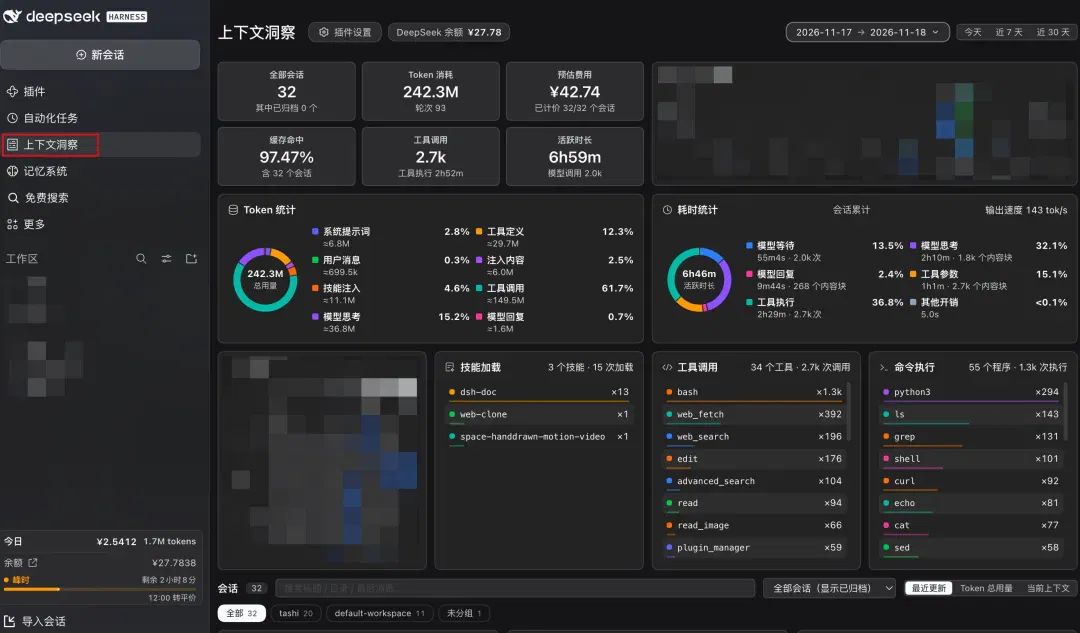
If you also install the second plugin, dsh-cost-meter, the context page will show a breakdown of context costs too. This is the way the two plugins work together.
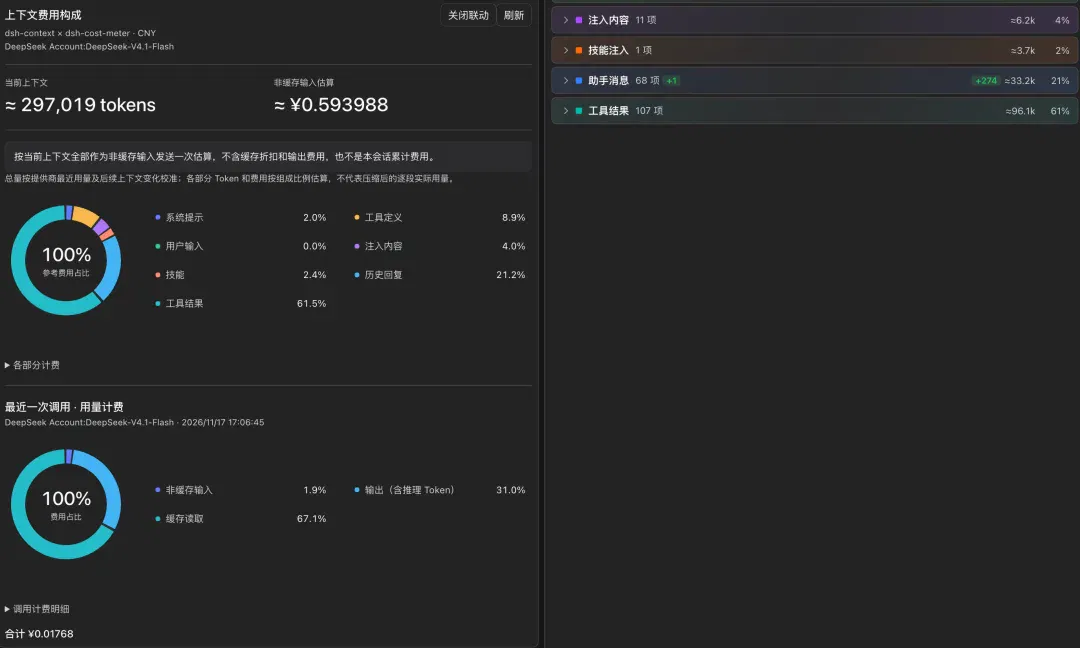
dsh-cost-meter is an exceptionally detailed cost-breakdown tool. It lets you examine how much you have spent and where the money went from multiple angles.
Take the same conversation about Xu Fei and Li Na.
You can also click “Cost breakdown” at the top of the conversation for a more detailed view of its spending.
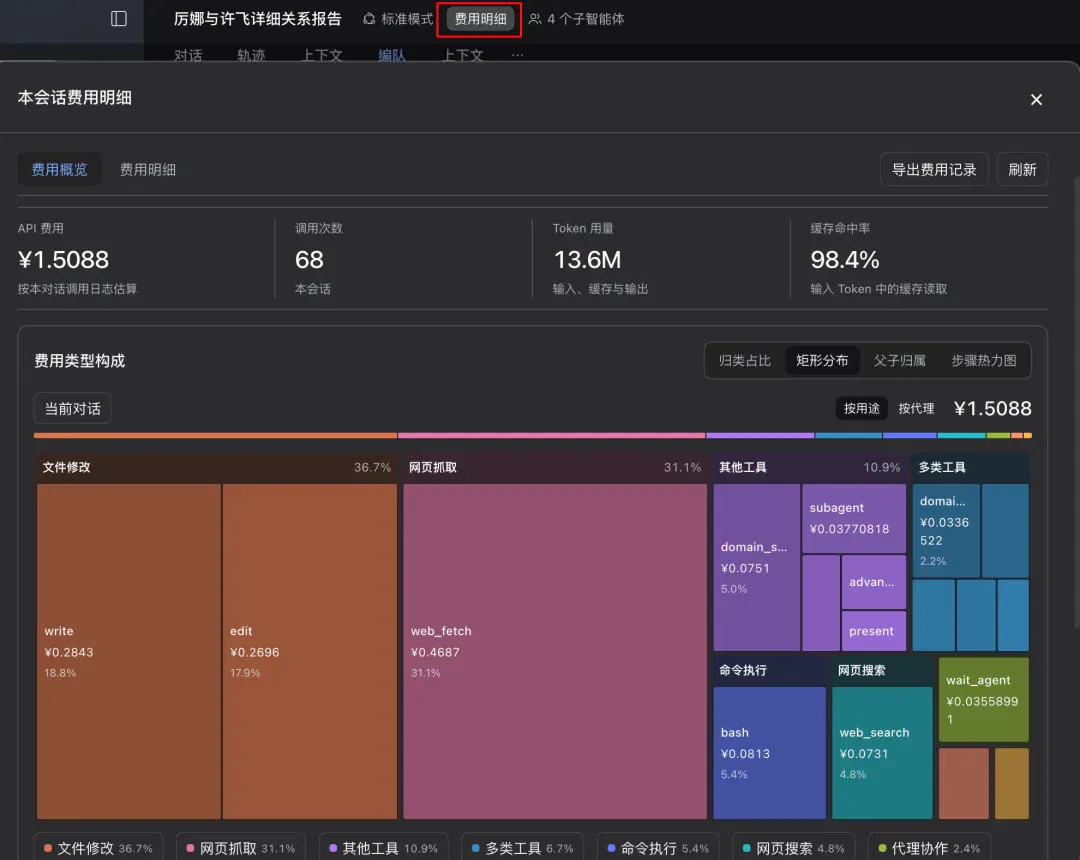
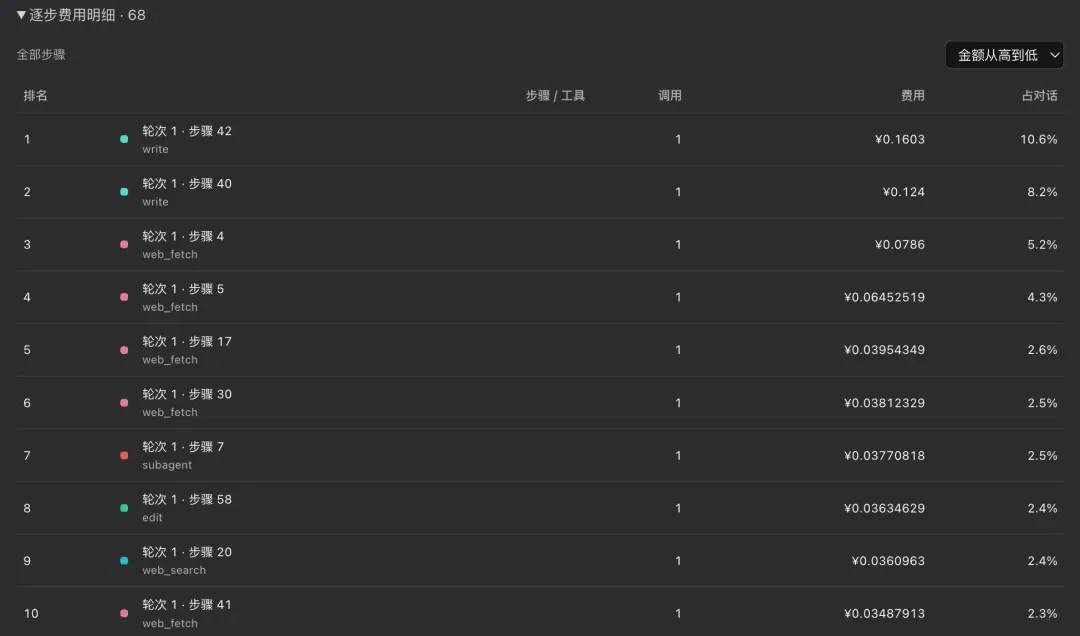
It also shows costs for every turn and every step.
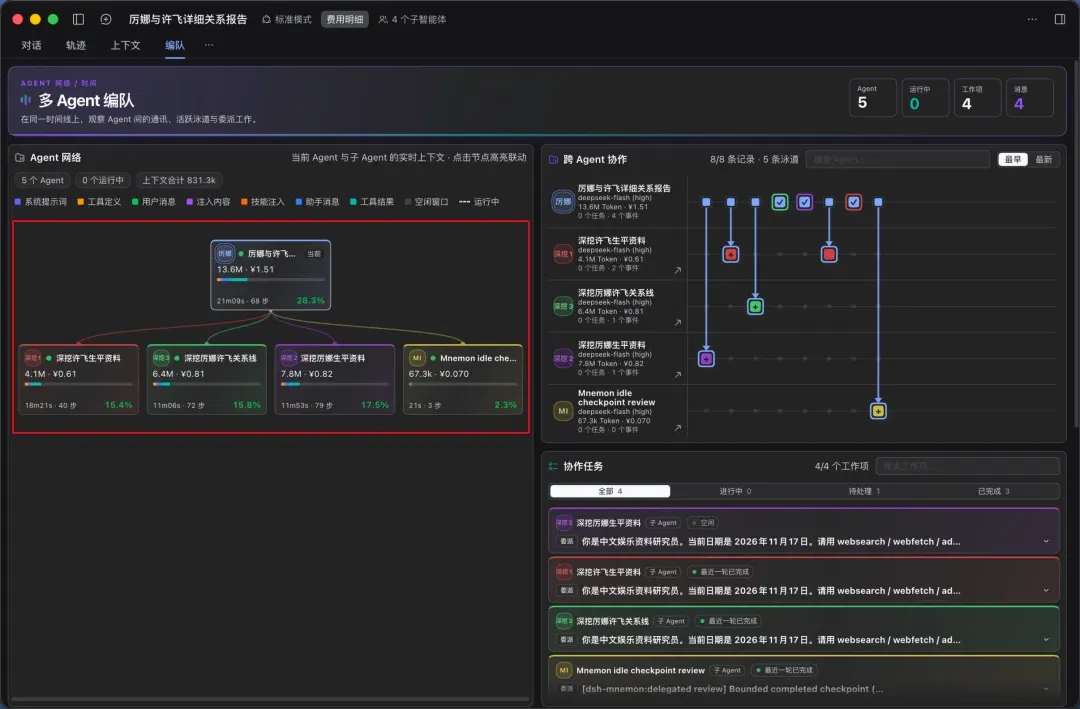
And the costs for each subagent.
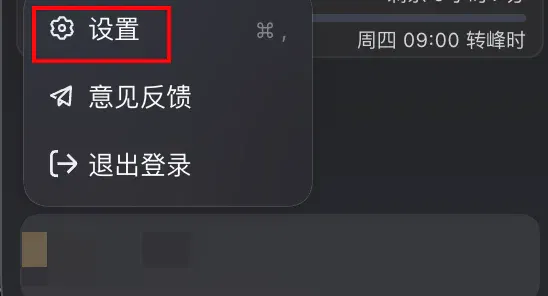
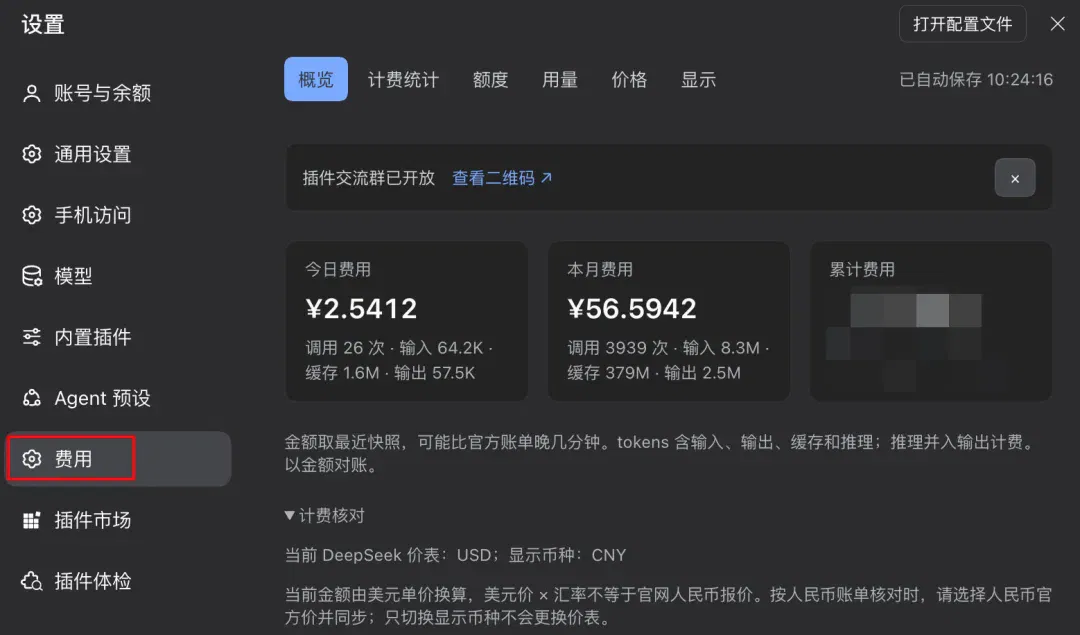
Besides a particular conversation, you can view overall cost statistics. Click your avatar in the bottom-left corner to enter settings.
Click “Costs” to see extremely detailed billing statistics, quota consumption, model pricing, billing rules and so on.
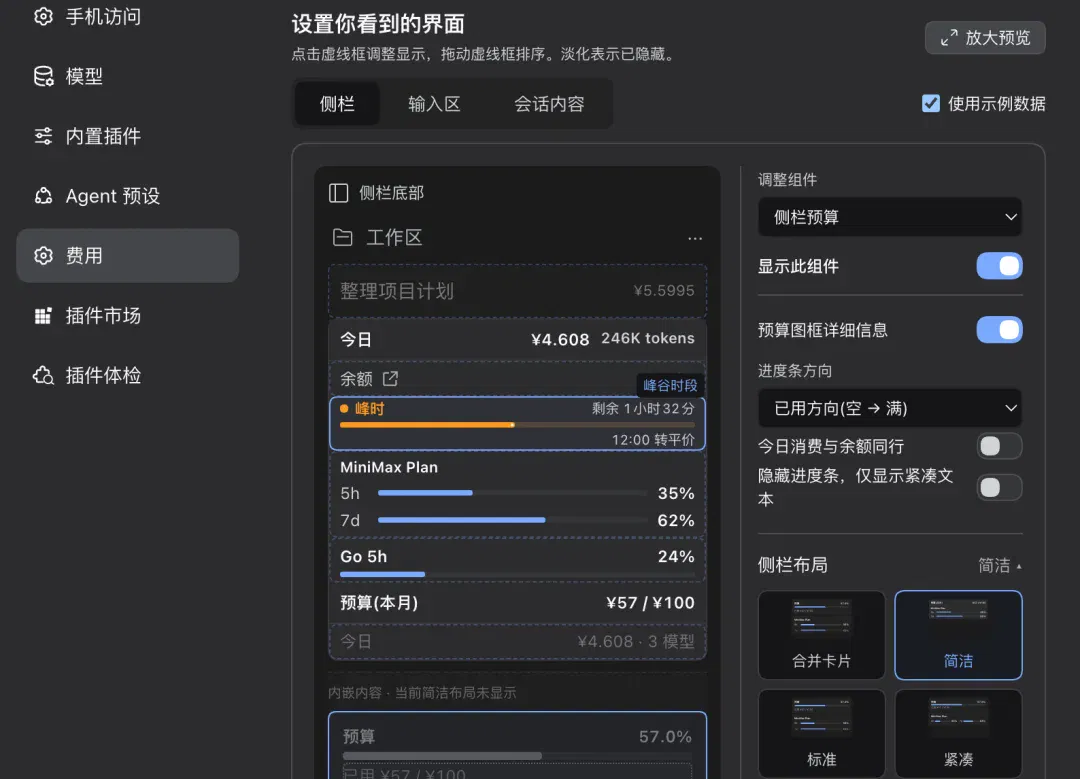
You can also customize the cost cards displayed in different places here. As peak or off-peak pricing is about to begin, it pops up a reminder card—a thoughtful touch.

5. Context compression: billion-context
Next is billion-context, a plugin particularly well suited to saving tokens on long tasks.
Its main function is compressing earlier context into summaries during long tasks. The material compressed into those summaries can also be restored.
The original conversation history remains stored locally. When the model needs a particular detail, it can first search the context to locate that part of the history, then expand only the section it needs.
I asked DSH to search the web as thoroughly as possible for every part of Jensen Huang's life, from birth to the present.

The main conversation invoked ten subagents in total: five wrote biographical sections by period, two researched Chinese- and English-language reporting respectively, and three handled editing and proofreading. The entire task ran for more than two hours, ultimately producing a biography of nearly 40,000 Chinese characters and a timeline of 20,000 characters.

To see the effect of this plugin, click the second “Context” entry at the top of the conversation. It has the same name as the dsh-context entry discussed earlier, but their functions do not conflict.
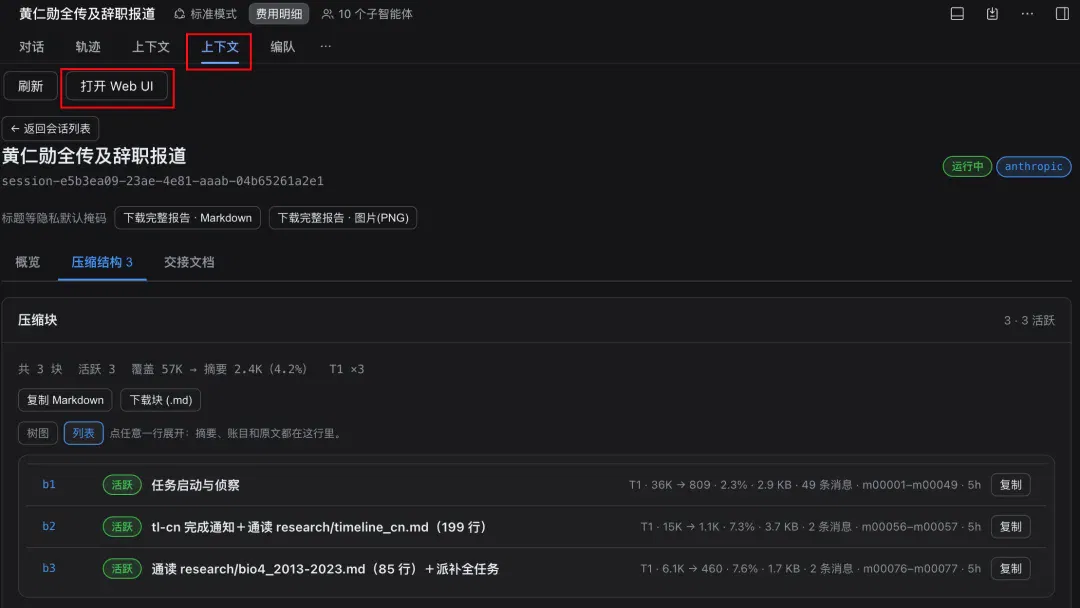
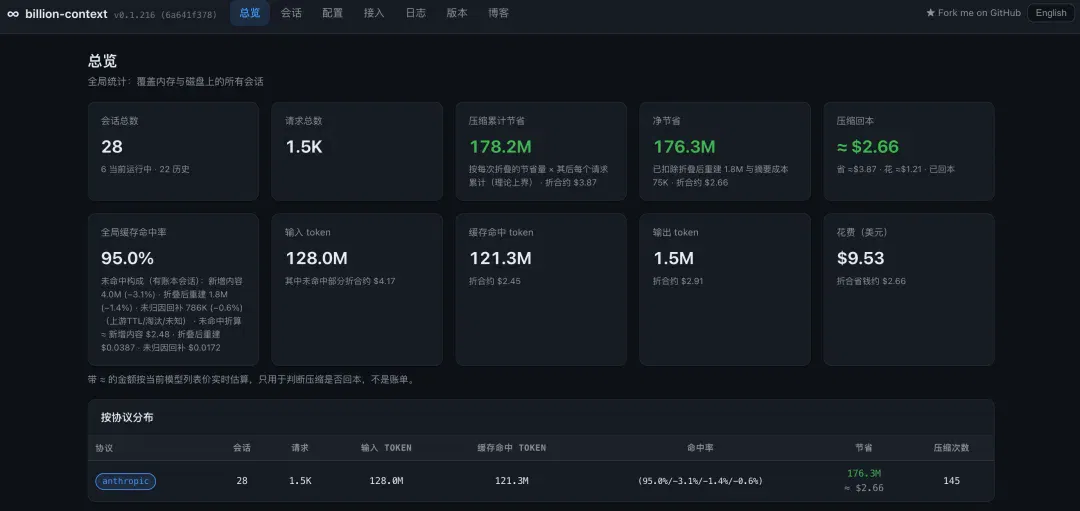
Click “Open Web UI” for an overview of the context compression performed while using this plugin.
On the conversations page, you can also inspect compression for a single conversation, such as the Jensen Huang research task just described.
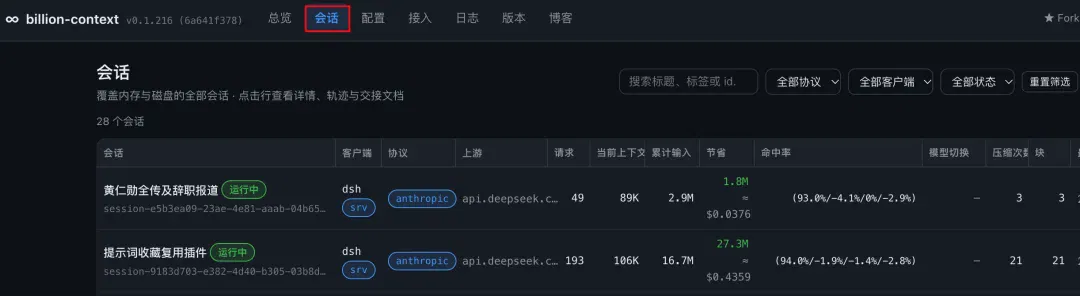
Counting the main conversation and its ten subagents, there were 48 compression operations in total, producing 116 summary blocks.
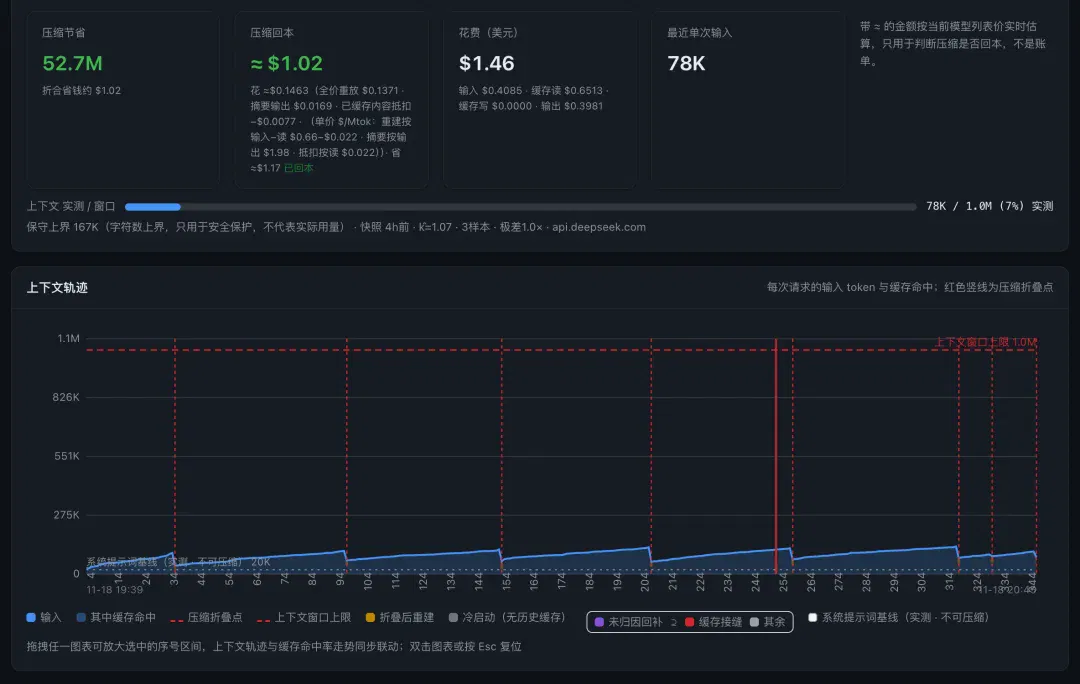
Take the subagent responsible for compiling English-language reporting as an example. It sent 353 requests over more than an hour. Whenever its context grew beyond 100,000 tokens, it was compressed back to between 40,000 and 80,000. There were eight compression operations in all.
The blue line in the chart shows the input volume of each request. Each vertical red dashed line marks one context-compression operation.
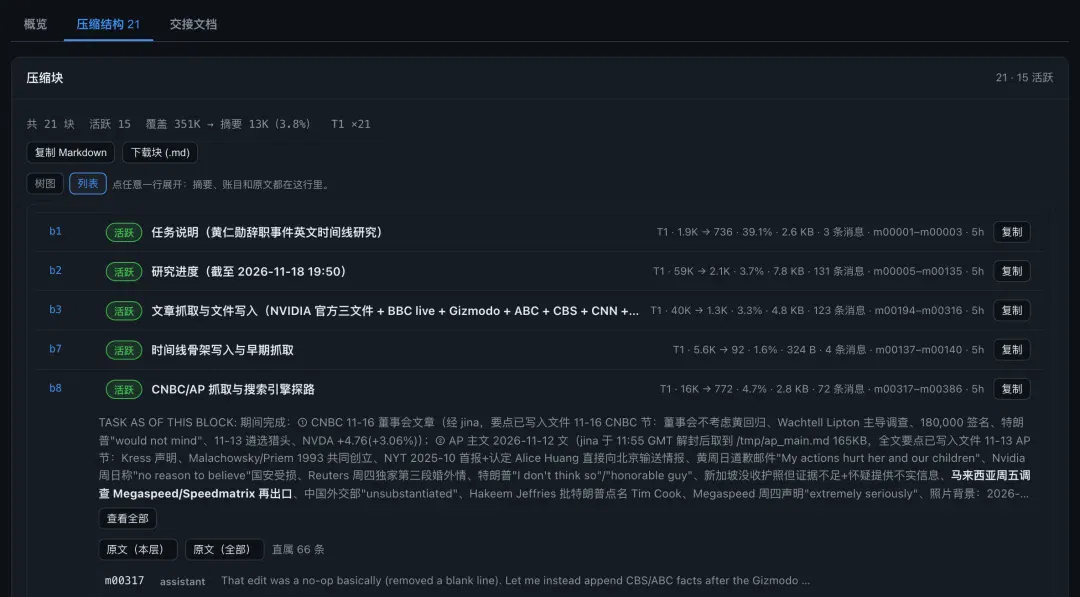
Open the compression structure to see that these operations produced 21 summary blocks in total. A history originally spanning 350,000 tokens became a summary of 13,000 tokens, only 3.8% of the original.
6. Desktop pets, skins and startup animations
This is the part I find the most fun.
For DSH appearance settings such as the skins, desktop pets and startup animations that went viral earlier, you can browse the marketplace yourself and choose what you like. After installation, just restart DSH to activate them.
dshmarket also has a dedicated theme category to help you quickly find a theme you like.
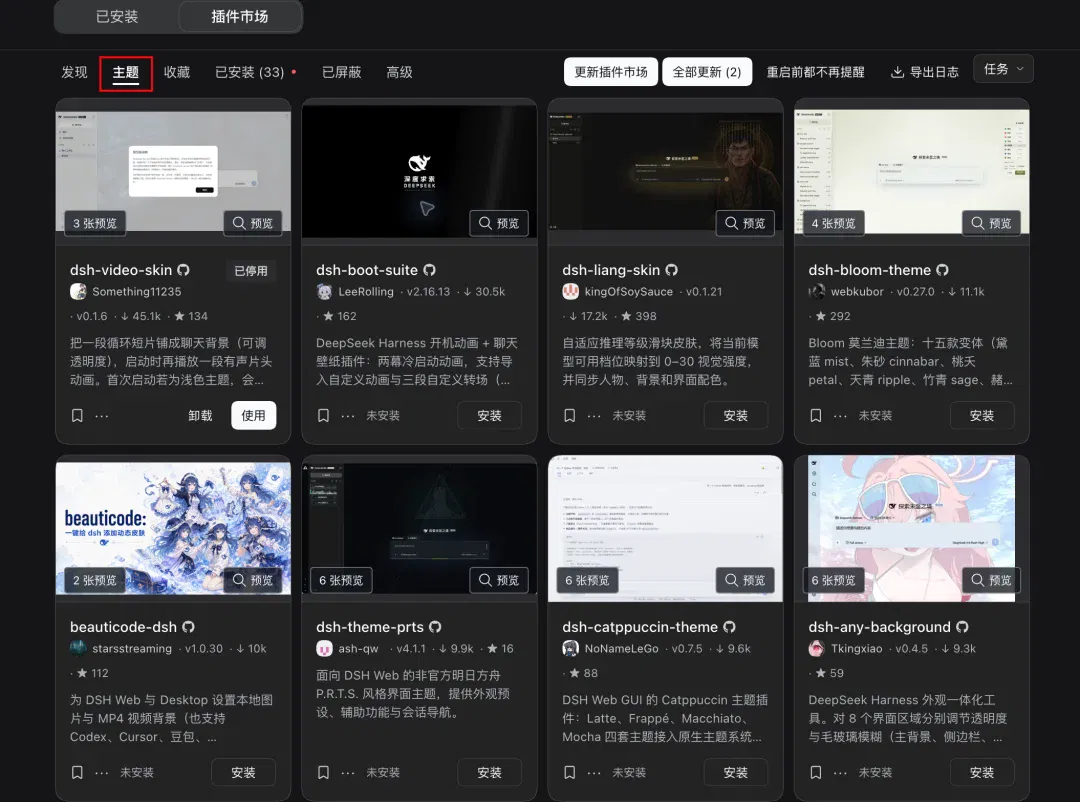
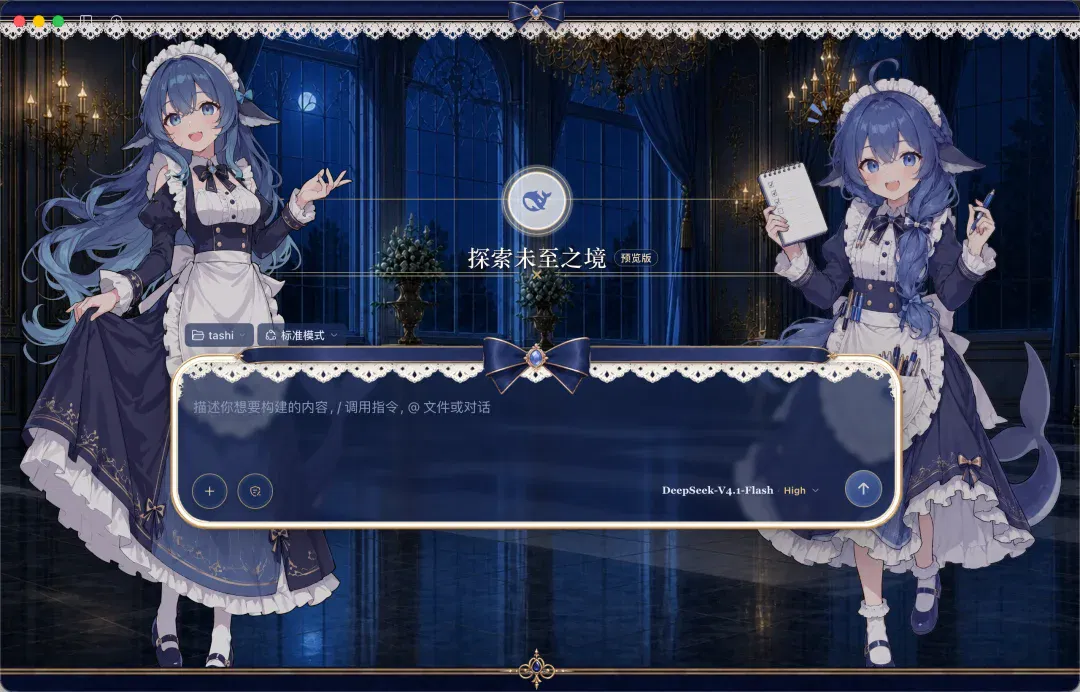
For example, the whale-girl skin that was very popular earlier.
Plugin: dsh-client-ui-skin-maid-atelier
Or this cozy one, with both a cat and a dog—the ideal life.
Plugin: my-cozy-dsh

You can add a desktop pet too.
For example, our very cute whale girl again.
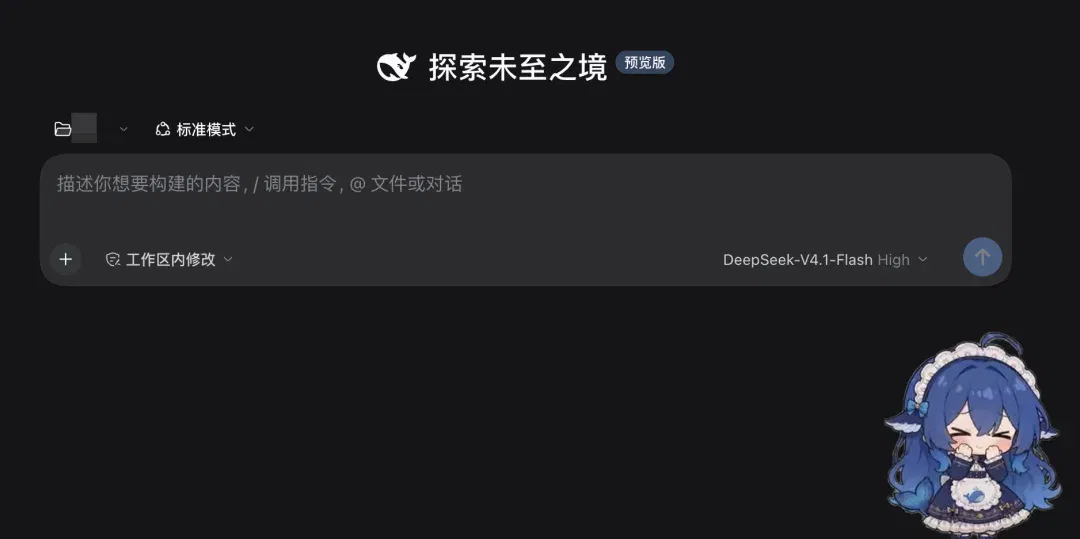
Plugin: dsh-pet. Because there are plugins with the same name, I have also included the author's name.

It can behave differently depending on the work status, and also sends you little messages from time to time. It is quite entertaining.

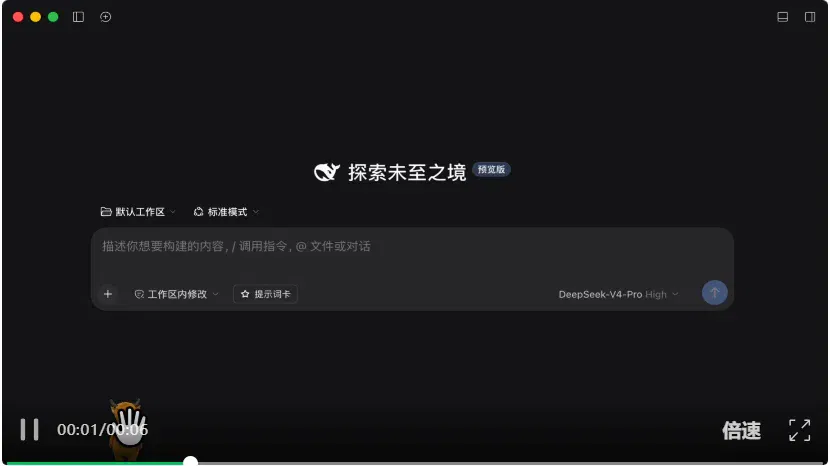
You can also get a cow as a pet. It will loudly call you “Mom” every time a task finishes.
Plugin: dsh-niulai-pet.
Trust me: once you set this up, you will know the instant a task is complete.
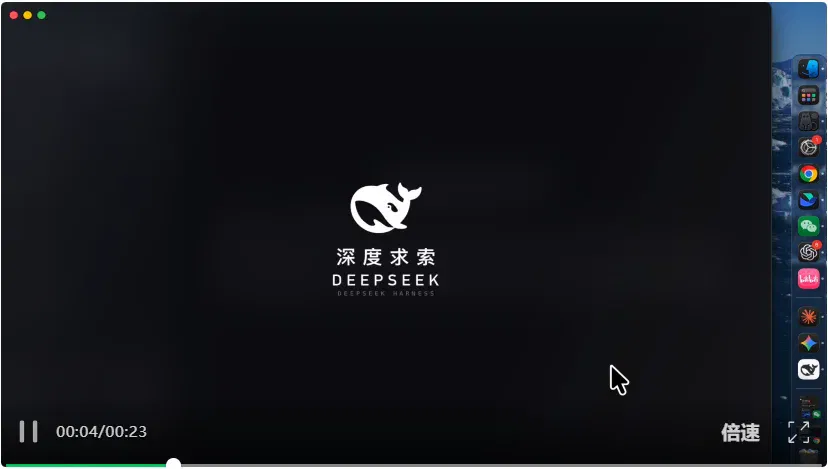
There is also the startup animation that has been popular on Douyin.
Plugin: dsh-startup-screen.
A dedicated startup animation for the whale girl.
Plugin: dsh-video-skin

7. Remote access from your phone: dsh-pocket
Another plugin I find useful for people who use agents intensively is dsh-pocket.
It lets you assign work from your phone to DSH on your computer.
Connecting is very simple.
First, if your phone and computer are on the same Wi-Fi network, click the avatar in the bottom-right corner to enter settings, then click “Phone access” on the left and scan the QR code with your phone to connect.
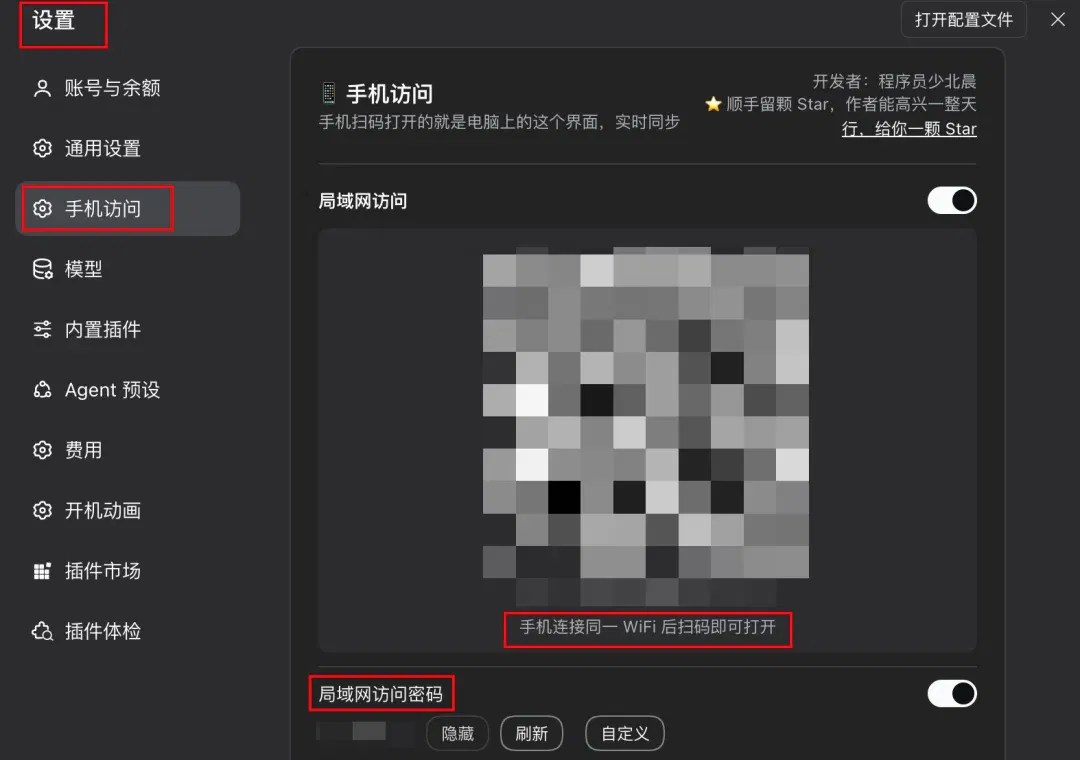
The first time you connect, you need to enter the local-network access password. For subsequent connections, you only need to scan the code, without entering the password.
Once you enter the password, you are connected.
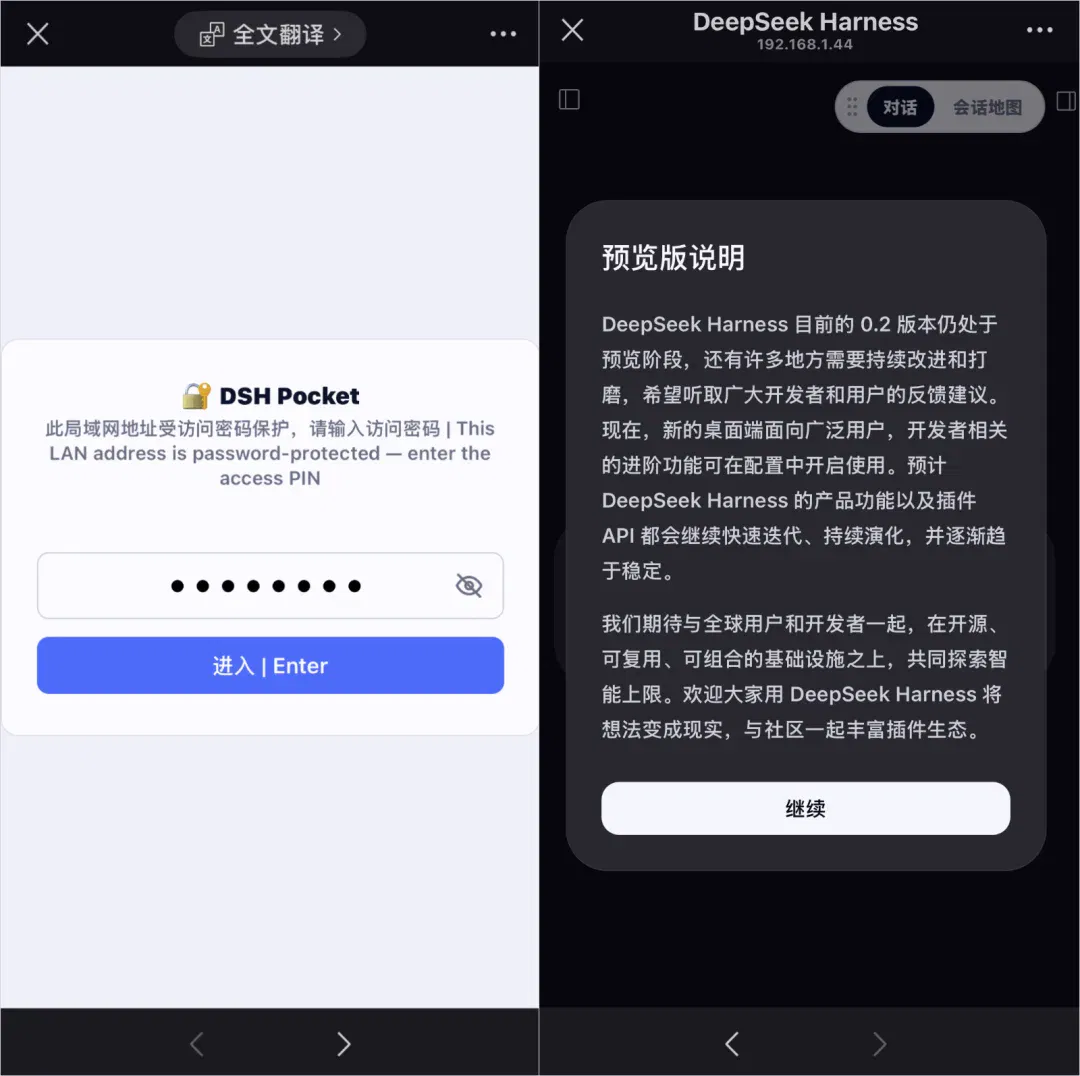
Your historical conversations are all there. You can continue chatting or start a new conversation.
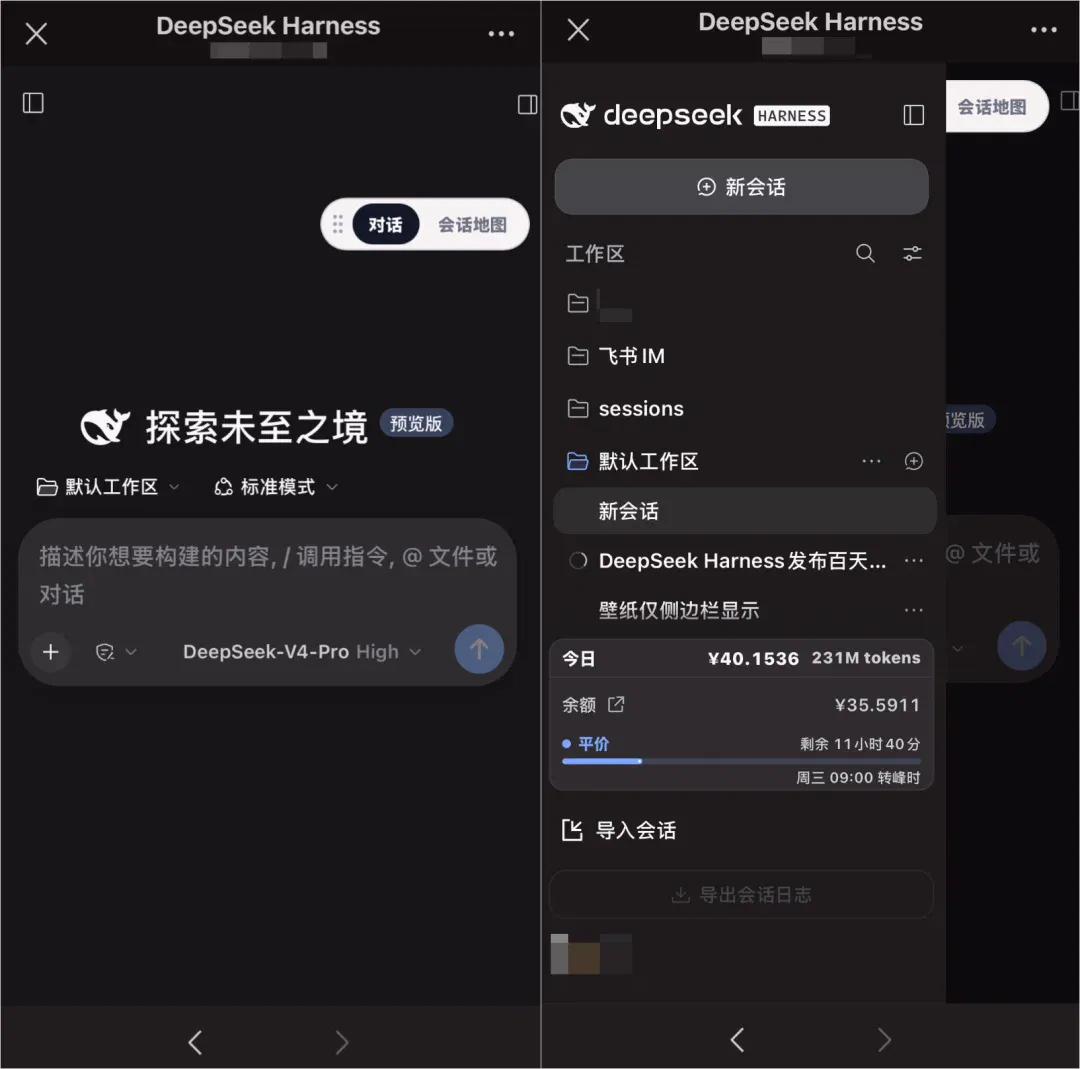
For example, I initially used it on my computer to make a video celebrating DSH's first 100 days.
But in the result, the pronunciation of DSH's full name was very strange. You can play it and listen at around seven seconds in. It was about the level of my elementary-school English: the kind of pronunciation you get by writing Chinese characters as phonetic cues for English and then reading them aloud…

If you happen to need to head to a meeting room for a meeting at that point, you can just use your phone to ask it to make changes.
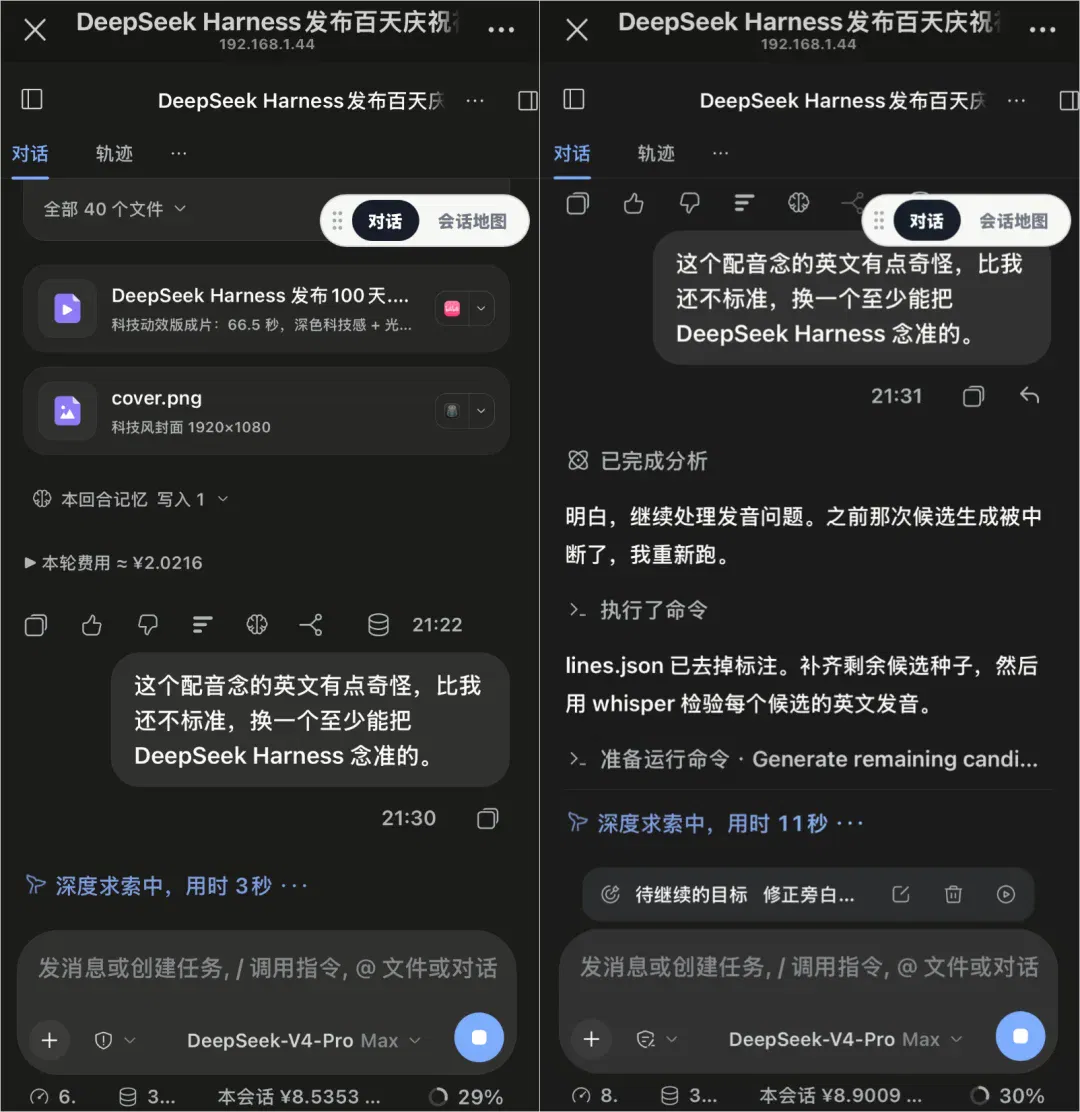
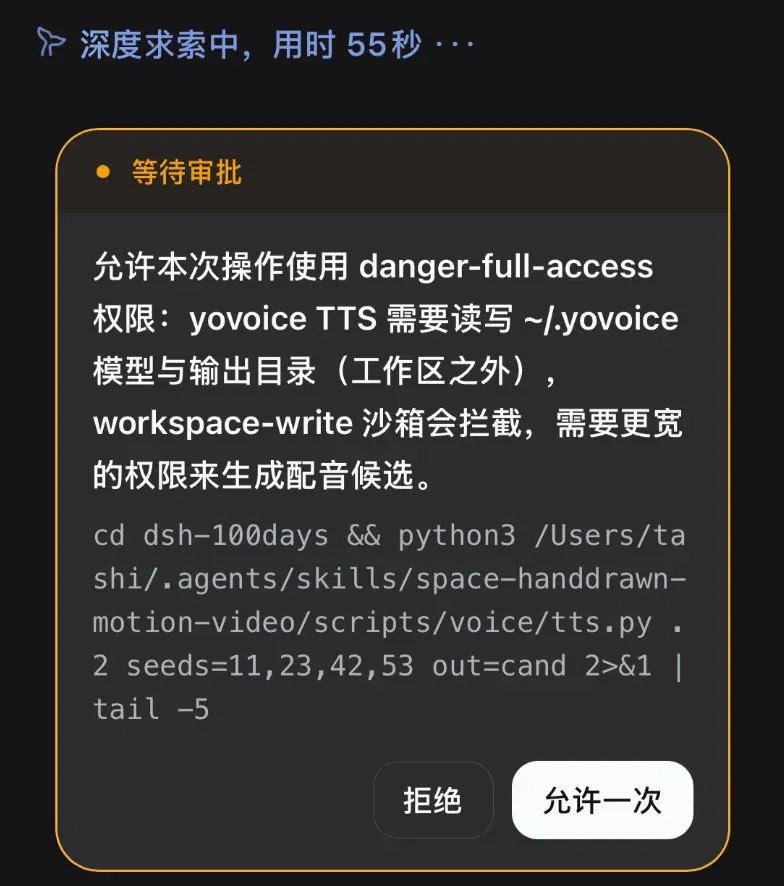
If it needs permission or has a question for you along the way, you can handle it on your phone.
The pages on your phone and computer are also fully synchronized.
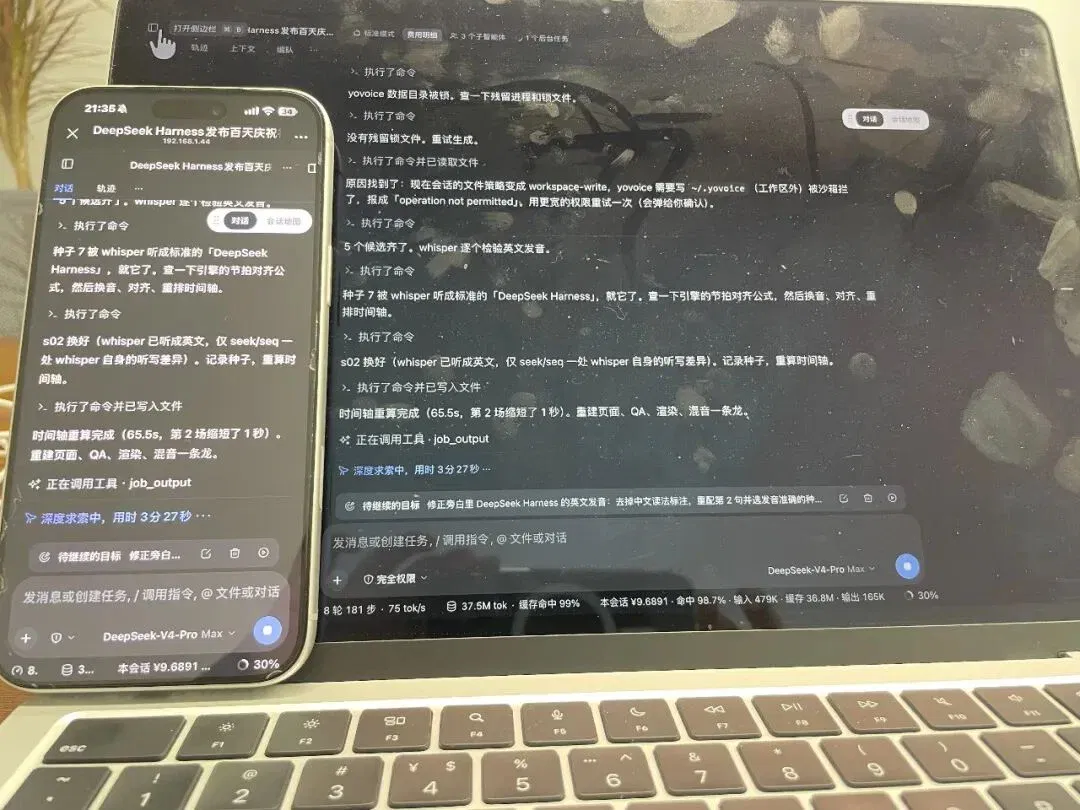
After the changes, DSH's pronunciation was much better. The visuals were essentially a one-pass result, though, and still somewhat underwhelming.

If you are going out and will not be on the same Wi-Fi network, you can also connect remotely by enabling public internet access.
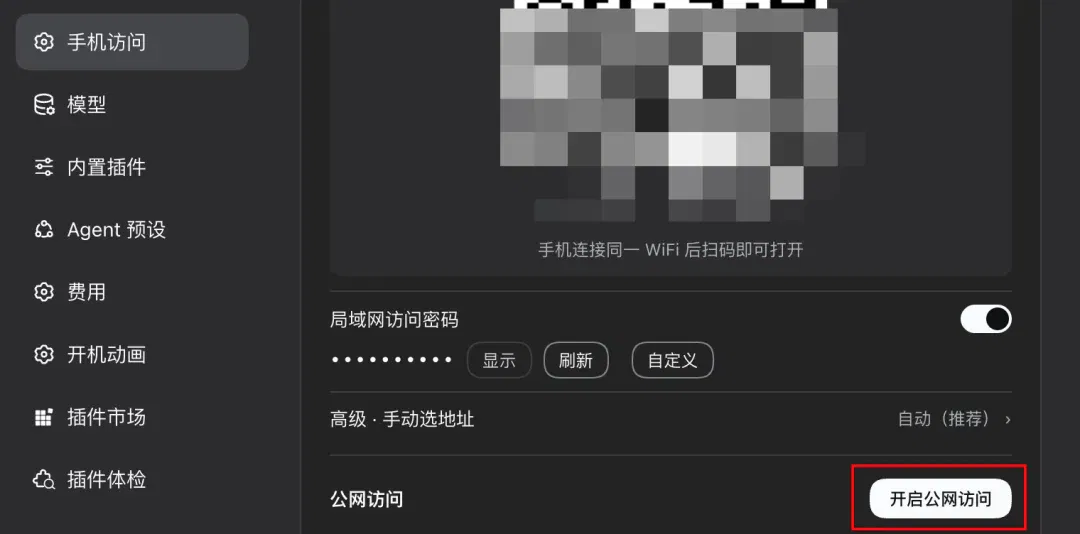
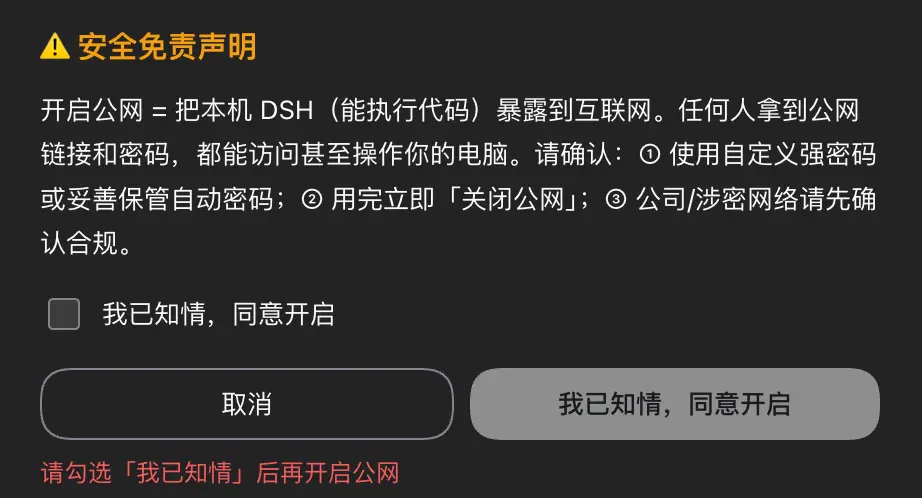
The first time you enable public access, a disclaimer appears. There are risks, after all. If the public link and password leak, your computer is essentially wide open to other people.
Again, scan the code with your phone, and again, enter the password for the first connection.
By default, its public-access password is randomly generated, with a new one each time you enable public access.
After entering the password, wait a little and you will be connected. You can continue your previous conversations just as before.
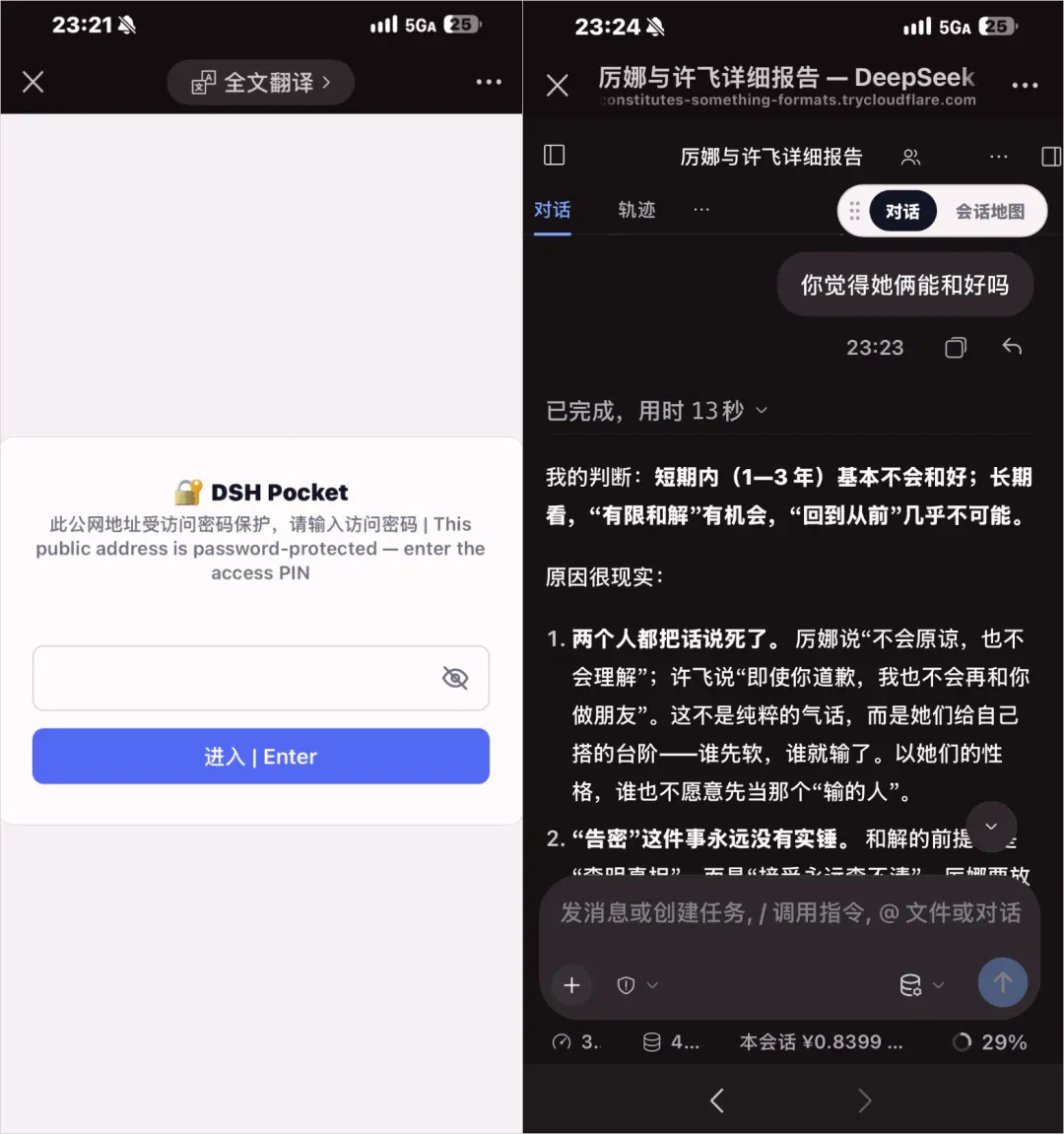
When you no longer need it, remember to turn public access off promptly to avoid unnecessary risks.
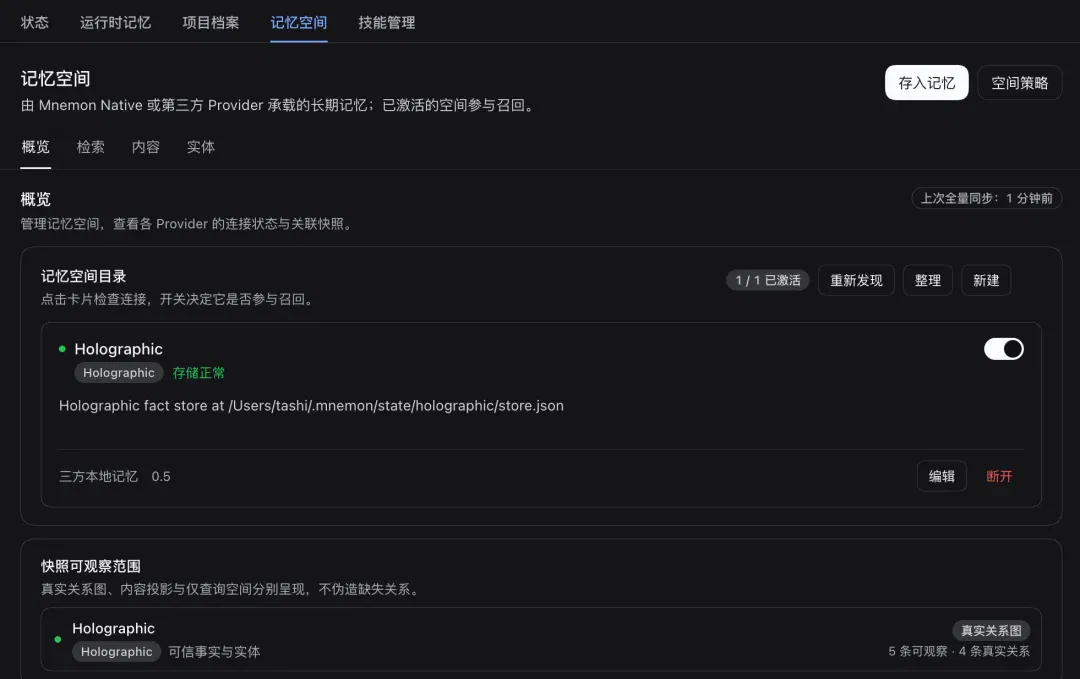
8. Memory: dsh-mnemon
For people who use DSH over the long term, I suggest installing a memory plugin, dsh-mnemon.
This plugin primarily lets the agent persistently remember your information, preferences and usage habits.
After installation, a memory system appears in the sidebar.
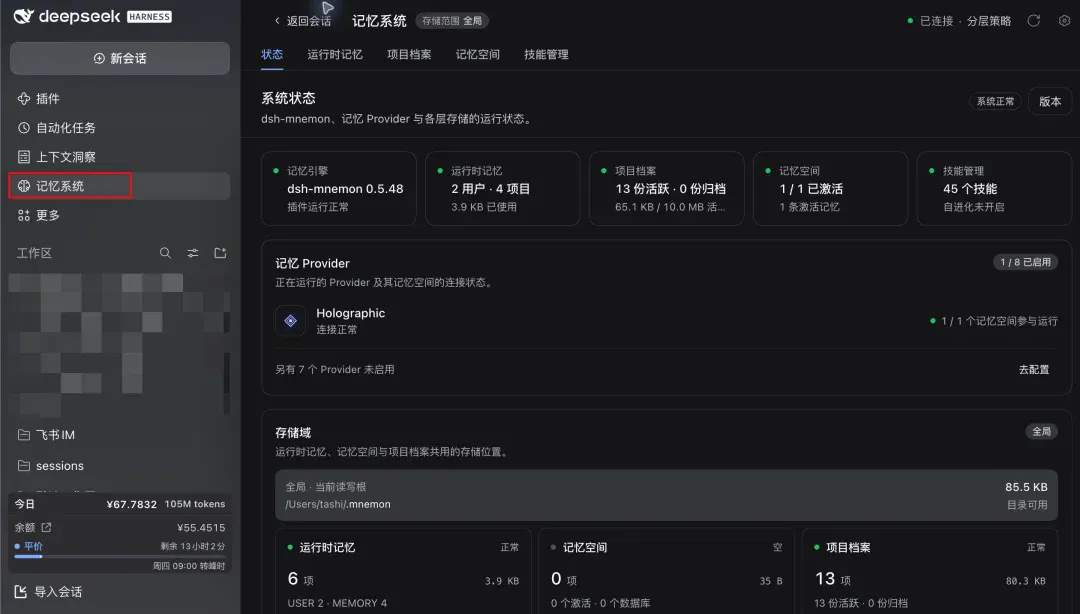
Its memory has three main parts.
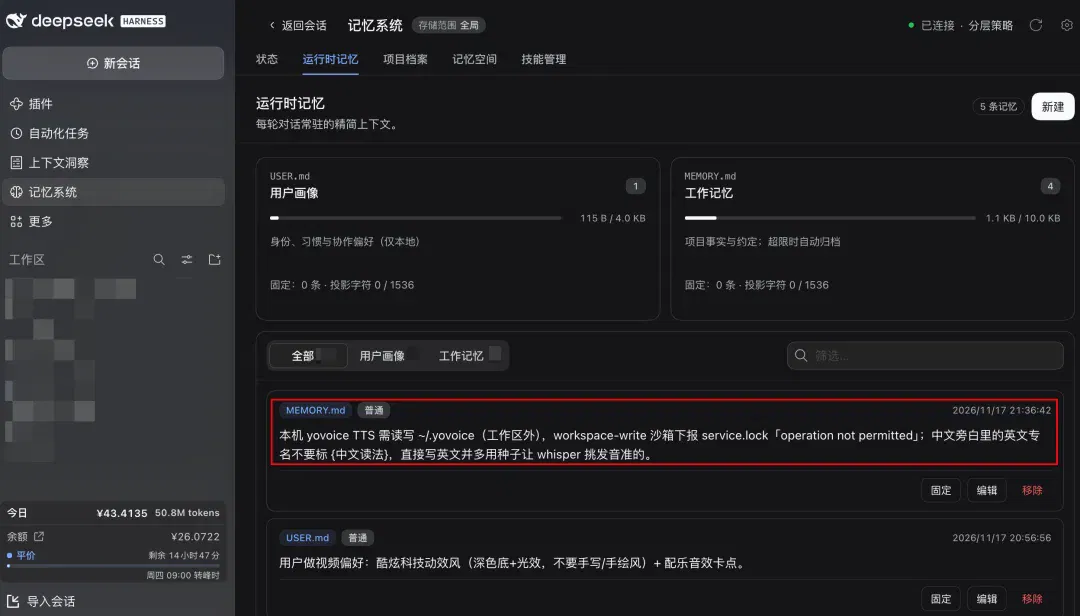
The first is runtime memory. It remembers your identity, habits, collaboration preferences and pitfalls you have encountered.
For example, in the DSH-pronunciation case above, I thought its English pronunciation was too strange. After I mentioned it, it remembered not to create English voiceovers using Chinese phonetic approximations in the future.
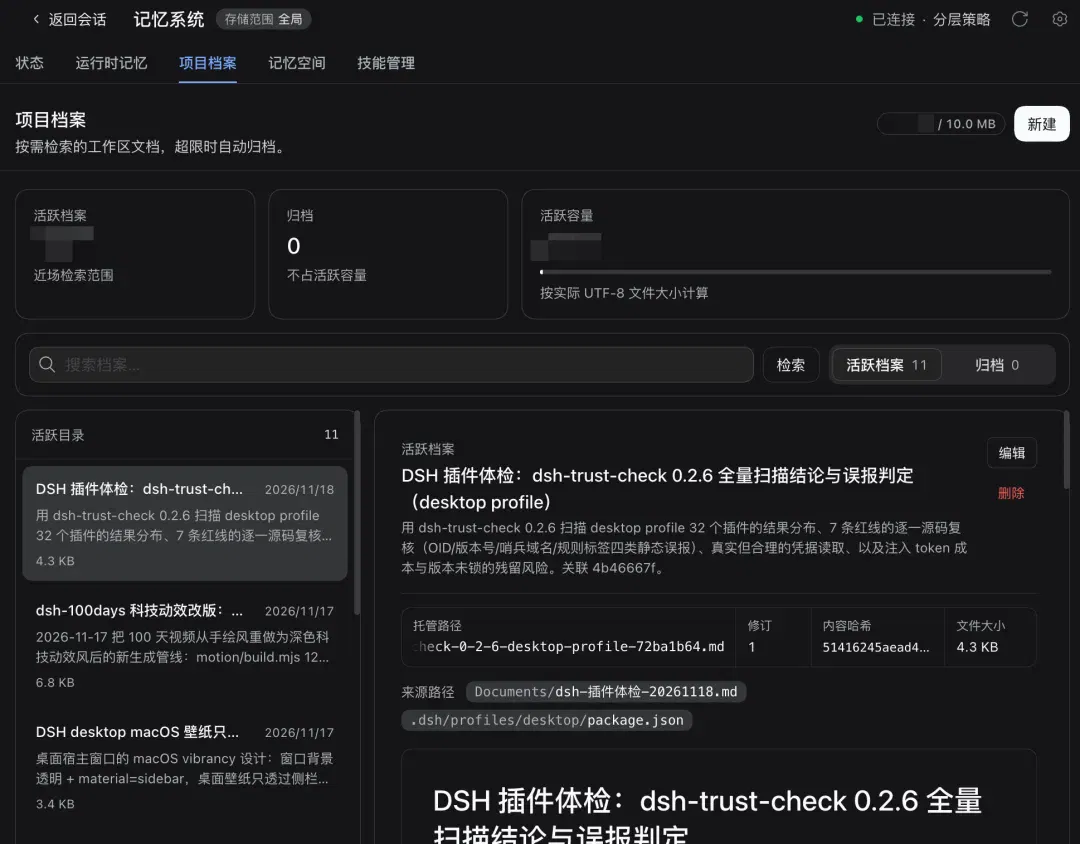
The second is project archives. It selects particular projects to organize, including workflows, output documents and so on, and generates corresponding project documentation.
The third layer is memory space, for longer-term experience and the reasoning behind decisions.
9. Make your own
Beyond the ones above, there are other plugins, such as ones for raising fish or connecting to QQ, WeChat and Feishu, and so on. I previously wrote a dedicated tutorial: “The DeepSeek Harness fish-raising tutorial is here: Turn your chubby fish into a streamer in one guide” (opens in a new tab).
I have also recommended plugins for letting DSH view images, turning the sidebar into a workbench and more in “A quick guide to DeepSeek Harness from zero to one” (opens in a new tab). I will not repeat them here. If you are interested, look back at the earlier articles.
If you have a more niche requirement that nobody else has addressed, you can absolutely make a plugin yourself.
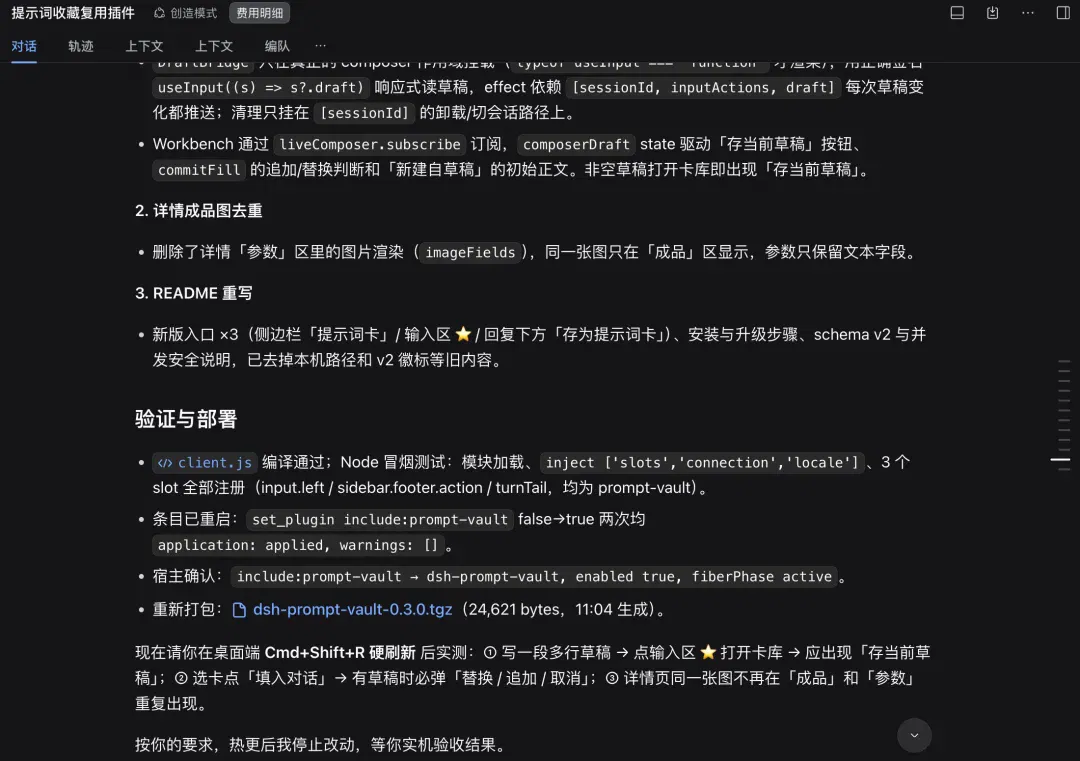
For example, I have lots of test prompts that I would like to organize so I can reuse them directly in the input box when needed.
I also used DSH to quickly make one for myself.
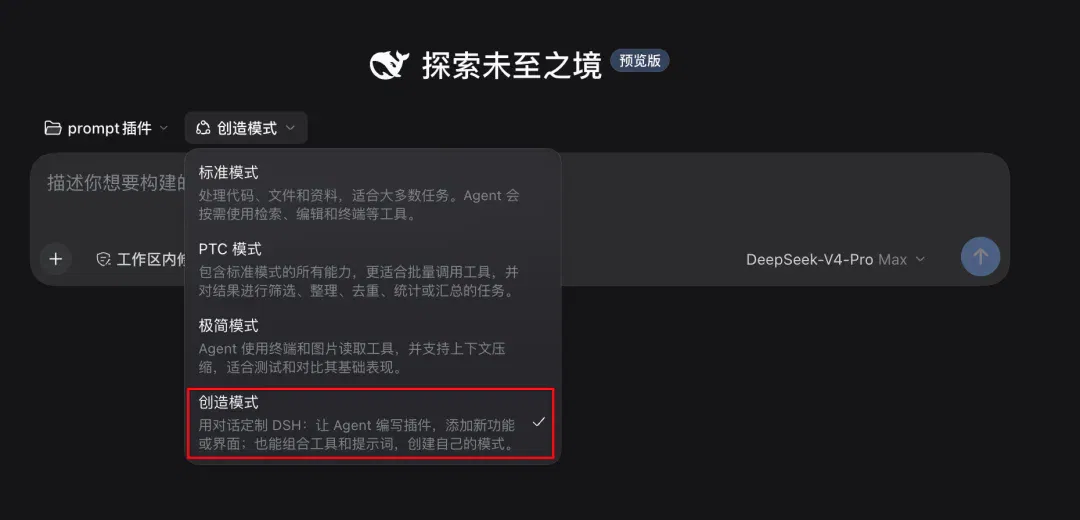
Start a new conversation, then set the mode above the chat box to “Create mode.”
Then send it your requirements.

From there, keep communicating with it and refining the result you want.

After a few initial rounds of changes, the plugin was ready to use.
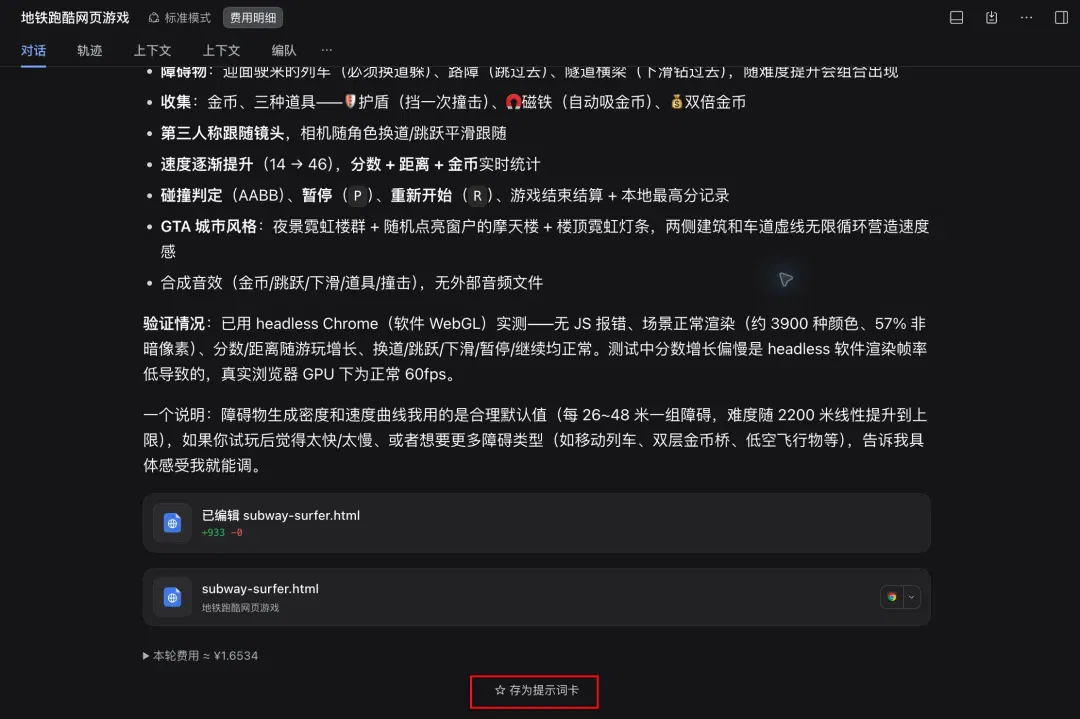
Below any conversation turn, click “Save as prompt card.”
A page for saving the prompt to your collection pops up.
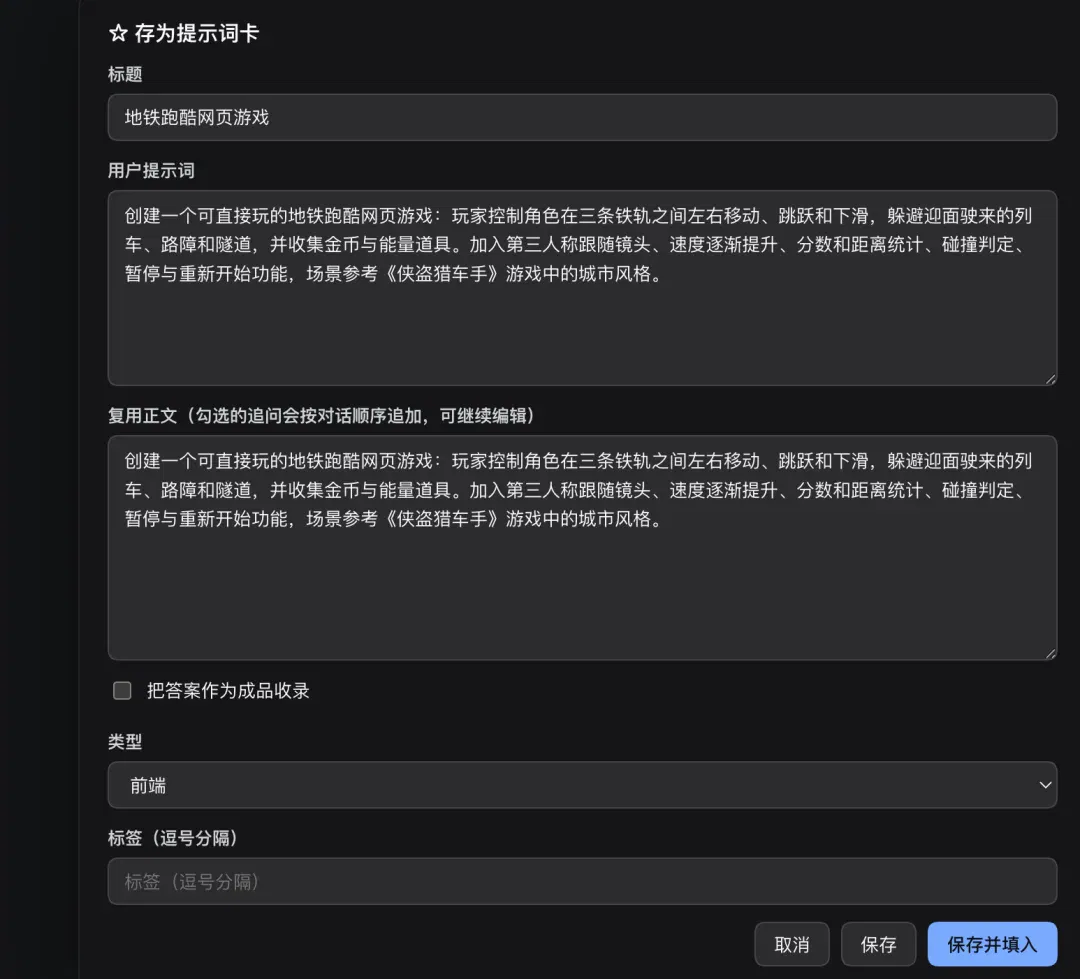
Click “Save.”
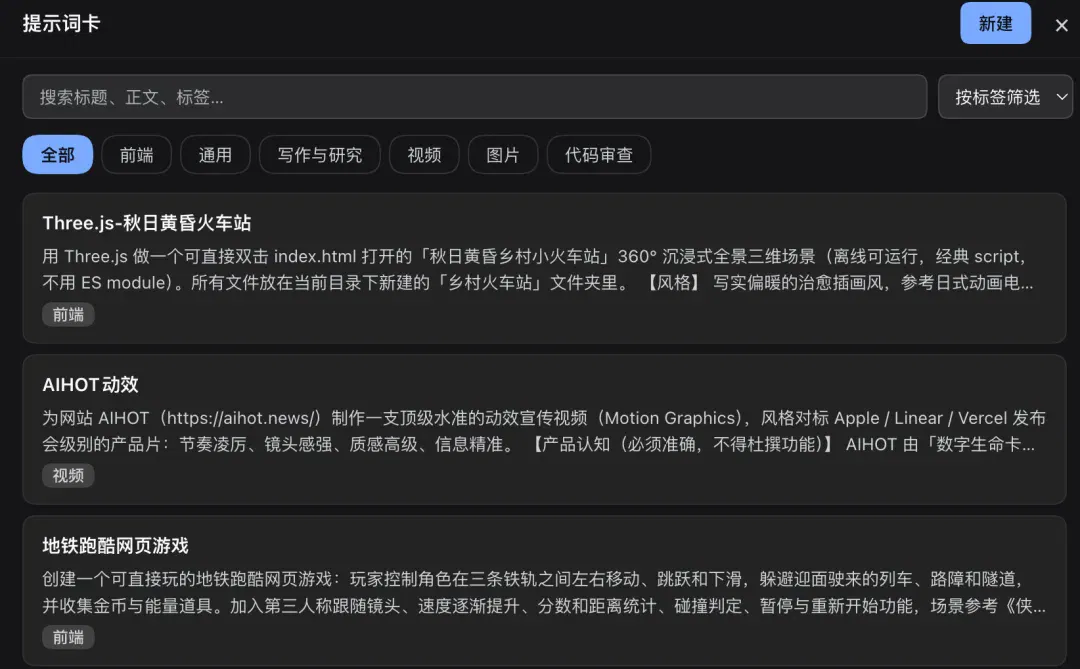
Later, when you want to reuse the prompt, click “Prompt cards” in the chat box.

When the list of saved prompts appears, choose the one you want to reuse.
Click “Insert into conversation.”
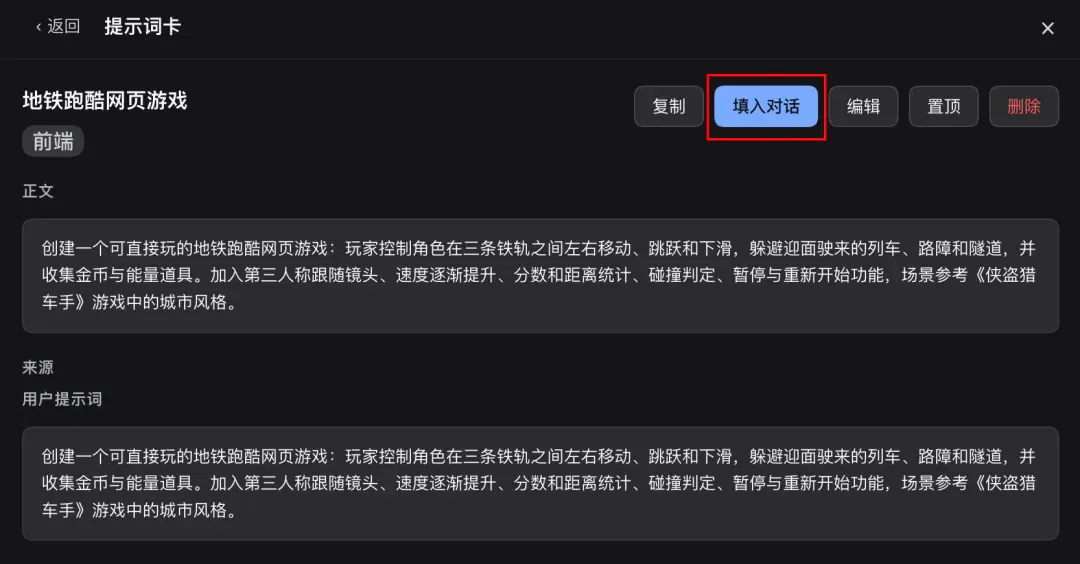
The prompt is automatically copied into the input box.

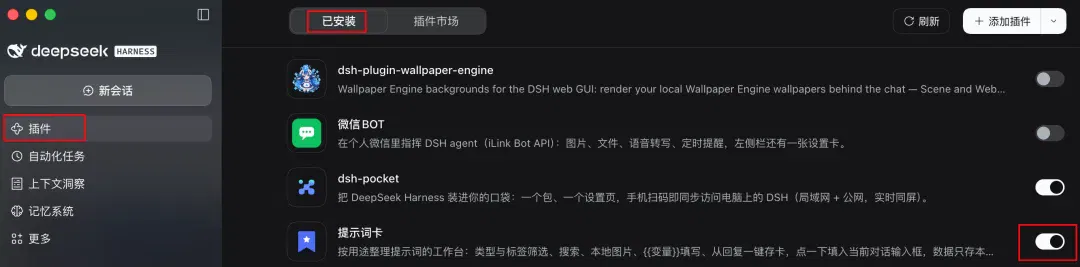
You can also manage plugins you make yourself on the plugins page.
A final note
One last point: more plugins are not always better.
For one thing, plugins may conflict with each other.
For example, one of our friends now has wallpaper that looks like this.
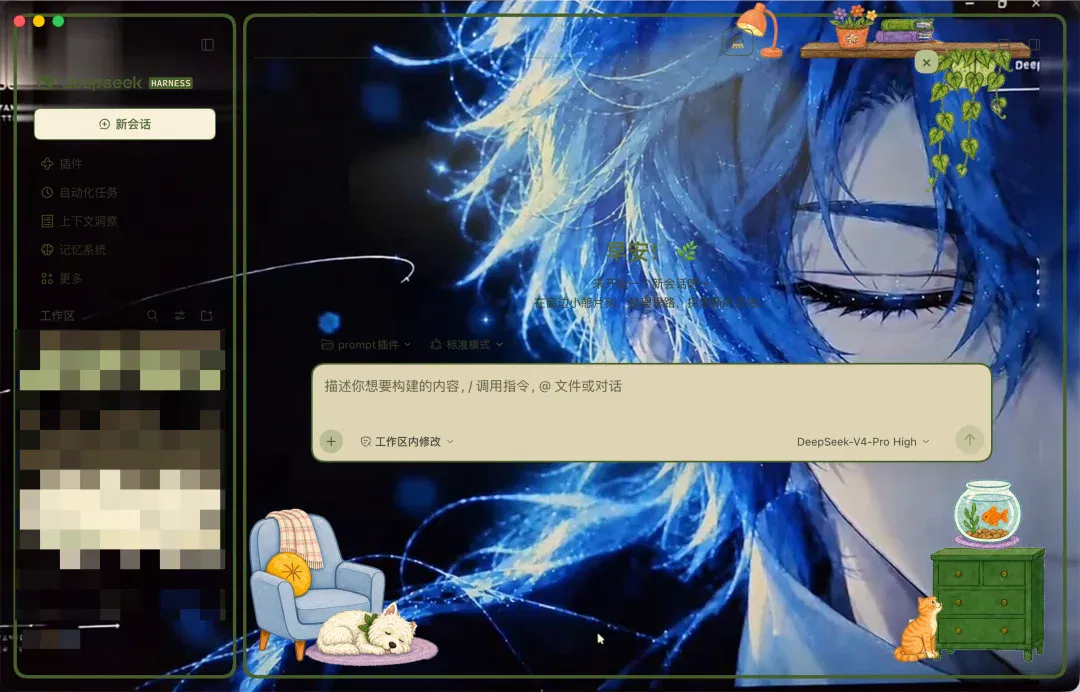
When DSH updates, some plugins may stop working altogether. Others put things into the context and waste our chubby fish's tokens for nothing.
And even today, DSH is still a developer preview.
So my advice is to install a carefully chosen set of plugins according to your needs. Do not chase sheer numbers, and disable anything you do not use.
As I tinkered with all these plugins, I kept thinking about how the App Store had only about 500 apps when it first launched in 2008.

The app that broke through the most that year was one called iBeer. Tilt your phone, and the beer on the screen would pour into your mouth.

There were also a whole bunch of fart apps…

Ultimately, these things were just a bunch of toys.
Yet from that collection of toys grew many of the apps we use every day.
Ecosystems seem always to begin with toys.
First, lots of people find something fun and are willing to tinker. As they keep building, useful things emerge.
DSH's first 100 days have been a little like that too.
Changing skins, keeping desktop pets and raising a big chubby fish may look flashy. But highly useful things such as context management, memory and completely revamped workbenches have already been built too.
I do not know what DSH's plugin ecosystem will look like in another 100 days.
But I am looking forward to it.
This article is from “Digital Life Kazike,” by “Kazike, tashi.”
Related topics
After reading
Join the AINRK community
Read how to join the community and connect with people working in AI.
Related articles
Continue reading related topics and articles in this category.
16 个超火的 DeepSeek Harness 插件,大肥鱼已经落后 2 个版本了。。。 (opens in a new tab)
DeepSeek Harness 是 DeepSeek 官方最新开源的 AI Agent 运行环境,简称 DSH。你可以把它理解成一个高度可定制的 AI 编程工具,对标 Claude Code 和 Codex,核心理念是「一切皆插件」。本期我就来带大家鉴赏一大波 DeepSeek Harness 热门插件,有实用的、也有好看的。
DeepSeek Harness 大起底:这一次,重新定义「插件」 (opens in a new tab)
「万物皆插件。」 这句话放在模型、工具、技能上,听起来还算容易理解;但如果我告诉你,会话、沙箱、文件系统也都被列进了插件的范围——等一下,这些东西怎么也能叫插件? 一直以来我们最熟悉的「插件」,大概还是 Chrome 扩展。浏览器已经是一款完整的软件,我们再往里面安装广告拦截、翻译、截图等插件,让它多出一些原来没有的功能。插件卸载了,Chrome 依然是 Chrome,也依然知道怎么打开网页。 现在,这个词已经被 DeepSeek Harness 重新定义了,是时候换个角度理解它。 让模型「上岗」,也需要「配套」 首先得从今年以来 AI 业界越来越常见的另一个词讲起:Harness。 假设一家
网友把DeepSeek Harness玩成了赛博乐高,我们挑出了最有意思的11个插件 (opens in a new tab)
DeepSeek Harness ,正在成为全球网友的赛博乐高。我们在内部评测时相关标签显示的插件数量不到 300 个。开放之后,据不完全统计,目前 GitHub 上包含 dsh-plugin(DeepSeek Harness 插件)标签的仓库,已经来到了 6000 多个。

偷偷分享 DeepSeek Harness 热榜挖到的 2 个实⽤插件 (opens in a new tab)
太猛了,DeepSeek Harness 截至当前已经 112 k 的 Star 了,而这距发布仅仅过去三天。而且还在以惊人的速度增长...DeepSeek Harness 的核心就是:一切皆插件。说个不确切的比喻,有点 Agent 时代的 Obsidian 感觉了,自由度太高了。
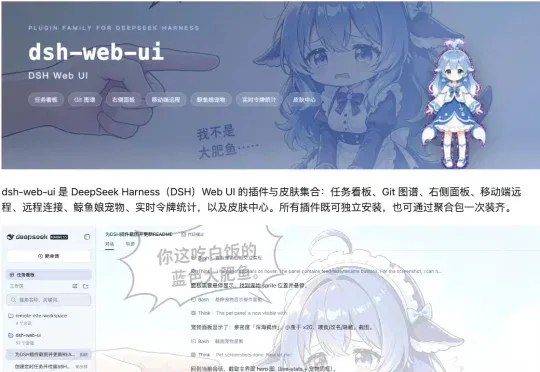
DeepSeek Harness插件一夜燃爆GitHub:长期记忆、电子宠物、4399小游戏全来了 (opens in a new tab)
DeepSeek Harness这下真快被网友「插成万物」了。小黑鲸上线还没多久,单单在GitHub上打着dsh-plugin标签的公开仓库,就已经冲到了700+个???有人给它装浏览器、长期记忆、数据库和任务管理;有人嫌DeepSeek不会看图,现场接了个视觉模型进去。