Blurt developer demonstrates voice, screenshots and screen recordings as feedback for coding agents
The developer presents Blurt, a Mac menu bar app for voice input, OCR, audio and screen recording with Claude Code or Codex. The project describes itself as MIT-licensed; macOS 13+ is required, some features need Apple silicon, and Windows/Linux versions are not yet available.
Editor's note: This article is a developer's product introduction and account of personal testing. Interface demo text is retained in its original order and does not constitute an independent benchmark. The author tested the app on only two Macs; other hardware configurations were evaluated through simulation. Spaces are missing from the source article's installation code, which has not been executed or verified. Do not copy that code directly. Consult the project's current official materials for installation and licensing. Allowances and charges for cloud ASR, text polishing and third-party agents or APIs are separate. Official Blurt project website (opens in a new tab)
After spending about 20 billion Opus 5.5 tokens, worth roughly US$5,000, I built a (possibly) essential tool for vibe coding!
Watch the video introduction:

Its Chinese name is Koupenji; its English name is Blurt.
Koupenji / Blurt
I actually built this during the National Day holiday. See: Open-sourcing a Best Companion for Vibe Coding: Blurt (opens in a new tab)
A look back at the old version
Suppose your AI spends the night churning out 40 pages and tens of thousands of lines of code—don't tell me you've never done that. What comes next?

40 pages in one night
The pain point back then was that, after the AI finished its marathon, I still had to clean up after it and send back a whole load of changes.
That communication was often extremely inefficient. I had to type, take screenshots, draw circles and arrows, and write descriptions explaining where something happened, how to reproduce it, the logic before and after it, the current context, the reproduction steps, and many other details...
AI is smart, so even a less-than-clear explanation can be fine. But precisely because it is smart, if I leave something unclear it can charge ahead in completely the wrong direction.
Yet explaining a problem clearly is genuinely exhausting...
So this is the approach I took:
Just start screen recording with one click, then talk as you record. Move the mouse, draw circles, point things out and say whatever comes to mind.
The previous version's video introduction:
Once you finish recording, simply hand the video to a general-purpose agent such as Claude Code or Codex. It will organize the video, mouse movements, circles you drew, things you said and workflow you demonstrated into a clear, specific list of issues.
[Interface demo text, retained in its original order; displayed figures do not represent a standardized evaluation] orbit.test/checkout | Checkout | Ship to | Canada ▾ | Trail Runner 2 | $89.00 | Merino Socks | $24.00 | Subtotal | $113.00 | Shipping | $15.40 | SAVE10 | ✓ Applied | Total | $128.40 | Pay now | Talk while recording · Live captions | ⌥R | Screen recording · Talk while you work | Blurt — Orbit walkthrough · Items | Oh right, after selecting Canada, the total hasn't deducted the coupon | This coupon-code field loses focus after every character I type... | It would be nice if this remembered the country I selected last time | Ask Leo whether the receipt needs a new logo | 4:58 | Recording | Hmm... wait | Uh, that one | No items yet | Finish recording and let the Agent organize it | 0 items | Click, finish recording, then hand it to the Agent → | 5:00 | Organizing... | OR-21 | Total doesn't deduct the coupon after switching to Canada | Issue | OR-22 | Coupon-code field loses focus after every character | Issue | OR-23 | Remember the last selected shipping country | Idea | OR-24 | Tax appears before an address has been entered | Issue | OR-25 | Pay now is blocked by a banner on a small screen | Note | OR-26 | Ask Leo whether to change the logo in receipt emails | To-do | OR-27 | Show the savings next to the total | Idea | + 45 more items... | $128.40 | Actual: SAVE10 shows as applied | Total $128.40 | Expected: $117.10 | Code | web/src/cart/reducer.ts:88 | ✓ 52 items organized | 52 items | 5 minutes → 52 items | Every item includes a screenshot, the original words and a timestamp
After using this, I could even explain fifty issues clearly in five minutes.
The unrecognizable new version
But!
Recently, as I used it, I came up with all kinds of new issues and ideas, along with other problems in communicating efficiently with AI—for example, I had long been fed up with Typeless. So naturally, I used the app to dogfood itself, giving it a comprehensive upgrade and changing it beyond recognition.
Of course, talking through a screen recording is still there.
But I have added many other features too. Read on 👇
Voice input
Press fn to start; double-press fn to send directly.
[Interface demo text, retained in its original order; displayed figures do not represent a standardized evaluation] orbit-web — claude | ✻ Claude Code | ~/orbit-web | > The coupon-code field loses focus after every character I type. Fix it. | Fixed web/src/cart/CouponInput.tsx | > | ? for shortcuts | fn | ⌃ control | fn | Double-press fn = send | Press fn once and start talking → | fn | fn | Double-press fn = send | > Help me work out why the coupon disappears after I change the country. | ✻ Reading web/src/cart/reducer.ts... | Help me work out why the coupon disappears after I change the country. | ⏎ Send | 0.39 seconds · On-device · Free, unlimited characters | Help me work out why the coupon disappears after I change the country. | Help me work out why the coupon disappears after I change the country. | Listening... | Light cleanup · Remove filler words | Um, well... help me work out why, after I change the country, you know, the coupon disappears | Um, well... | You know | Help me work out why the coupon disappears after I change the country.
By default, it only lightly tidies the text. Press Shift for a thorough cleanup like Typeless, or press Command to speak Chinese and output English, or another specified language.
[Interface demo text, retained in its original order; displayed figures do not represent a standardized evaluation] Listening | Say whatever comes to mind | Um, three things to do tomorrow. First, uh, run all the tests. Second, update the, um, documentation. Third, commit the code and send it to Xiao Wang to take a look. | fn | ⇧ | ⌘ | Default · Light cleanup | Structure | Translate | # release | + @ Aa | Message # release | Try pressing a key while talking ↓ | fn | Default · Light cleanup | Light cleanup | Three things to do tomorrow. First, run all the tests. Second, update the documentation. Third, commit the code and send it to Xiao Wang to take a look. | ⇧ | Structure | Structure | Three things to do tomorrow: | Run all the tests | Update the documentation | Commit the code and send it to Xiao Wang to take a look | ⌘ | Translate | Speak Chinese, type English | Three things for tomorrow: run all the tests,update the docs, then commit and send it toXiao Wang.
Speaking of translation, I noticed something else: Codex seems smarter when I give it instructions in English... So speaking Chinese and getting English output matters quite a bit to me.
And most importantly, the software's local features, as described by the author, do not require payment per token. If you use cloud speech recognition, text polishing or third-party agents or APIs, their free allowances, usage charges and restrictions must be checked separately.
Extract text from screenshots
Press ⌥ + C to select any area of the screen and extract its text with OCR (much of the text we can see cannot simply be copied).
Selecting an area with ⌥ + T performs OCR plus translation.
[Interface demo text, retained in its original order; displayed figures do not represent a standardized evaluation] Review_meeting_1028.mp4 | Orbit · Checkout team | 7 / 23 | 2.4 Checkout issues before launch | 1. Coupons: discount disappears after switching to Canada | 2. Tax: the cart shows a pre-tax price | 3. Search: no sorting by price on mobile | Internal only · 10/28 | 12:07 / 48:30 | Claude Code | › Help me fix these bugs: | This text... I can't select it | ⌥C | Extract text from screenshot | ⌥T | Translate screenshot | Try ⌥C or ⌥T | So it was this simple | ⌥C | Copied · ⌘V to paste | Clipboard | Just now | 2.4 Checkout issues before launch | 1. Coupons: discount disappears after switching to Canada | 2. Tax: the cart shows a pre-tax price | 3. Search: no sorting by price on mobile | Character error rate 0.70% | Ordinary OCR 15.8% | ⌥T | Translating... | Translation · Chinese → EN | Checkout issues before 2.4 | 1. Coupon: discount lost in Canada | 2. Tax: cart shows pre-tax price | 3. Search: no price sort on mobile | Copy
Screenshots
Press ⌥ + A to take a screenshot. You can draw lines, circles and boxes directly on it, while also speaking to enter a description of the image by voice.
After you capture it, it hangs by the screen notch. You can drag it straight into WeChat, Claude, Feishu or anywhere else, sending the dragged image and text together.
[Interface demo text, retained in its original order; displayed figures do not represent a standardized evaluation] orbit.test/checkout | Checkout | Ship to | Canada ▾ | Trail Runner 2 | $89.00 | Merino Socks | $24.00 | Subtotal | $113.00 | Shipping | $15.40 | SAVE10 | Applied | Total | $128.40 | Pay now | Claude | How can I help you? | ⌥A | Reply to Claude... | Press ⌥A and try taking a screenshot → | ⌥A | ⌥A Screenshot | Listening... | After switching to Canada, the total hasn't deducted the coupon. | Done | Done | Right here, this is wrong | After switching to Canada, the total hasn't deducted the coupon. | Subtotal | $113.00 | Shipping | $15.40 | SAVE10 | Applied | Total | $128.40 | snap-1041.png | After switching to Canada, the total hasn't deducted the coupon. | Bring both the image and text along
Audio recording
Press ⌥ + V to start recording audio. Whenever someone comes over to discuss an issue, all you need to do is press it once. When the discussion ends, the recording is ready.
Cursor | File | Friday 14:32 | ⌥V | A colleague has come over; press ⌥V → | Got a moment? Let's talk about the checkout page | ⌥V | About that coupon, does Canada need a separate calculation? | About that coupon, about that coupon, does Canada need a separate calculation? | Deduct it from the total first; we'll deal with tax later | Deduct it from the total first, deduct it from the total first; we'll deal with tax later | Okay, then I'll send it to design before Thursday | Okay, then I'll do it Thursday | Okay, then I'll send it to design before Thursday | Recorded. Have a sip of coffee | Speaker identification: in development | Voice note · 12:48 | About that coupon, does Canada need a separate calculation?... | 0:00 | 0:01 | 0:02 | 0:03 | 2:16 | 4:37 | 6:52 | 9:05 | 11:20 | 12:48
(Speaker identification is not enabled yet; it is still being developed.)
Screen recording
Press ⌥ + R to start screen recording. You can browse as you look, point things out and talk freely. This feature has been around since the first version. I have improved a few details, so I won't spend too much time introducing it again.
Of course, you can customize all of the shortcuts above.
[Interface demo text, retained in its original order; displayed figures do not represent a standardized evaluation] Blurt | 9:41 | Claude Code | ❯ | ⌃⌥ + letter | L | Rearrange | fn | Speak | ⇧ | List | ⌘ | Chinese → English | A | Screenshot | V | Note | R | Screen recording | C | Extract text | T | Translate | Every key can be changed in Settings | Every highlighted key is clickable → | fn | Speak | fn | Press once to speak, again to stop | Double-press fn = send directly when finished speaking | ↩ Send | ⇧ | List | ⇧ | Press while speaking to arrange a list | First, second... automatically separated into items | 1. | 2. | 3. | ⌘ | Chinese → English | ⌘ | Speak Chinese and type English | Works in reverse too · About 1 second | Chinese ↓ EN | A | Screenshot | ⌥ + letter | ⌥ + A | Take a screenshot, draw a circle, then say a sentence | Drag the image and note to the Agent together | This is wrong | V | Note | ⌥ + letter | ⌥ + V | Voice notes, up to 10 minutes | It's okay to pause and think | 0:42 | Maximum 10:00 | R | Screen recording | ⌥ + letter | ⌥ + R | Record your screen and talk through it | Agent organizes it into individual items | Issues | Ideas | To-dos | C | Extract text | ⌥ + letter | ⌥ + C | Select an area to extract text, even when it isn't selectable | Text in videos, screenshots and terminals | Copied | ⌘V to paste | T | Translate | ⌥ + letter | ⌥ + T | Translate a screenshot, Chinese ↔ English | Translation hangs beneath the notch, with a copy button | Hello ↓ Hello (Chinese translation) | Copy
Models
Many features are ready to use as soon as you download the software.
Of course, the default model's performance is clearly not good enough. On a Mac, it uses Apple's dictation by default, and the results really are rather mediocre.
Ideally, choose a recommended speech-recognition model suited to your computer's configuration. For example, smooth performance on my M5 Max with 128GB of memory does not mean it will also be smooth on an M1 with 16GB. You can also use a cloud ASR model such as Qwen ASR, and a cloud text-polishing and correction model such as DeepSeek Flash. They are very inexpensive and offer free allowances, for example through Alibaba Cloud Bailian. Even if you talk a lot, it may be difficult to spend RMB10 in a month.
[Interface demo text, retained in its original order; displayed figures do not represent a standardized evaluation] Ready out of the box · macOS built-in dictation · 0 MB | Just installed | Mediocre results | Choose models for your computer | 8 GB Mac | This memory of mine... | 16–32 GB M1 | Hmm, not bad | 128 GB M5 Max | Smooth | Use the cloud | Can't be bothered to download | zzz | Recommended configuration | No computer selected yet | Speech recognition | Text polishing | ? | ? | Memory | Download | Cost | — | — | — | Click your computer → | 8 GB Mac | This memory of mine... | 8 GB Mac | Qwen3-ASR 0.6B | Gemma 3 1B | 1.0 GB | 0.7 GB | Runs on 8 GB | About 1.7 GB | RMB0 · No network connection | 16–32 GB M1 | Hmm, not bad | 16–32 GB M1 | Qwen3-ASR 0.6B | Gemma 4 E2B | 1.0 GB | 3.4 GB | Time taken: about 2.8 GB [as displayed] | About 4.4 GB | RMB0 · No network connection | 128 GB M5 Max | Smooth | 128 GB M5 Max | Qwen3-ASR 1.7B | Gemma 4 E2B | 2.5 GB · Better English | 3.4 GB | Smooth on-device | About 5.9 GB | RMB0 · No network connection | Use the cloud | Can't be bothered to download | Can't be bothered to download · Use the cloud | Qwen ASR | DeepSeek Flash | Alibaba Cloud Bailian · Free allowance available | Cloud text polishing · Very inexpensive | Almost no memory used | 0 MB | Even a chatterbox will struggle to spend RMB10 a month
The software looks simple, but I really did spend a lot of money and tokens comparing, selecting and adapting all kinds of open-source models and closed-source APIs, including optimizing prompts. In the end, I tried to find the best overall balance on my own benchmark across performance, cost, speed and use of the computer's resources.
All of these tests and evaluations ran on my own machine. They crashed my computer with its 128GB of memory several times... Usually I gave it an extremely ambitious instruction before bed. Several mornings I woke up to find not a great result, but a freshly restarted computer waiting for me to enter my password...
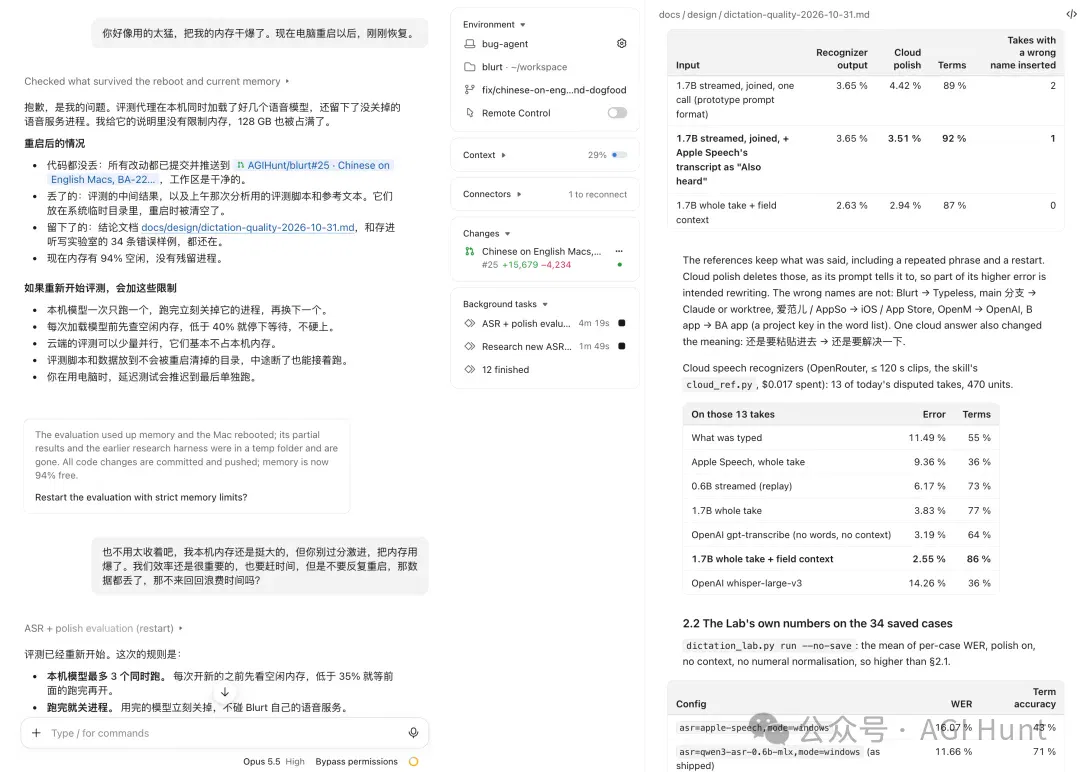
The memory was overwhelmed
The models I finally chose are all listed among the software's recommended models. You can start by trying those recommendations.
But I really have only tested on my own two Macs. The configurations of other computers were tested through mocks and may not be very accurate. If you encounter a problem, please let me know.
Installation
Blurt is currently a Mac menu bar app requiring macOS 13 or later. Voice input and the recommended speech models require Apple silicon. The author says the entire project is open-sourced under the MIT license.
The download entry point provided by the author is the official website, blurt.work. Spaces have been lost from the source article's installation command below. Do not copy it directly or ask an Agent to execute it. Visit the official website and check the current installation method before installing.
●●●
curl-fsSLhttps://blurt.work/install.sh|sh
└
After installation, go to "Settings → Agent" in Blurt and click "Connect..." to install Blurt's skill and MCP into agents such as Claude Code and Codex. Then open a new session in the Agent and just say "Start Blurt".
Finally
I call it the input method for the agent era, and hope it can make our communication with AI more efficient. I hope everyone can get to bed earlier, and no longer has to stare at Claude Code and Codex late into the night every day—although that is admittedly a little difficult.
Although I have polished many details and even tried to put together a little UI with my limited aesthetic ability, the current version is still somewhat rough, with many details unfinished. Still, I am shipping first and will keep iterating.
Unfortunately, Windows and Linux versions are not supported yet. The good news: coming soon.
Please try it and file issues.
This article originally appeared in AGI Hunt, written by Yin John.
Related topics
After reading
Join the AINRK community
Read how to join the community and connect with people working in AI.
Related articles
Continue reading related topics and articles in this category.
OpenAI工程师把话挑明了:一个人盯3到5个Coding Agent,基本就到顶了!反手开源 Symphony ——一套「少盯人、多验收」的新系统 (opens in a new tab)
OpenAI工程师公开发帖承认:哪怕用的是Codex,一个人能有效监督的coding agent也就3到5个,再多生产率直接往下掉。更劲爆的是,OpenAI没有选择"让人盯更多屏幕",而是直接开源了Symphony——一套把人类从"实时盯盘"解放成"异步验收"的全新工作流系统。近40万人围观,近3000人收藏。
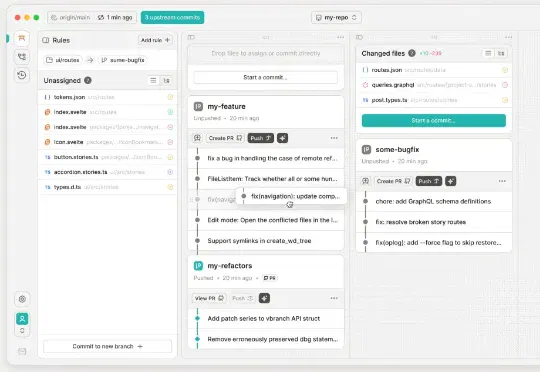
GitHub前创始人拿了a16z的1700万美元,GitButler要做Agent时代的Git (opens in a new tab)
GitButler最近发布的CLI工具引起了我很大的兴趣。这不是一个简单的Git包装器,而是从根本上重新思考了命令行工具应该如何设计。Scott提到了一个有趣的观察:大约80%的开发者仍然使用命令行工具来操作Git,即使有各种GUI工具存在。

AI编程工具Cursor拟融资20亿美元,估值超过500亿,英伟达计划跟投 (opens in a new tab)
刚刚AI编程工具Cursor正在洽谈新一轮融资,金额超过20亿美元,估值直接飙到500亿美元,折合人民币3409亿。黄仁勋都坐不住了。英伟达CEO公开表态要参投这轮融资,还说Cursor是他"最喜爱的企业AI服务"
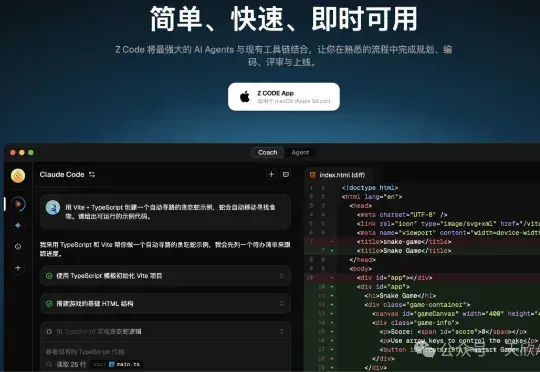
智谱刚发布的 AI 编程工具Z Code,确实有点意思【附使用教程】 (opens in a new tab)
在 GLM-4.7 模型发布后不久,智谱又上线了一款全新理念的 AI 编程工具 Z Code。目前 Z Code 仍处于测试阶段,但在实际上手过程中,能感受到它与传统 AI 编程工具明显不同的设计思路。下载地址:https://zcode-ai.com/cn
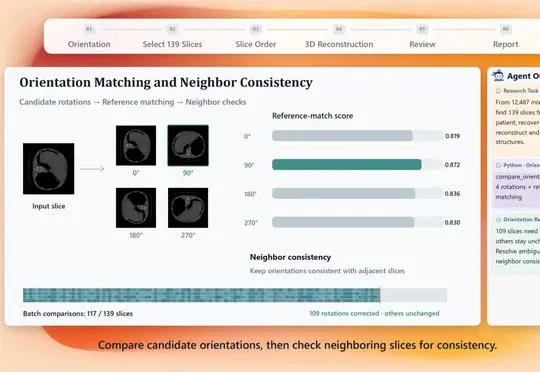
上海AI Lab发布Sage S2.1 Flash技术报告,披露科学多模态与智能体训练方法 (opens in a new tab)
上海人工智能实验室等机构发布320B MoE模型Sage S2.1 Flash技术报告。团队在33项基准中评估其工具调用、科研与软件操作能力,其中四项得分在论文主要对比模型中居首。