terminal-mac gives agents a virtual Mac desktop and MCP control interfaces
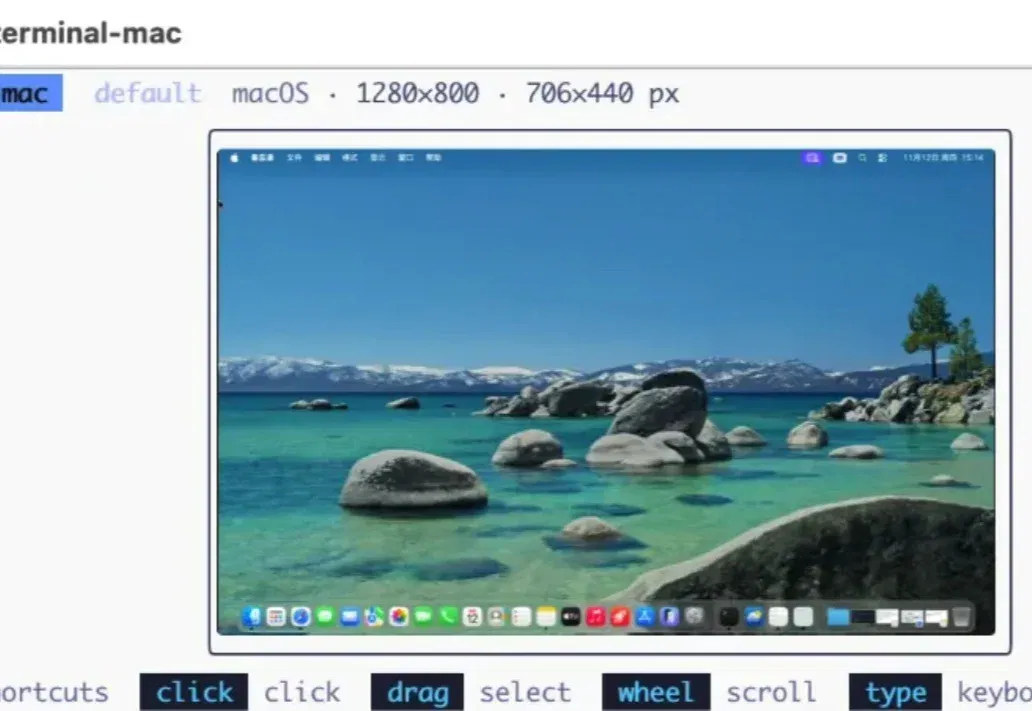
The author describes installing terminal-mac on Apple Silicon, viewing its desktop inside a terminal and using MCP controls. The report covers isolation and shared directories, while noting compatibility, resource and permission limits and the outer agent's host access.
Editorial correction (November 16, 2026)Virtual machines help isolate desktop operations, but application compatibility, permissions and resources remain constrained. The outer agent's host permissions do not automatically disappear.
Recently, while working with Claude Code, I ran into a frustrating problem:
I asked an agent to open a local design application and analyze its layout from screenshots. It took over my desktop, sent the pointer flying, stole focus from my document and overwrote my freshly copied clipboard.
Worse, it almost accidentally deleted a project folder.
I shut it down and thought: agents operating computers are surely the right direction, but something about the current approach feels wrong.
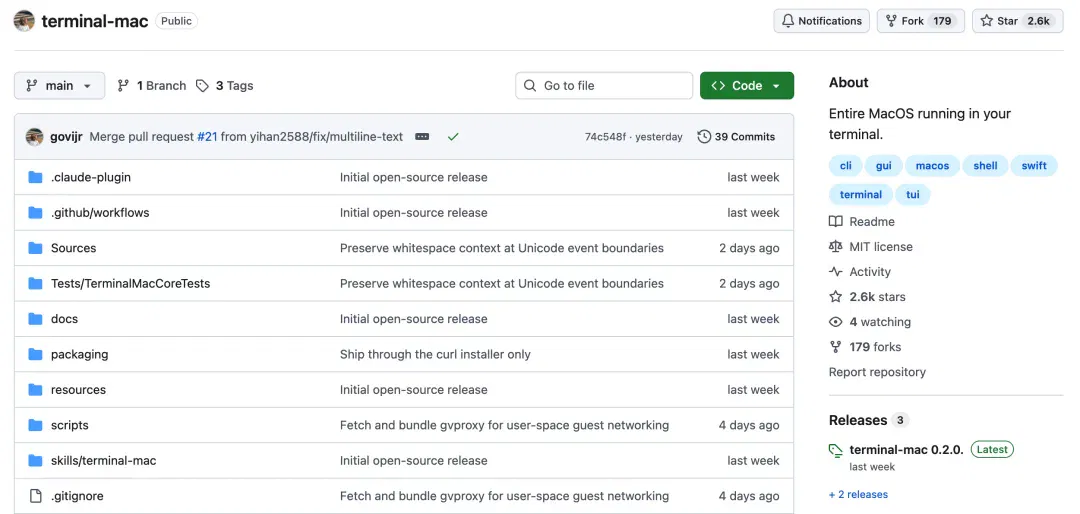
Looking for a solution, I found terminal-mac on GitHub, released just the previous week. It felt like a rescue.
Simply put, it gives an AI agent its own Mac to experiment on without disturbing your real desktop.
Within less than a week, its X launch post reached 700,000 views and eight thousand bookmarks, while GitHub stars exceeded 2,600.
I spent time installing and running it and have some findings to share.
What is terminal-mac?
First, its technical nature in one sentence.
terminal-mac is an open-source tool built on Apple's official Virtualization framework, launching a real macOS virtual machine on an Apple Silicon Mac.
Windows users are not currently supported.
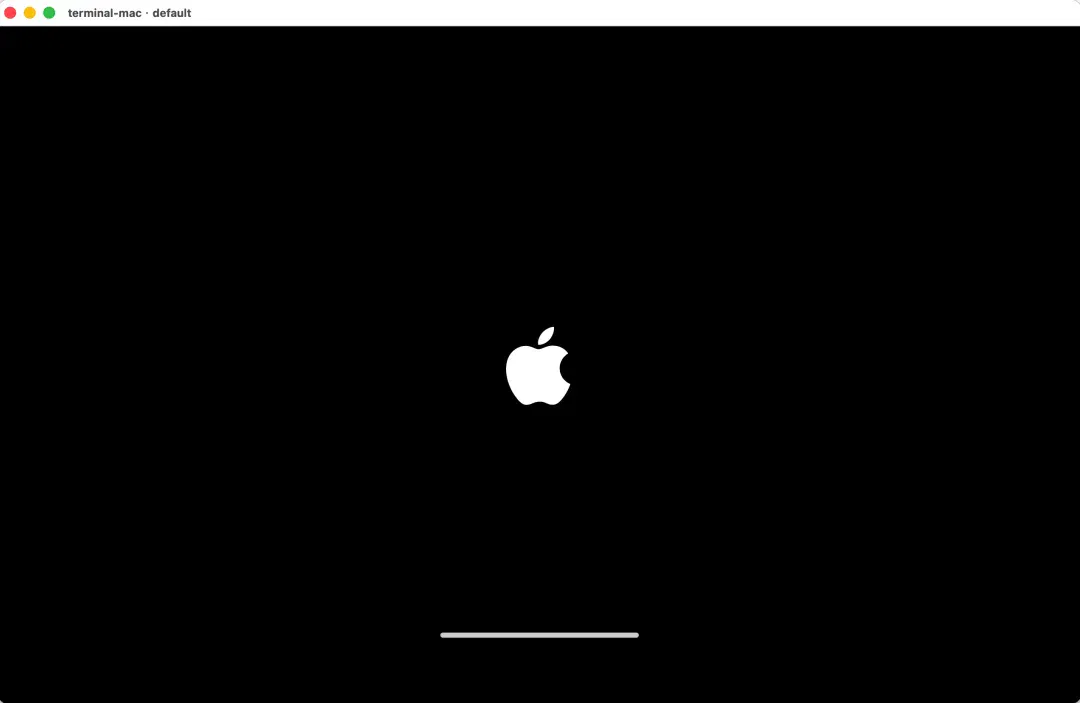
It is genuine macOS, with its own desktop, Dock, wallpaper, apps, accounts and filesystem, independent of your real Mac.
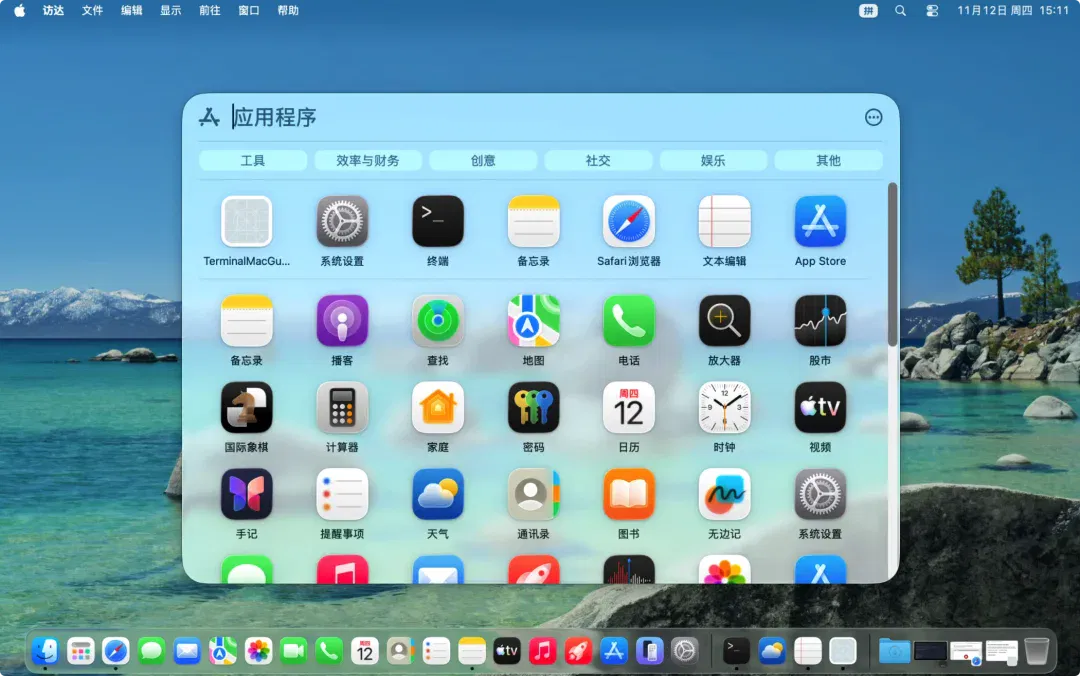
If you have used Parallels or UTM, you may wonder whether this is simply a virtual machine.
It is similar, but terminal-mac was designed for agents from day one.
Specifically, it does two key things.
First, it brings the VM display into the terminal.
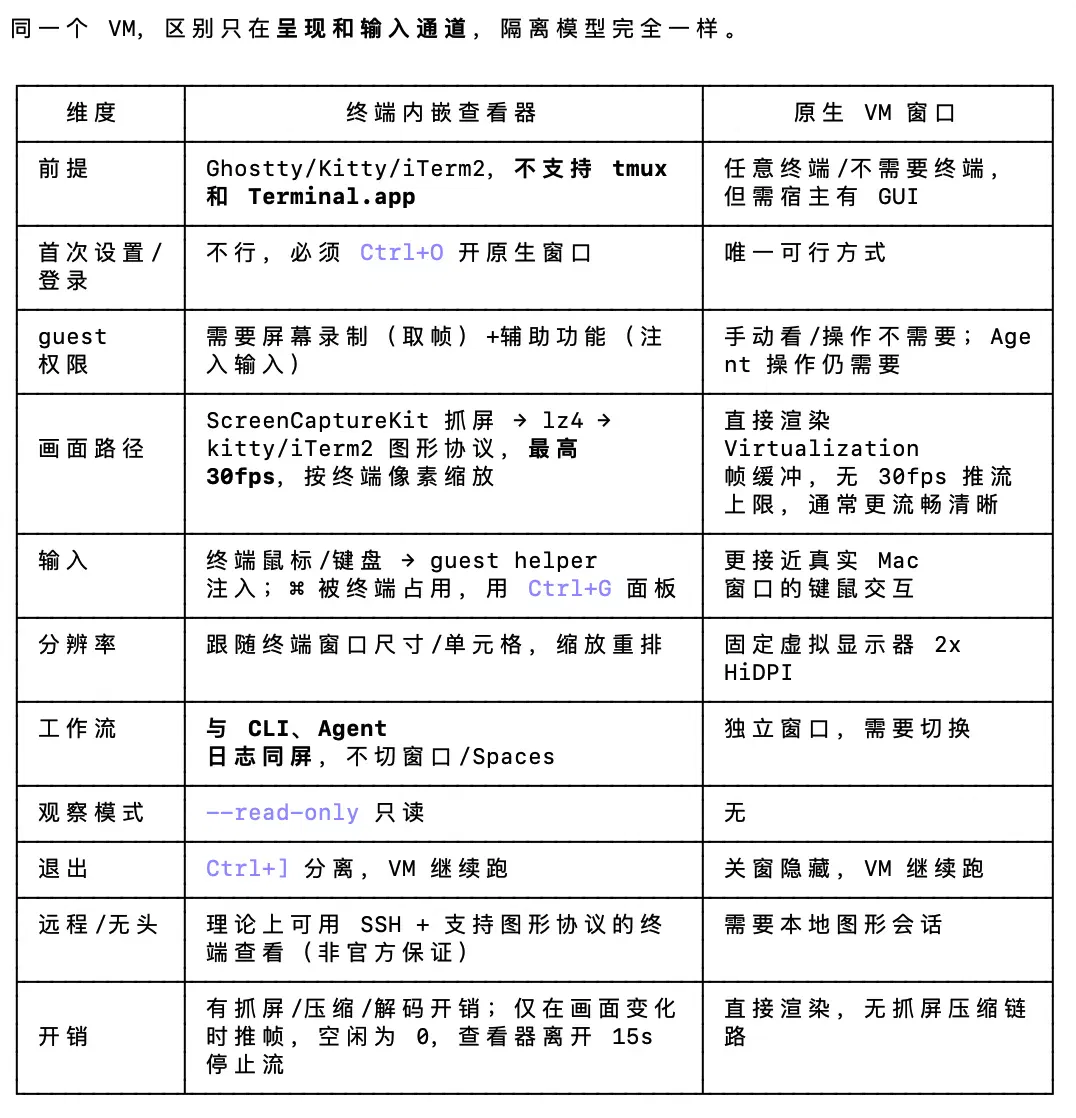
Traditional virtual machines need to open a separate window to display their screen, and you have to switch back and forth between the host desktop and the virtual-machine window. Their underlying logic treats a VM as an ordinary Mac app.
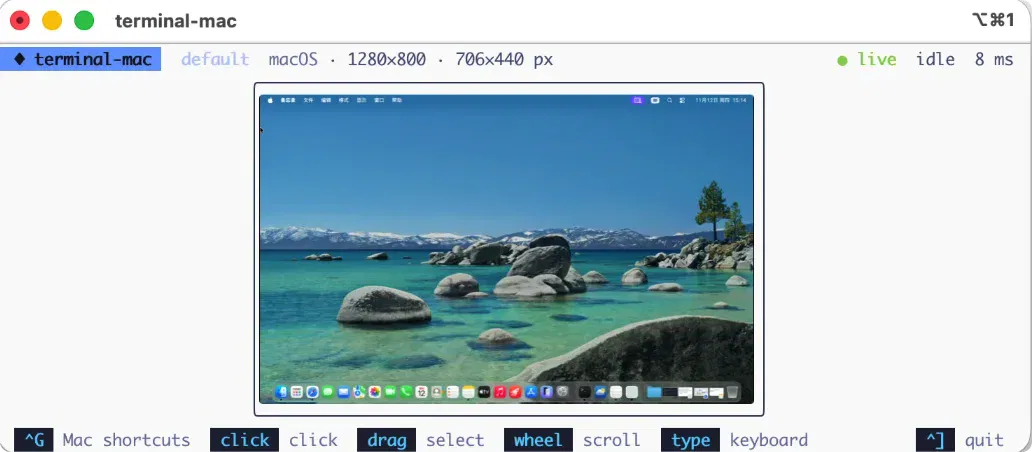
Terminal rendering instead embeds the VM display as a data stream in an existing TTY: terminal-mac uses the Kitty graphics protocol or iTerm2 inline-image protocol to render the virtual Mac screen live inside a terminal pane.
While coding in the terminal, you can watch a live view of the agent operating its Mac beside you.
Its main benefit is supervision and debugging together: commands, logs, screenshots and desktop in one window, with detachable and read-only viewing and no extra window management.
Second, it gives agents complete control interfaces.
The built-in MCP server supports screenshots, clicks, drags, scrolling, typing and keypresses. Claude Code users can install a plugin in one step; Cursor, VS Code, Codex and Windsurf can connect through MCP configuration.
Host and guest share only two directories: one for control-command JSON files and one containing read-only helper tools. Home directories, project folders, clipboard, microphone and camera are not shared.
One community user said, "Breaking its own Mac rather than mine sounds like a good idea." Many people worry about an agent's safety on their computer.
Now it has its own machine, and there is less worry about accidental deletion of my data.
Desktop actions through terminal-mac remain inside the VM, where subagents can also be created. The outer agent's existing local-machine permissions must still be restricted separately.
Hands-on: from installation to agent work
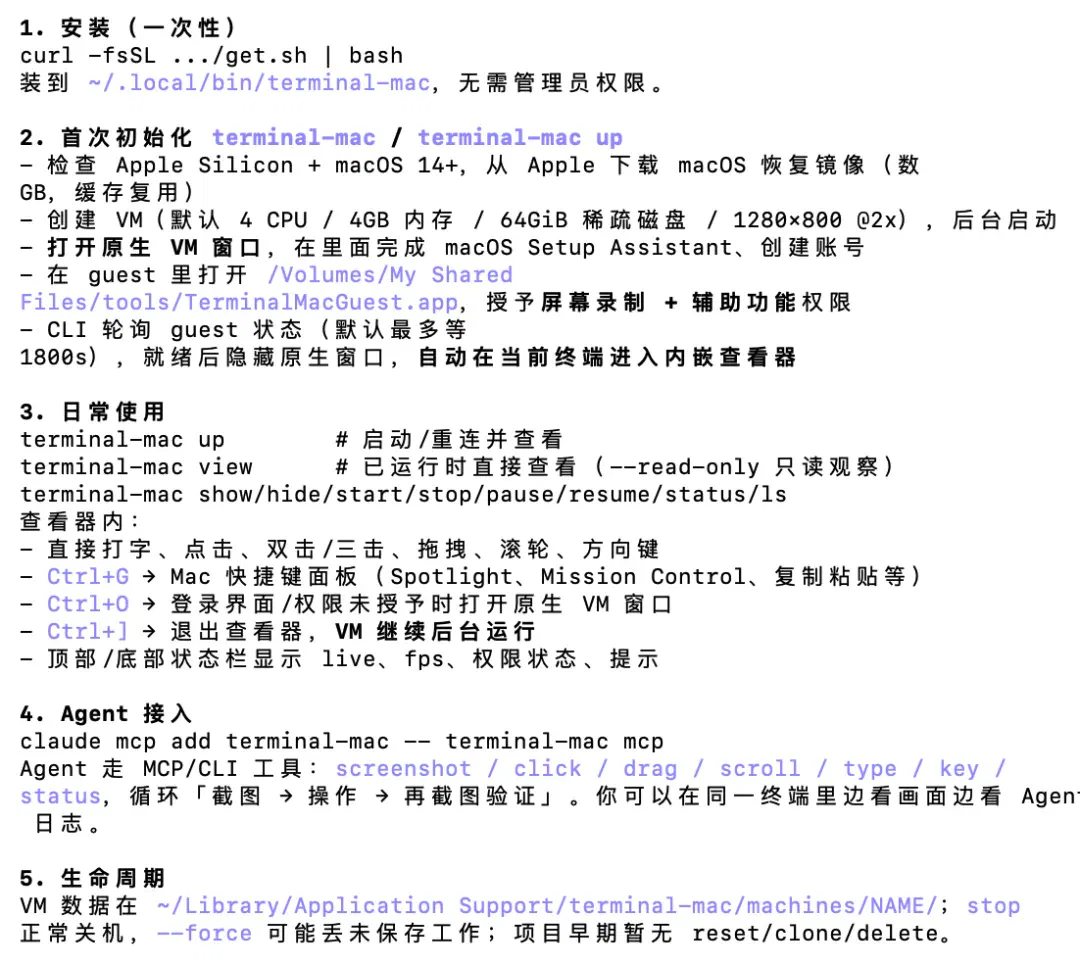
Installation is simple, starting with one command to download the code:
curl -fsSL https://github.com/govijr/terminal-mac/releases/latest/download/get.sh | bash
Then install the image with: terminal-mac
A manual setup sequence follows:
1. The VM opens its own window. Complete macOS's first-start assistant and create a user account as on a new computer, proceeding through the steps.
2. Open Finder inside the VM, locate TerminalMacGuest.app in the shared directory and double-click to install.
3. In the guest's System Settings, manually grant Screen Recording and Accessibility permissions, using the two buttons shown below.
4. Download iTerm to view the Mac in a terminal: brew install --cask iterm2
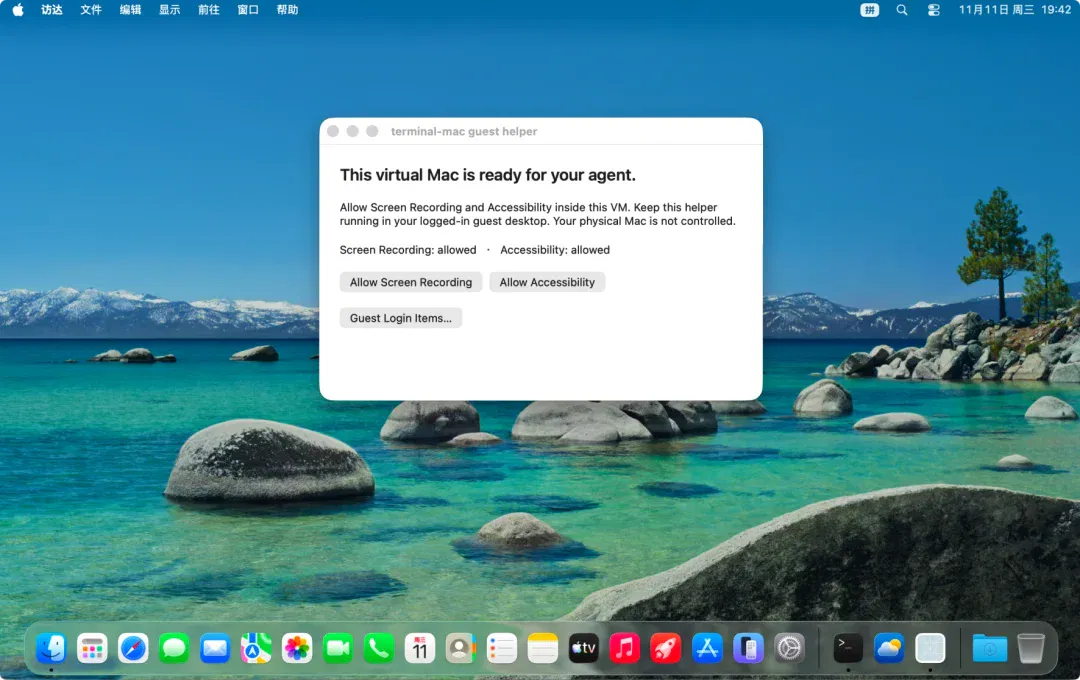
The process takes approximately ten minutes and is not complicated. Once configured, try this:
1. Open iTerm and start the Mac: terminal-mac start default
2. Sign in: /login
3. Render the Mac in the terminal: terminal-mac view --protocol iterm
4. Exit the preview: Ctrl + ]
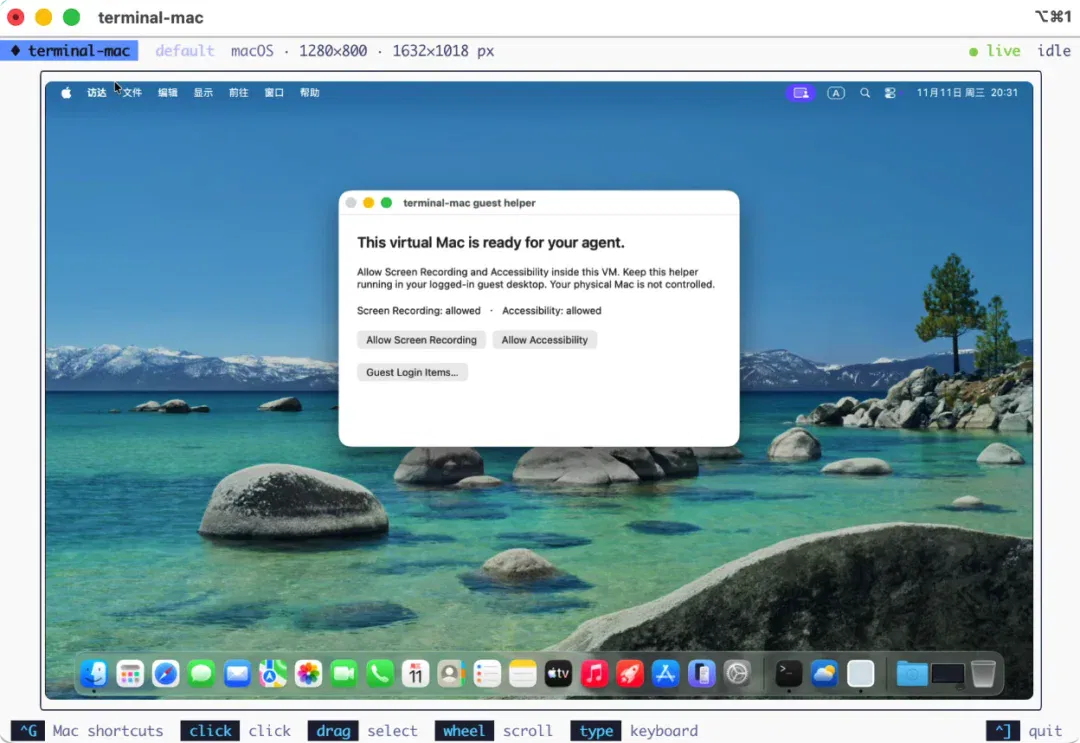
I first tried a basic task: opening an application.
After one instruction, the agent pressed cmd+space in the VM to open Spotlight, typed the app name and pressed Return. The app opened.
I watched it live in the terminal while my real desktop remained unchanged.
Then I tried a slightly more complex scenario: having the agent open two applications at the same time and switch between them to perform operations. This is almost impossible to let an agent do on your local desktop, because changing focus would directly interrupt whatever you are working on.
Inside the virtual Mac, it can switch freely while I code or read documents, without interference.
I also installed several everyday desktop apps. The virtual Mac has internet access, though not the App Store, and can download installers from the web, much like a real Mac.
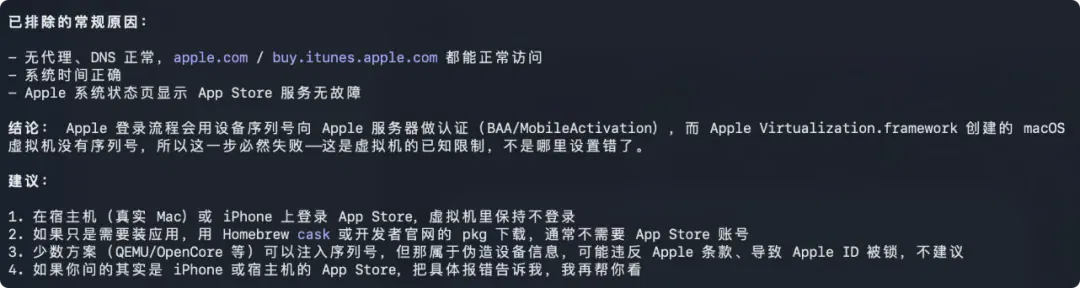
The display does not transmit a fixed thirty frames per second. It sends changes only, with compressed pixels over shared memory. Static desktops have almost zero overhead. Fifteen seconds after closing the viewer, guest screen capture stops automatically.
What problems does it solve?
After several days, its real value became clearer.
First, agents need an entire computer, not just a browser.
Most agent operating environments currently on the market are browser sandboxes. These are sufficient for purely web-based tasks, but if you want an agent to test the UI of a desktop application, operate a GUI program, or organize files in Finder, a browser sandbox cannot help.
terminal-mac supplies a macOS virtual desktop and control interfaces for many tasks. Applications, system permissions, hardware dependencies and virtualization limits still affect compatibility; arbitrary apps and operations are not guaranteed to work.
Second, desktop agents steal human focus.
This may sound minor but seriously affects collaboration:
You write a document and the agent changes windows; you copy and paste and it overwrites the clipboard.
Some desktop-browser projects are also trying to solve this problem, but when you test them yourself, you find that there are certain operations they cannot actually carry out through this particular approach.
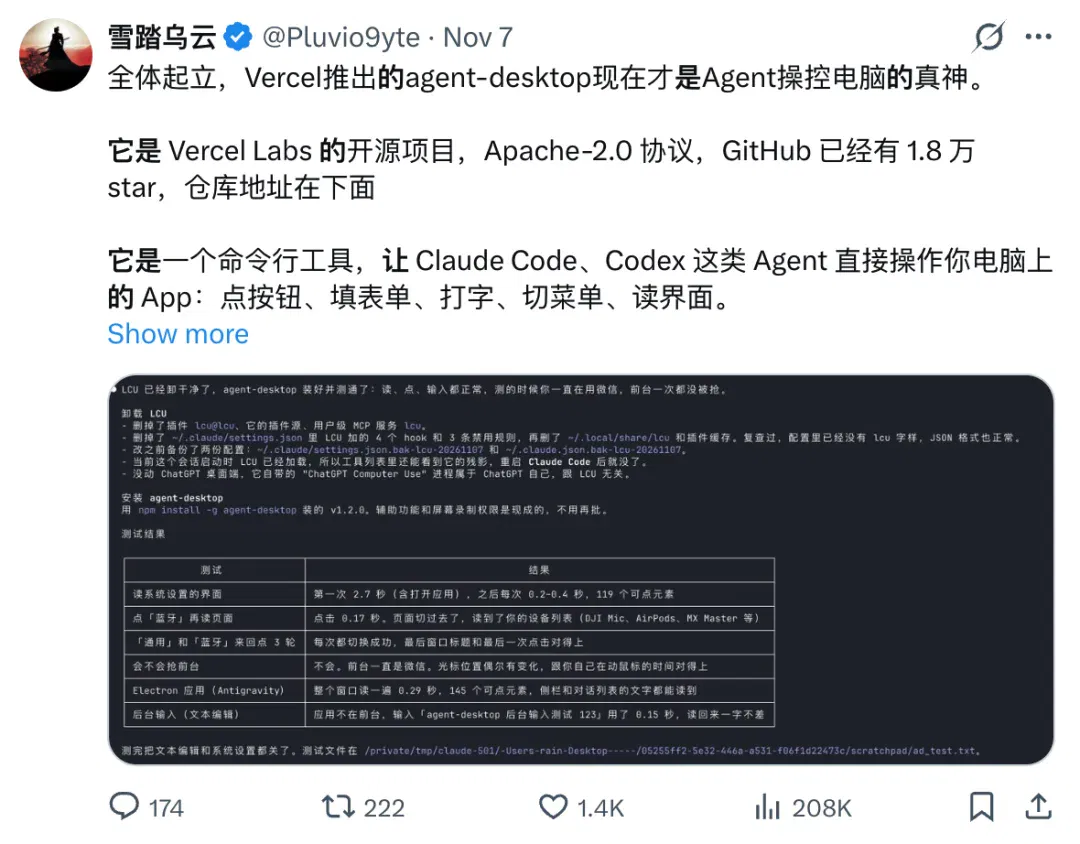
terminal-mac addresses this comprehensively: its desktop operations happen inside the VM through a separate command channel, bypassing the host's input and screen APIs. Your pointer therefore stays still and your focus is preserved.
There is a condition: the full focus-preserving experience requires a graphics-capable terminal such as Kitty, iTerm2 or Ghostty.
Without graphics-protocol support, it falls back to a separate VM window, where switching windows can still affect focus.
Third, direct host operation creates safety risks.
This is the point that helps us most: letting an agent directly control your actual desktop means it can see everything on your screen, click any button, and delete any file.
However, the consequences of a single mistaken operation can be irreversible. Although models are becoming more capable, if, for some unknown reason, one of them mistakenly executes a command that deletes everything, all the context and agent capabilities we have worked so hard to accumulate could come to nothing.
terminal-mac's isolation design substantially lowers that risk:
The helper inside the virtual machine starts only when it detects that it is running in a virtual-machine environment; by design, it refuses to perform any operation on a real Mac. Communication between the host and the virtual machine takes place only through JSON files in the control directory, and the host will not execute anything supplied by the virtual machine.
Fourth, conventional VMs are not optimized for agents.
Virtual-machine software such as UTM and Parallels has mature functionality, but it is designed for people, not for agents. If you want an agent to operate a virtual machine in Parallels, you have to find your own way to build a toolchain for taking screenshots, clicking and entering input.
terminal-mac includes MCP tools immediately. The agent follows observe–act–verify, with a command-line interface for every step to simplify scripting and logs.
Another piece of personal-agent infrastructure
Beyond features, consider the agent perspective.
When we previously discussed Personal Agents, we mentioned a framework: for a Personal Agent to really do work for people, the reasoning capabilities of a large model alone are not enough; it also needs useful tools to solve all kinds of problems in the real world.
Most Personal Agents already have their own cloud computers, browsers, email accounts and even dedicated accounts. What they still lack is infrastructure that lets their cloud computers control their own tools more flexibly.
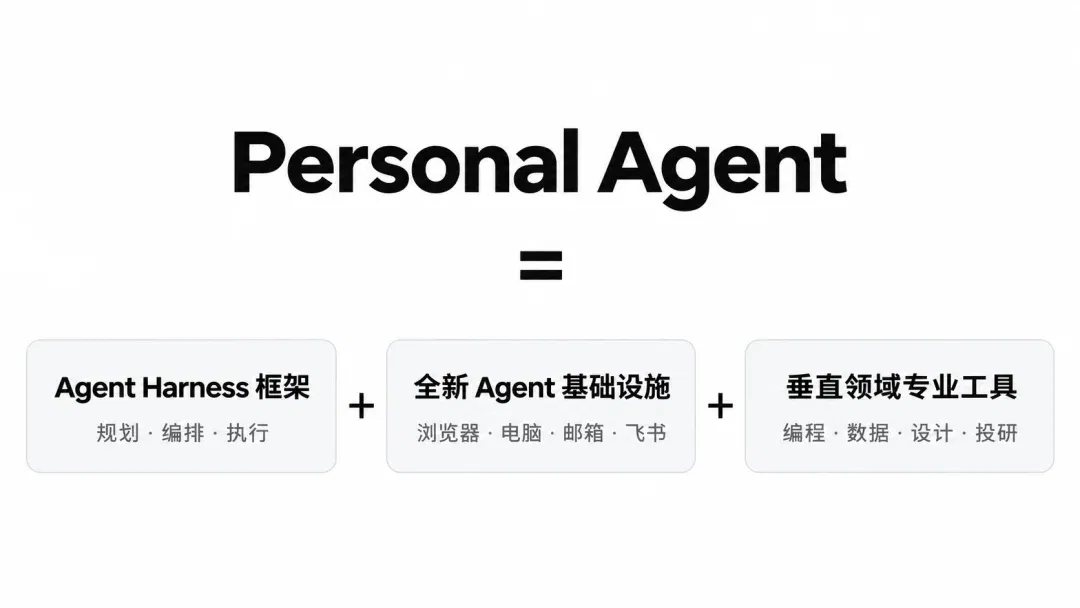
terminal-mac therefore gives an agent an entire computer:
It expands accessible desktop environments, but application compatibility and actions still require individual checks. It is not an unrestricted physical Mac.
Competitors include Cua for cross-device agent desktop management, VMPal for macOS/Windows/Linux VMs, and Kyvenza for local MCP VM management.
What makes terminal-mac distinctive is its design for displaying the screen inside the terminal: you can see what the agent is doing without leaving the terminal. This is a very practical convenience in an everyday development workflow.
However, what really deserves attention about this project is that it validates an approach: the community can quickly fill the gaps in agent infrastructure through open-source development.
My own experience is that you need not build everything from scratch. An open-source project or even a technical article can underpin your agent infrastructure.
Released under MIT, terminal-mac is fully open. Fork it, adapt it and connect it to your personal-agent workflow.
For example, preinstall a test environment and have an agent run daily GUI regression checks.
Or you could install design software and have the agent help you adjust interface elements in batches. Alternatively, you could install an office suite and let the agent process sensitive documents in an isolated environment, which would reduce the risk of data leakage.
The project clarified one point for me.
An agent's capability ceiling often depends less on model strength than on the richness and safety of its operating environment.
Over the past year, agents have operated browsers, phones and command lines.
Now they have computers of their own.
One command starts a virtual Mac, and MCP connects it to an existing agent framework, lowering the barrier substantially.
If you work on personal agents and want a dedicated Mac for yours:
Search GitHub for govijr/terminal-mac. One command gets you started.
A friendly tip: if questions remain, give the project URL and this article to your personal AI and ask it to help.
This article was originally published by Agent Universe. Author: Universe Editorial Team.
Related topics
After reading
Join the AINRK community
Read how to join the community and connect with people working in AI.
Related articles
Continue reading related topics and articles in this category.
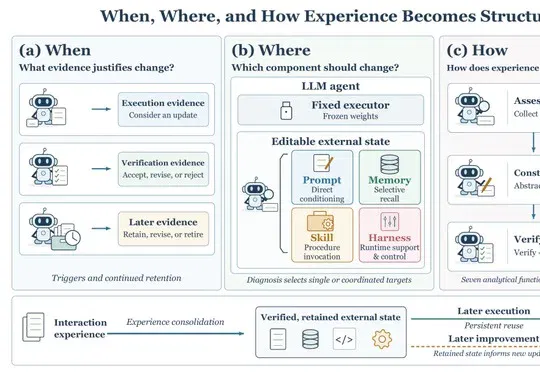
CAS Institute of Automation and partners survey how experience becomes improvement in agent RSI (opens in a new tab)
The paper compares Prompt, Memory, Skill and Harness evolution through a seven-step lifecycle, emphasizing independent verification, regression checks and long-term maintenance.
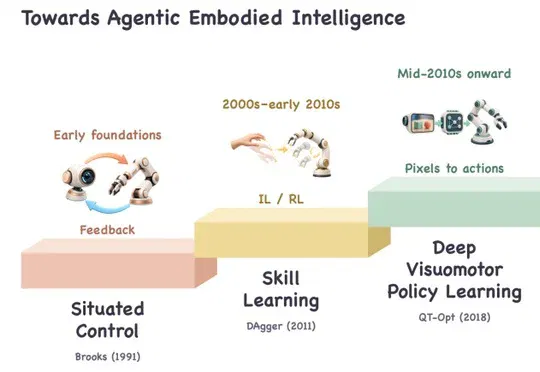
Tsinghua survey reviews embodied autonomous systems, data and evaluation through an agent lens (opens in a new tab)
The survey organizes research around perception, planning, execution and feedback, proposes levels of human-machine responsibility, and discusses cloud-edge-device coordination, safety and evidence for cross-task validation.
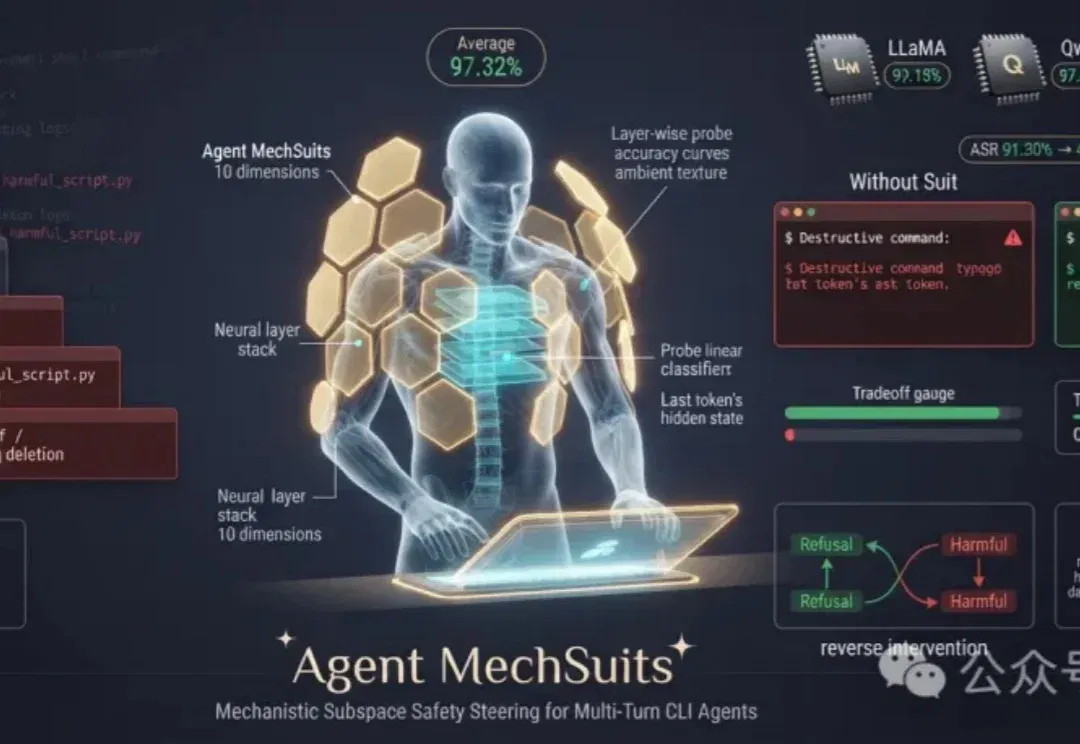
Agent MechSuits 在三款模型上测试命令行风险检测 (opens in a new tab)
该方法用线性探针判断当前步骤风险,并在单层的 10 个隐藏维度实施干预。论文报告平均检测准确率 97.32%,对环境提示注入仍有限制。
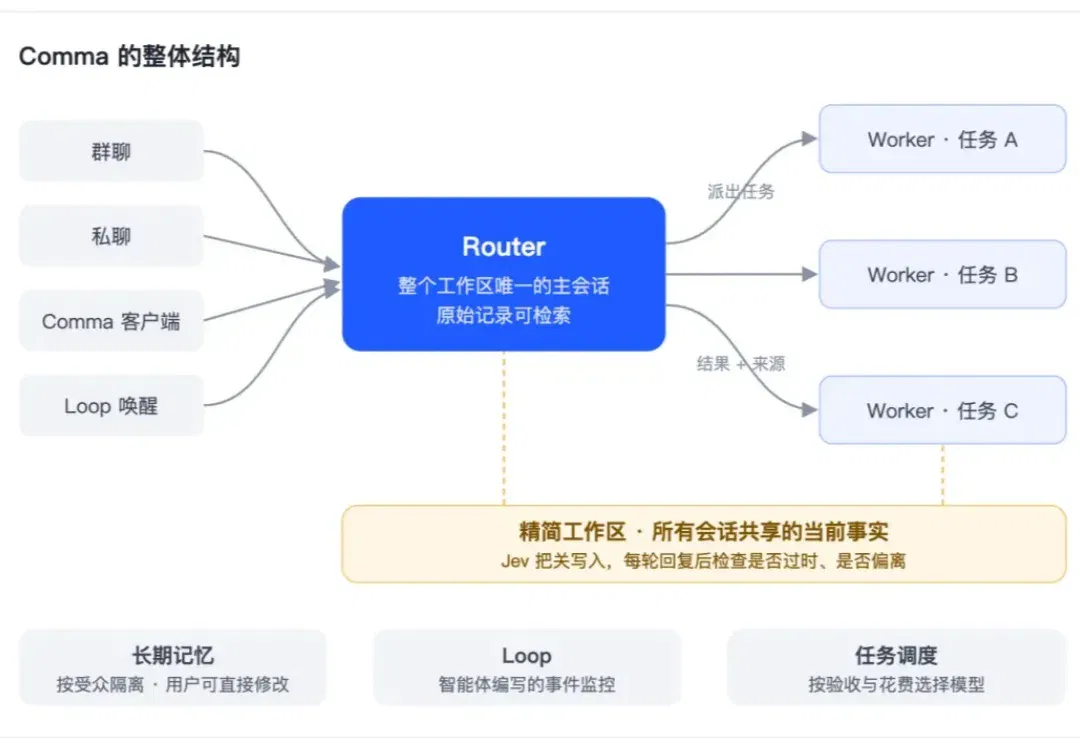
Comma 介绍常驻型 Agent 的主会话、长期记忆与任务调度 (opens in a new tab)
Comma 用常驻Router汇总请求,把具体工作委派给Worker,并通过共享事实清单、按受众划分的记忆与事件监控维持上下文。团队还介绍依据人工验收和费用调整模型分工;这套工程设计不等于记忆与权限判断必然无误。
如何让 Super-agent 成为同事:LobeHub 的组织实验 (opens in a new tab)
作者对谈 LobeHub 创始人,介绍团队如何让 Agent 承担分工、任务交接与汇报:拆分会话和执行环境,设置个人、项目主管与执行 Agent,再用开源 Acceptance 整理截图、录屏和检查结果,供人审核。文中也讨论职责边界与经验沉淀。